
How to Split a Large PDF Into Smaller Files
When compression isn't enough, split the file into sections that clear the limit.
 By Biraj Paudel, Founder of FynePDF4 min read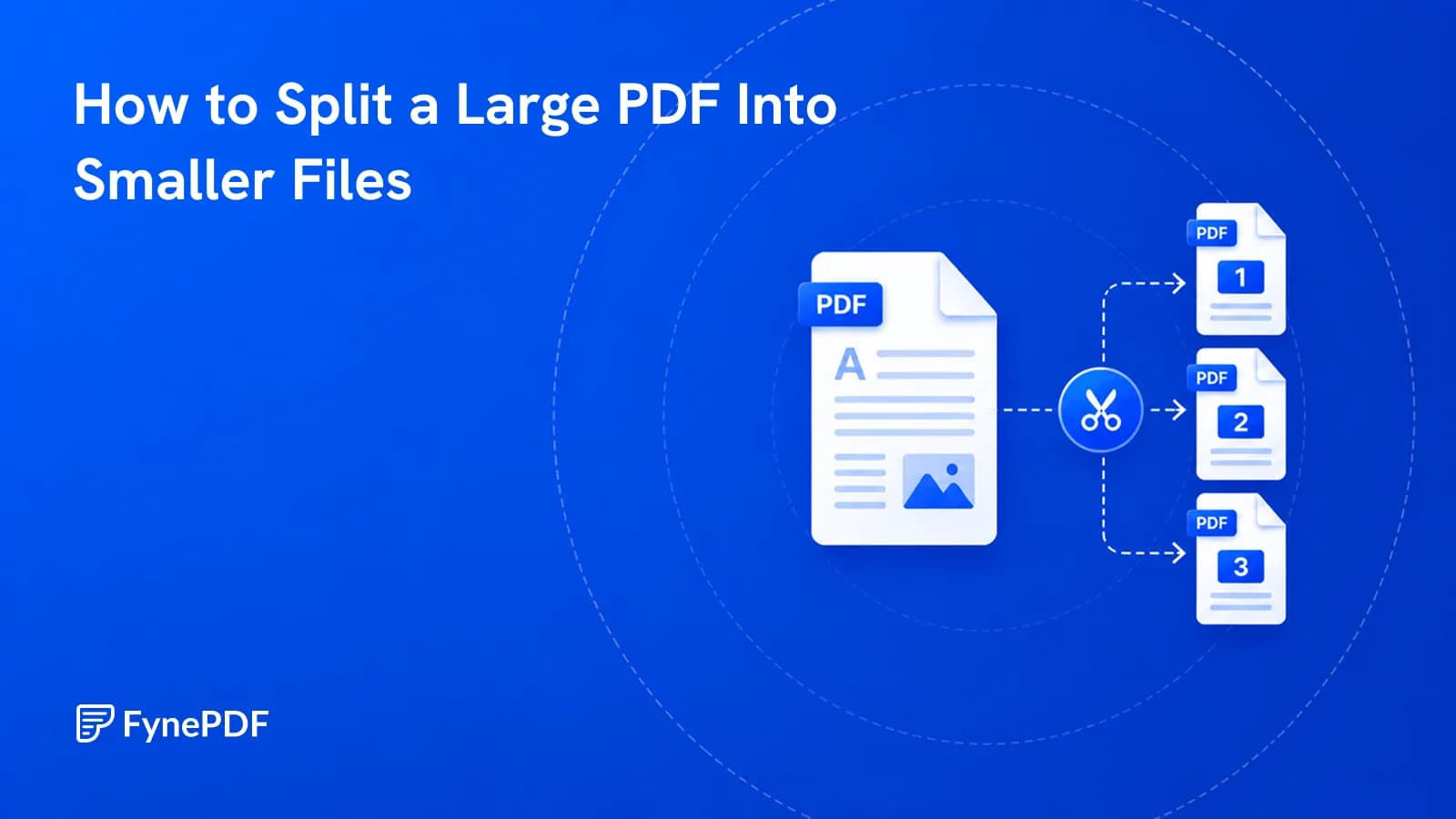
To split a large PDF, upload it, mark where each break should fall, and download the sections as separate files. Splitting is the right move when compression has already run and the file is still too big, which happens most often with long scanned documents.
The distinction matters: compression reduces how much space the content occupies, splitting reduces how much content is in each file. Long scans need the second one.
When should I split instead of compress?
Compress first, always. If a 60MB scanned deposition drops to 40MB and your email cap is 25MB, compressing harder will start visibly degrading the scans you need to stay legible. That's the point to split.
A rough rule: if the file is long (100+ pages) and mostly scanned, splitting will get you under the limit without touching quality. If it's short and image-heavy, compression alone usually does it.
Where should the breaks go?
Not at arbitrary page counts. Split along boundaries the recipient will recognise, or you're handing them a puzzle:
- By section. Each chapter, exhibit, or appendix becomes its own file
- By date range, twelve months of statements become twelve files
- By recipient, only the pages each person actually needs
- By size, when the limit is the only constraint that matters
If you're splitting purely for size, name the outputs clearly. Contract_pages_1-40.pdf tells the recipient what they have; document_1.pdf does not.
How do I split a PDF?
- Open the Split PDF tool.
- Upload the file.
- Mark the pages where each break should fall.
- Download the resulting files.
Free accounts handle files up to 600MB here, so even large scanned archives can be processed without a subscription.
What limits am I splitting to fit?
| Destination | Typical cap |
|---|---|
| Gmail | 25MB send, 50MB receive |
| Outlook desktop | 20MB |
| Microsoft Exchange | 10MB by default |
| USCIS document upload | 6MB per document |
| Applicant tracking systems | 5MB, some as low as 2MB |
Aim for about 70% of the stated cap. Email encodes attachments as Base64 before sending, which inflates them by roughly a third, so a 22MB file can fail a 25MB limit.
Do I need the whole file, or just some pages?
If you only want specific pages rather than a full division of the document, use Extract Pages instead. It produces one file containing your selection and leaves the original untouched, which is usually what people actually want when they say "split."
To remove pages rather than isolate them, Delete Pages is the more direct route.
How should I name the resulting files?
Descriptively, because the recipient has to reassemble your intent from filenames alone. Contract_pages_1-40.pdf and Contract_pages_41-80.pdf tell someone what they have and what order to read in. document_1.pdf tells them nothing, and three of those in an inbox is a puzzle.
If you are sending sections separately, say in the message how many parts there are. A recipient who does not know part three exists will not ask for it.
Common questions
Will splitting reduce quality?
No. Each output file contains the original pages exactly as they were, with no re-encoding. A 300 DPI scan stays a 300 DPI scan across every section. Only compression changes image data.
How do I split into equal file sizes?
You generally can't split cleanly by size, because pages vary enormously, one scanned photo page can outweigh fifty text pages. Split at logical boundaries first, then compress any section that's still over the limit.
Can I split a password-protected PDF?
Remove the protection first with Unlock PDF using the password you have, split the file, then reapply protection to each section with Protect PDF if needed.
What if I split it wrong?
Nothing is destroyed. The original file is unchanged, so you can re-upload it and split again with different break points. If you've already split and want to recombine sections, Merge PDF will put them back together in order.
Split your file now
Open the Split PDF tool, mark your break points, and download the sections. Name them clearly before you send.
 N-Up & Impose
 Crop PDF
 Compress PDF