fynepdf logo

Extract PDF Images

Save every photo and logo inside a PDF as its own file, ready to reuse.

  • Original image quality
  • No watermark on downloads

or drop your file here

File upload

Original Asset Recovery

Scan your document and pull out every embedded photo, logo and graphic.

Extract on Any Device

Works in any browser on Mac, Windows, Linux, iPhone and Android.

Check Images for Alt Text

Pull every image out to write or check the descriptions accessible PDFs need.

Three Steps to Extract Your Images

FynePDF handles the scanning automatically, you just upload the document and download your assets.

1

Upload your PDF

Drag and drop or select your image-heavy document up to 600MB on the free plan and 5GB on paid.

2

Extract all graphics

The tool reads the PDF to find and extract its embedded images.

3

Download the Result

Your extracted high-resolution graphics are bundled into a convenient ZIP file to download immediately.

Stop Taking Blurry Screenshots.

Trying to manually crop images out of a PDF ruins their quality. Here is why extracting the original embedded graphics is the only professional choice.

Recover Original Assets

Lost your master design files? Extract the high-resolution company logos, icons, and product photos directly from the PDF.

Bypass Low-Res Screen Grabs

Stop taking blurry, pixelated screenshots of PDF pages. Pull the uncompressed source images exactly as they were embedded.

Repurpose Infographics

Easily grab complex charts, graphs, and visual data from massive research papers to reuse in your own slide decks or marketing.

Web Design Handoffs

Quickly extract specific background images, vector graphics, and brand assets from a client's PDF brand guidelines or mockups.

Unpack Photo Portfolios

Turn a combined PDF photography portfolio or digital look-book back into individual, high-quality image files for social media sharing.

Access Locked Visuals

When a document has restricted copy-paste permissions, securely extract the embedded charts and diagrams as separate image files.

How image extraction works

A PDF stores its images as separate objects inside the file, complete and independent of how they're displayed. FynePDF reads those objects directly and writes each one out as its own image file which is why extraction gives you the original rather than a screenshot of how it looked on the page.

Originals, not screenshots

Images come out at the resolution they were embedded at, which is usually far higher than what fits on screen.

Nothing re-compressed

Each image is written out exactly as stored in the file. No quality is lost between the PDF and your download.

Delivered as a ZIP

Every image arrives in a single archive, so a document with two hundred graphics is still one download.
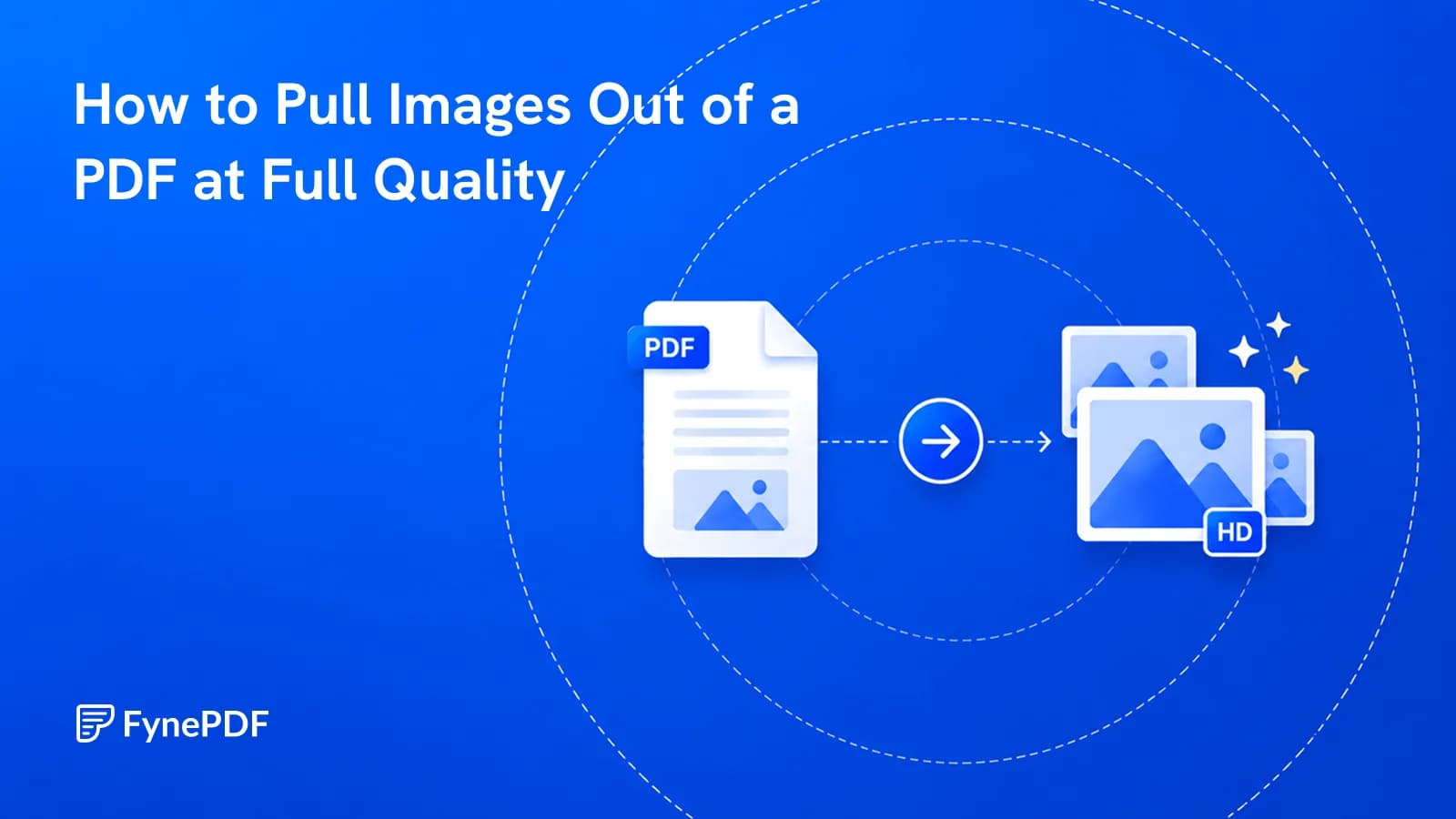
After extracting graphics from your PDF

Frequently Asked Questions

What types of graphics can be extracted from PDFs?

FynePDF extracts every raster image embedded in your PDF, JPG, PNG and other bitmap formats exactly as they were stored in the file. Each image is written out separately and delivered together in a ZIP. Vector graphics such as logos drawn directly in the PDF aren't extracted as files, because they're part of the page's drawing instructions rather than stored images.

Will the extracted images be in their original quality?

Yes. Images are extracted at their original embedded resolution and format, with no re-compression and no quality loss. That's usually far better than a screenshot, a photo displayed small on a page may be several thousand pixels wide in the file itself. Free accounts extract from files up to 600MB.

Is the Extract PDF Images tool free to use online?

Yes, FynePDF's Extract PDF Images tool is free with no sign-up required. Free accounts extract from files up to 600MB, with 10 tasks and 600MB of processing a day. Professional at $7/month raises this to 5GB with unlimited daily tasks.

Is it safe to use Extract PDF Images on FynePDF? Are my files secure?

File transfers use TLS encryption. Cloud-processed files are automatically deleted within 15 minutes after processing completes, unless you choose to save them to your Library. Documents are not used to train AI models. Read the Privacy Policy for storage and processing details.

Can I use the Extract PDF Images tool on Mac, Windows, or mobile?

Yes. FynePDF's image extractor works directly from your browser, so it works on Windows, Mac, Linux, iOS and Android with no installation. Chrome, Firefox, Safari and Edge are all supported.

Why are some images missing or split into strips?

Some PDF generators slice a single image into horizontal strips or tiles when placing it on the page, so extraction returns the pieces rather than one picture. Others draw logos and diagrams as vector instructions rather than embedded images, meaning there's no image file to extract at all. If something you can see on screen doesn't appear, it's almost certainly one of those two cases, PDF to Image will capture it by rendering the whole page instead.

What's the difference between extracting images and converting a PDF to images?

Extracting pulls out the individual photos and graphics embedded in the document, at their original resolution. Converting to images renders each whole page as a picture, including text and layout. Use extraction when you want the assets; use conversion when you want a snapshot of the page.

Can I extract a logo or vector graphic as an SVG?

Not currently. Vector artwork drawn directly in the PDF is stored as drawing instructions rather than as an image file, so there's nothing to pull out only embedded raster images are extracted. If the logo was placed as a PNG or JPG, it comes out normally.

Can I extract images from a password-protected PDF?

Remove the password first with Unlock PDF, then extract normally. FynePDF requires the password, so this only works on documents you already have access to.