
How to Pull Specific Pages Out of a PDF
They asked for one appendix, not the 300-page report. Here's how to send just that.
 By Biraj Paudel, Founder of FynePDF4 min read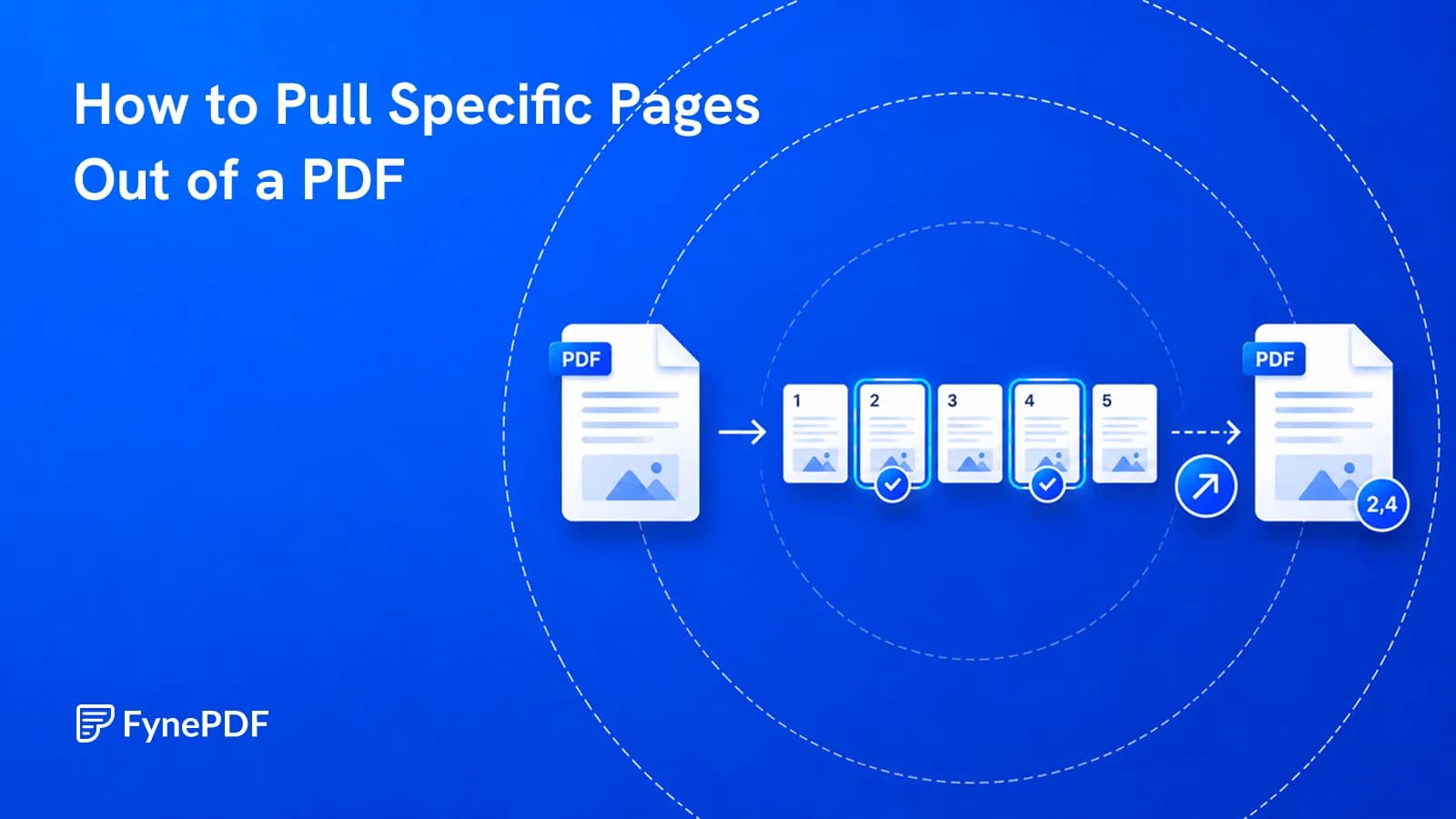
To pull specific pages out of a PDF, upload the file, select the pages you want, and download them as a new document. The original is unchanged. This is the right approach when someone needs a section rather than the whole thing, an appendix, a signature page, one month of statements.
It's also the cheapest way to keep a file under a size limit, since you're removing everything that isn't needed.
Why does this matter more than it sounds?
Three reasons, in order of how often they bite.
Attention. Sending 300 pages when three are relevant means the recipient has to find them, and some won't bother. Extracting the section is the difference between a question answered and a document ignored.
Size. Portals are strict. USCIS accepts 6MB per document, applicant tracking systems commonly cap at 5MB. Extracting the pages that matter is often more effective than compressing everything.
Disclosure. A full report may contain internal notes, pricing, or other parties' details that this recipient shouldn't see. Extracting only the relevant pages avoids sending information you'd then have to explain.
How do I extract pages?
- Open the Extract Pages tool.
- Upload the document.
- Select the pages you need.
- Download the new file.
Free accounts handle files up to 600MB. Your original stays intact, so getting the selection wrong costs nothing.
Extract, split, or delete, which one?
These three overlap and people reach for the wrong one constantly:
| Goal | Tool |
|---|---|
| Keep a few pages, discard the rest | Extract Pages |
| Divide the whole document into sections | Split PDF |
| Remove a few pages, keep the rest | Delete Pages |
| Change the order | Organize Pages |
The rule of thumb: if you're keeping less than half, extract. If you're removing less than half, delete. Selecting five pages to keep is far less error-prone than selecting ninety-five to remove.
How do I find the right pages?
Obvious in a short document, tedious in a long one. If the PDF has real text, search it. Ctrl+F for the section heading or a distinctive phrase gives you the page number directly.
If searching finds nothing, the document is a scan and contains images rather than text. Run OCR first to make it searchable, which is worth doing anyway if you'll be working with it further.
For documents where you're not sure what's where, Chat with Doc can tell you which pages cover a topic. Ask for page references and verify them before extracting.
Or skip the page numbers entirely. “Keep only the pages about pricing” opens Smart Edit with that request ready: it reads the document, names the pages it would keep, and waits for you to check them before it runs.
What should I check before sending?
Two things, quickly:
Context. A page extracted from the middle of a document may reference something on the page before it. Read the first and last extracted pages to confirm they stand alone, and include the preceding page if a definition or table header lives there.
Page numbers. Extracted pages keep their printed numbering, so a document of pages 47–52 starts at 47. That's usually fine and sometimes confusing, Add Page Numbers will renumber from one if the extract should read as a standalone document.
Common questions
Can I extract non-consecutive pages?
Yes. Selecting pages 3, 17, and 40 produces one file containing those three in that order. Useful for pulling every signature page out of a long agreement.
Will the file be smaller?
Proportionally, yes, and often dramatically so if you've dropped image-heavy sections. If it's still too large, Compress PDF will reduce it further.
Can I extract from a protected PDF?
Remove the protection first with Unlock PDF using your password, extract, then reapply protection with Protect PDF if needed.
Does extracting remove sensitive data from the pages I keep?
No. It removes whole pages. Sensitive content within a page you're keeping needs Redact PDF, which deletes the text rather than hiding it.
Is my document kept?
Files transfer over encrypted connections and are permanently deleted within 15 minutes of processing unless you save them to your library.
Extract what you need
Open Extract Pages, select your pages, and read the first and last one to check they stand alone.
 Organize PDF Pages
 Flatten PDF
 Repair PDF