
PDF Too Large to Email? Here's How to Get Under the Limit
Gmail stops at 25MB, Outlook at 20MB. Here's why your file is oversized and how to get under it.
 By Biraj Paudel, Founder of FynePDF5 min read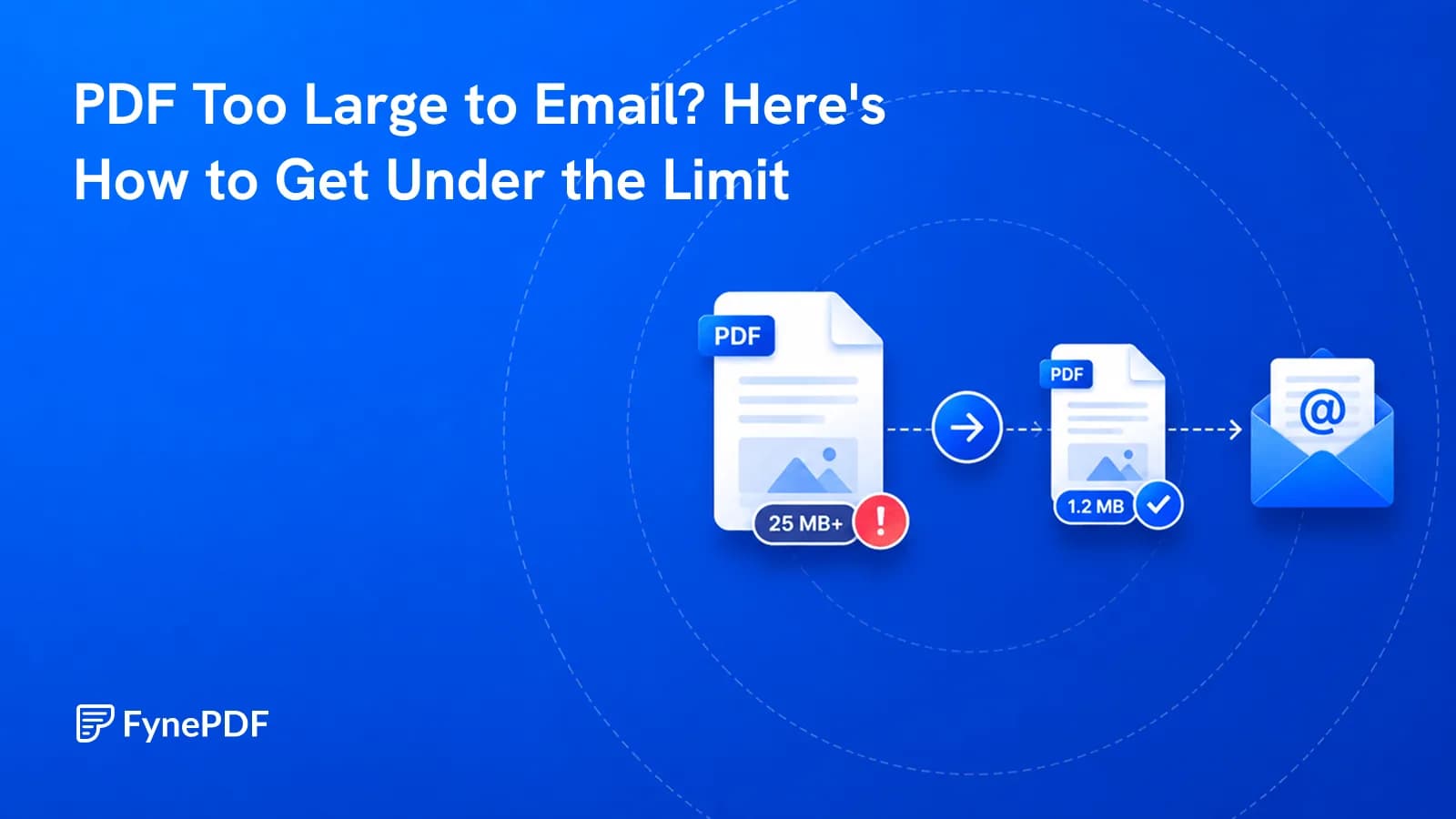
Your PDF is too large to email because most providers cap attachments at 20–25MB, and email encoding inflates every file by roughly a third before it's sent. A 22MB PDF can arrive at the server as 29MB and bounce. Compressing the file below about 18MB clears the limit reliably.
That last part surprises people, so it's worth stating plainly: the number your file manager shows you is not the number your mail server checks.
Why does a 22MB PDF fail a 25MB limit?
Email can't transmit binary files directly. Attachments are converted to Base64 text before sending, which increases their size by approximately 33%. Your 22MB PDF becomes roughly 29MB in transit, exceeding a 25MB cap even though the file on your desk looks like it should fit.
This is why "but it's under the limit" bounces are so common. Aim for about 70% of the stated cap and you'll stop hitting it.
What are the actual attachment limits?
| Service | Limit | Notes |
|---|---|---|
| Gmail | 25MB send / 50MB receive | Larger files auto-convert to a Drive link |
| Outlook.com | 25MB | Web client |
| Outlook desktop | 20MB | Default for connected accounts |
| Microsoft Exchange | 10MB default | Admin-configurable; many workplaces raise it |
| iCloud Mail | 20MB | |
| Yahoo Mail | 25MB |
Corporate mail servers are the unpredictable ones. Exchange ships with a 10MB default, so a file that sails through Gmail can still bounce off a client's server. If you're emailing a business address and don't know their limit, target 7MB.
Upload portals are stricter than email, and they're where oversized PDFs cause the most damage:
- USCIS accepts 6MB per document and rejects password-protected files outright
- Applicant tracking systems commonly cap resumes at 5MB, and some legacy systems at 2MB
- Court e-filing systems vary widely by district, typically 35–50MB
What's actually making the file so big?
Scanned pages, almost always. A page scanned at 600 DPI stores four times the pixel data of the same page at 300 DPI, and roughly sixteen times that of a 150 DPI scan. A 40-page scanned contract can easily pass 100MB while a 400-page text document sits under 2MB.
After scans, the usual culprits are embedded images at full camera resolution, fonts embedded in their entirety rather than subset to the characters actually used, and leftover data from the exporting application. Revision history, thumbnails, unused objects, and metadata that no reader ever sees.
The distinction that matters: text in a PDF is stored as vectors and takes almost no space. Images are stored as pixels and take nearly all of it. Compression works by attacking the second category and leaving the first alone, which is why compressed documents stay sharp when you zoom in.
How do I compress a PDF below the limit?
- Open the Compress PDF tool.
- Drag your file onto the page.
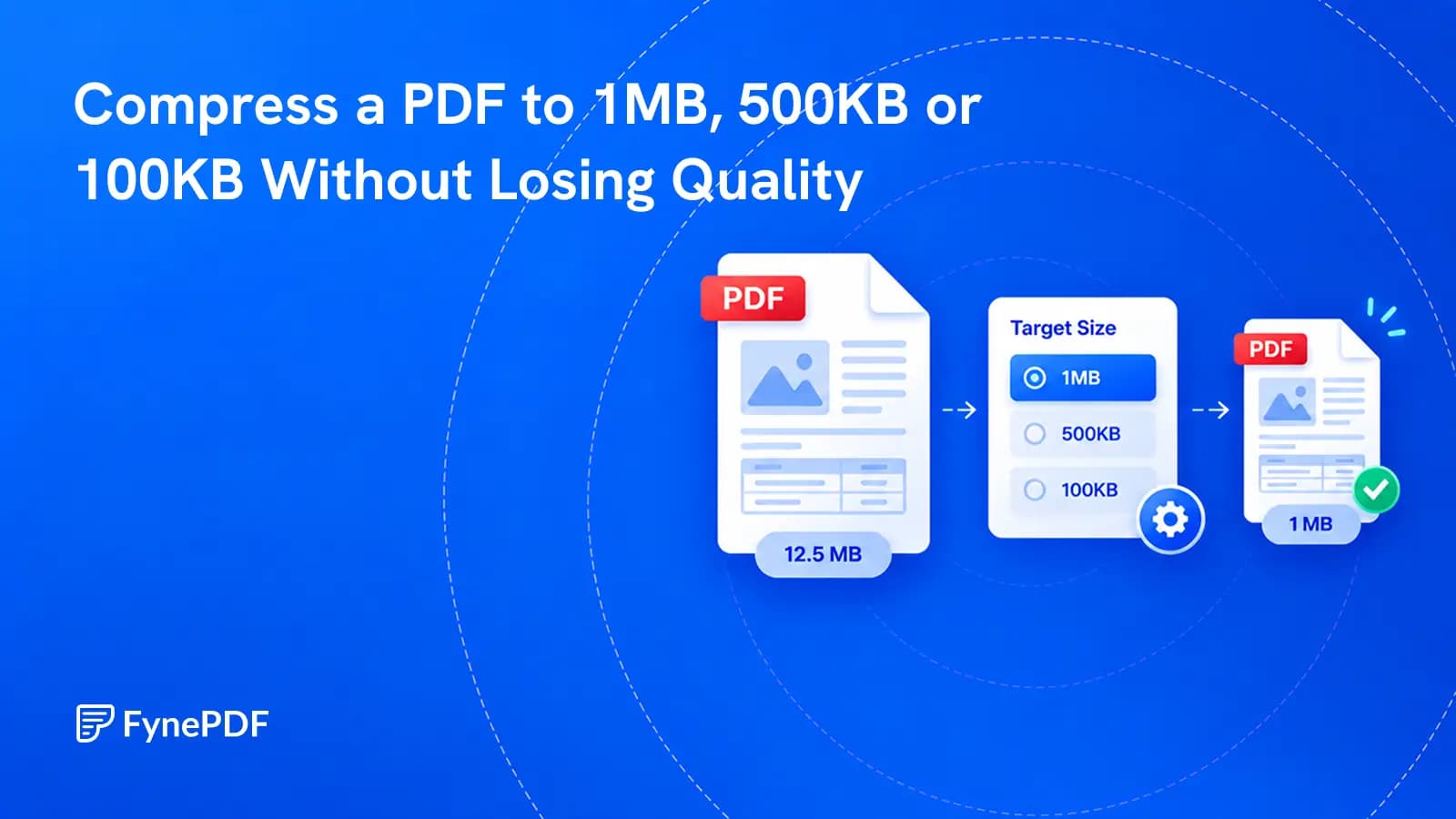
- Pick a compression level. Balanced works for most email attachments.
- Download the smaller file and attach it.
Nothing to install, and you don't need an account to run it. Free users get files up to 600MB, well above the 25MB free ceiling most browser PDF tools enforce, plus 5 tasks and 600MB of processing a day.
Which level should I choose?
Emailing it. Balanced. Clears 25MB caps comfortably and keeps images clean enough that nobody comments on them.
Uploading to a portal. Aggressive. USCIS, job applications, and university submission systems are read on screen, where image data above 150 DPI is invisible anyway. This is where the biggest reductions live.
Printing it. Light, or skip compression entirely. Print reproduces detail that screens don't. A file optimised for a web form will look soft on paper.
How much smaller will it actually get?
It depends entirely on what's inflating the file, and honest expectations help here. Scanned and image-heavy documents routinely drop 60–80%. A text-only report that's already lean might only shrink 10–15%, because there was little waste to remove in the first place.
If your 8MB text document only compresses to 7MB, the tool isn't underperforming. That file was already efficient.
What if it's still too large after compressing?
Split it. A 300-page scanned deposition that lands at 60MB after compression isn't going to fit any email limit, and compressing harder will start visibly degrading the scans you need to stay readable.
Use the Split PDF tool to break it into sections and send them as separate messages, or upload the full file to cloud storage and send a link. For recipients on a 10MB Exchange server, the link is usually the only thing that works.
Common questions
Will compressing make the text blurry?
No. Text is stored as vector data and is never rasterised during compression, so it stays sharp at any zoom level. Only images are reduced in resolution. If text in your PDF does look blurry, the page was scanned as an image, and running OCR will fix it properly.
Is it safe to compress a confidential document?
Files transfer over encrypted connections and are permanently deleted within 15 minutes of processing unless you save them to your library. Nothing is read, stored long-term, or shared. For contracts and financial records, that 15-minute window is the relevant guarantee.
Can I compress a password-protected PDF?
Not directly, the protection has to come off first. Use the Unlock tool with the password, compress the file, then reapply protection with Protect PDF if the recipient needs it. Worth noting that USCIS and many government portals reject password-protected PDFs regardless of size.
Get your file under the limit
Upload your PDF to the Compress PDF tool and pick a level. Most oversized attachments clear the 25MB line on the first attempt, and you'll know in seconds whether yours did.
 Compress PDF

 Repair PDF