
Can't Search or Copy Text in a Scanned PDF? Here's Why
Ctrl+F finds nothing because your PDF is a picture of words, not actual words.
 By Biraj Paudel, Founder of FynePDF3 min read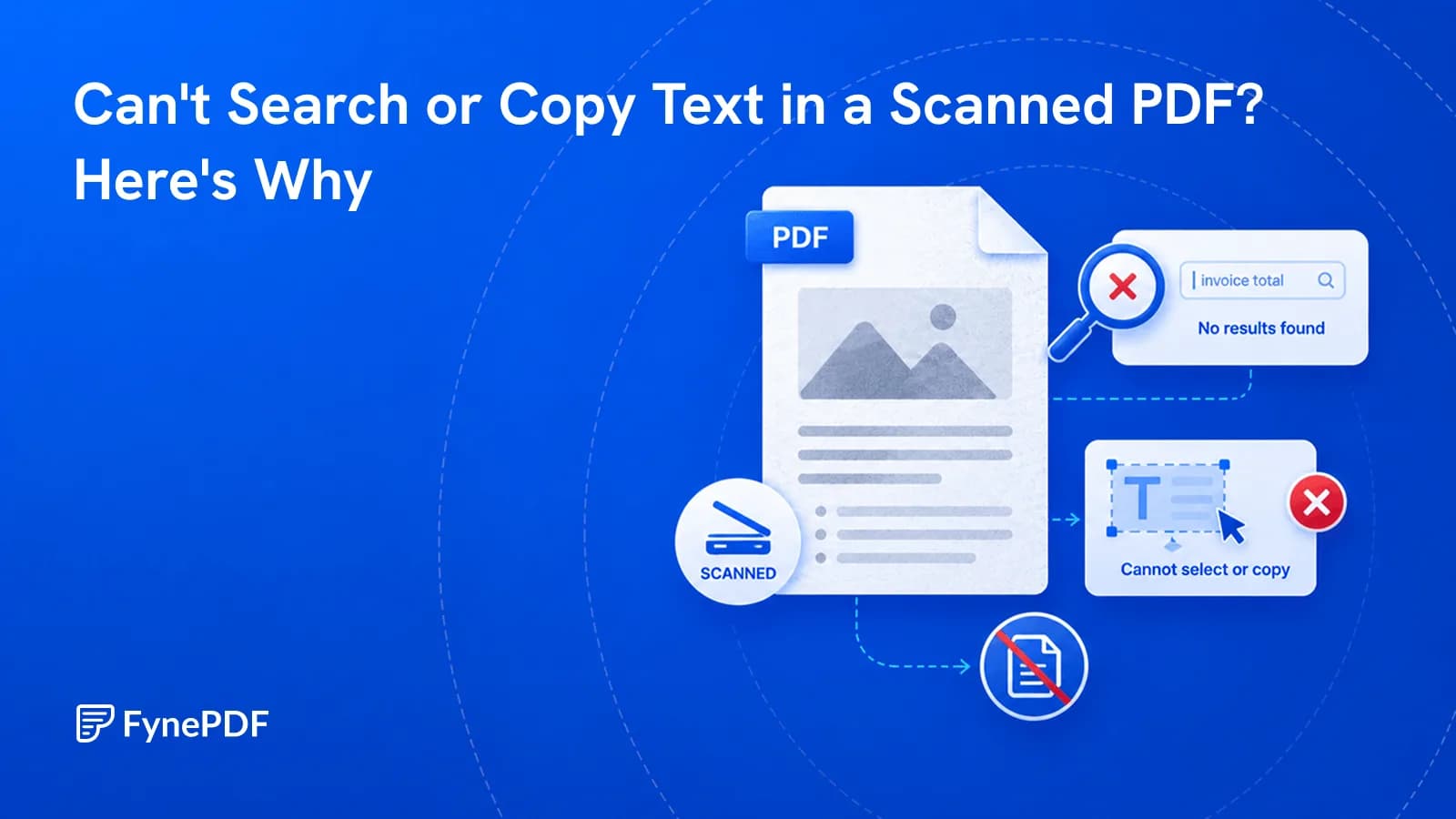
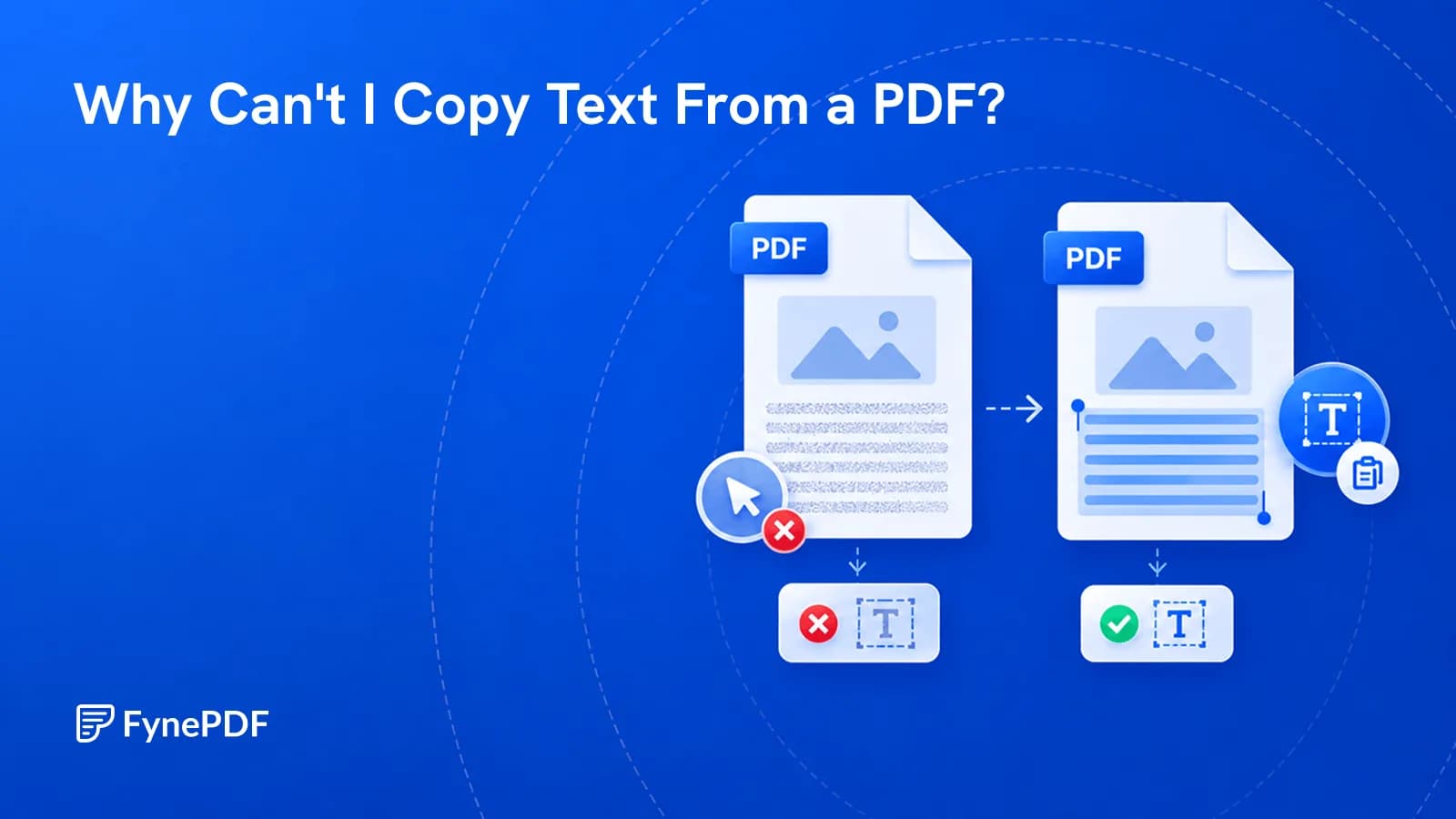
You can't search a scanned PDF because it contains photographs of pages, not text. Every letter is a pattern of pixels, indistinguishable to software from a picture of a cat. OCR reads those images and adds a hidden text layer underneath, which makes the document searchable and selectable.
The pages look identical afterwards. The difference is entirely under the surface.
How do I know if my PDF needs OCR?
Try to select a single word with your cursor. If you get a rectangular selection box that grabs the whole page area instead of highlighting individual words, the page is an image. If Ctrl+F returns nothing for a word you can plainly read on screen, same conclusion.
A useful second check: zoom in to 400%. Real text stays crisp because it's stored as vectors. Scanned text turns blocky, because you're magnifying pixels.
What creates image-only PDFs?
Almost anything that involves a camera or a scanner:
- Office scanners and multifunction printers, unless OCR was enabled in their settings
- Phone scanning apps saving in image mode
- Faxes and fax-to-PDF gateways
- Screenshots exported to PDF
- Older archival documents digitised before OCR was routine
Documents exported directly from Word, Excel, or a web browser already contain real text and don't need OCR.
How do I make a scanned PDF searchable?
- Open the OCR tool.
- Upload the scanned PDF.
- Run the recognition.
- Download the searchable file.
Free accounts handle OCR files up to 15MB. If your scan is larger than that, run Compress PDF first. Image-heavy scans routinely drop 60–80%, which usually brings them comfortably under the ceiling.
What affects accuracy?
Scan quality, mostly, and it's worth knowing before you blame the tool:
| Factor | Best result |
|---|---|
| Resolution | 300 DPI, below 150 accuracy drops sharply |
| Contrast | Clean black text on white; grey-on-grey struggles |
| Alignment | Straight pages; skewed scans lose characters at the edges |
| Typeface | Standard print fonts; handwriting and decorative type are unreliable |
| Marks | Highlighter, stamps, and staples over text cause errors |
Handwriting is the honest limitation. OCR is built for printed characters, and cursive in particular should not be trusted for anything that matters.
What can I do once it's searchable?
The text layer is what unlocks everything else. After OCR you can:
- Find any term with Ctrl+F, across hundreds of pages
- Copy quotes without retyping them
- Convert to an editable document with PDF to Word
- Pull tables into a spreadsheet with PDF to Excel
- Ask questions about the contents using Chat with Doc
- Properly redact sensitive terms with Redact PDF
That last one matters more than it sounds. You cannot reliably redact a document you cannot search, because you have no way to confirm you found every instance of a name.
Common questions
Will OCR change how my document looks?
No. The original page images stay exactly as they are and the recognised text is placed invisibly behind them. Signatures, letterheads, and stamps are untouched. If the output looks different, something other than OCR has run.
Can OCR handle more than one language?
Standard print in widely used languages recognises well. Documents mixing scripts on the same page, or using unusual diacritics, produce more errors and should be proofread before you rely on them.
Does OCR fix a blurry scan?
No, and this is worth being clear about. OCR reads what's there; it can't recover detail the scanner never captured. If a scan is too blurry to read comfortably yourself, rescanning at 300 DPI will give a far better result than any software step.
Is it safe to OCR confidential documents?
Files transfer over encrypted connections and are permanently deleted within 15 minutes of processing unless you save them to your library. Nothing is retained or read.
Make your scan searchable
Upload your file to the OCR tool and run it. Ctrl+F will work on the result, and so will every other tool that needs real text.
 OCR PDF

 Word to PDF