


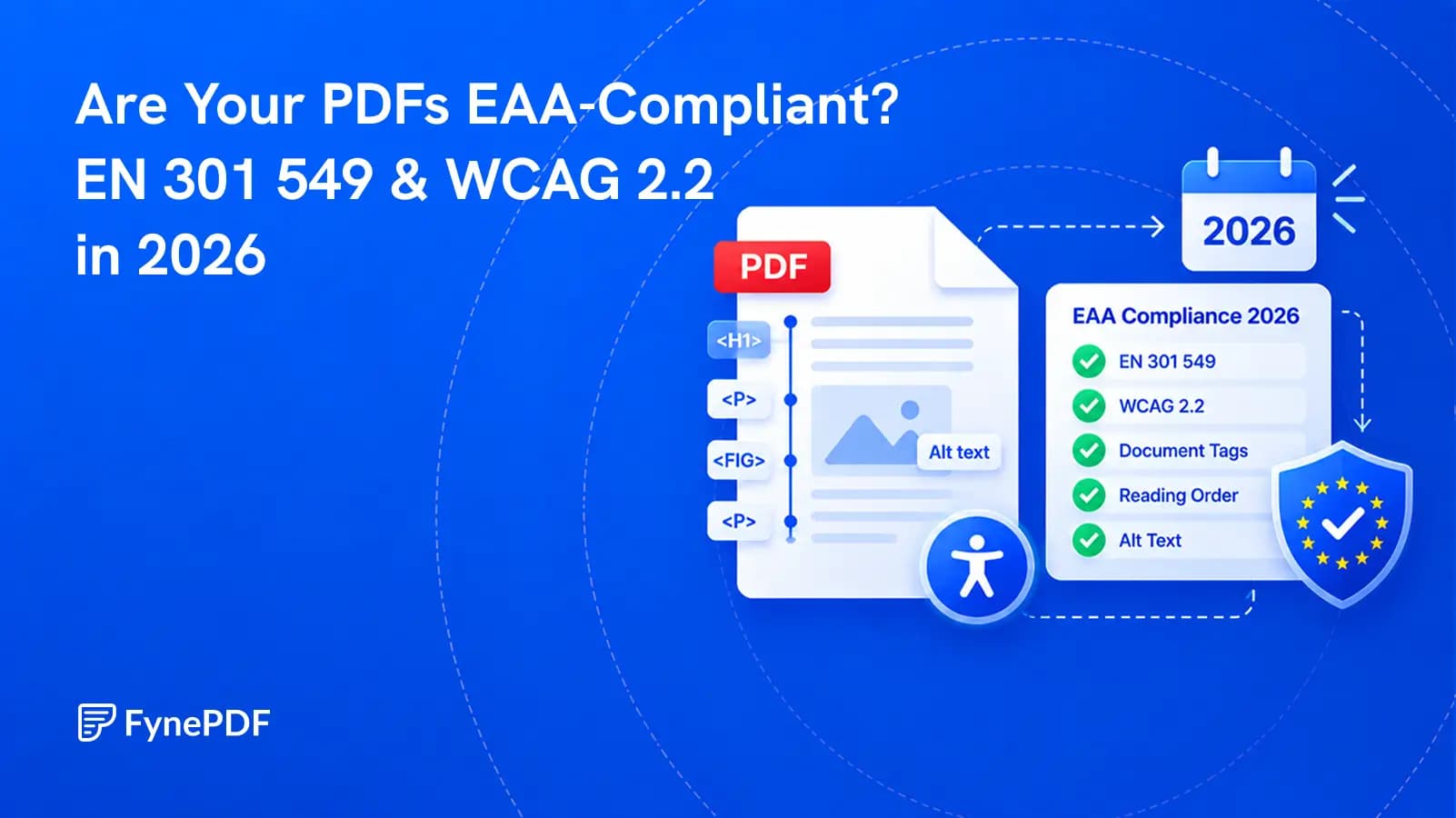
Are Your PDFs EAA-Compliant? EN 301 549 & WCAG 2.2 in 2026
The standard changed in September 2026, but the legal reference has not changed yet. Here is what that means for PDF teams.

26 September 2026 · By Biraj Paudel, Founder of FynePDF
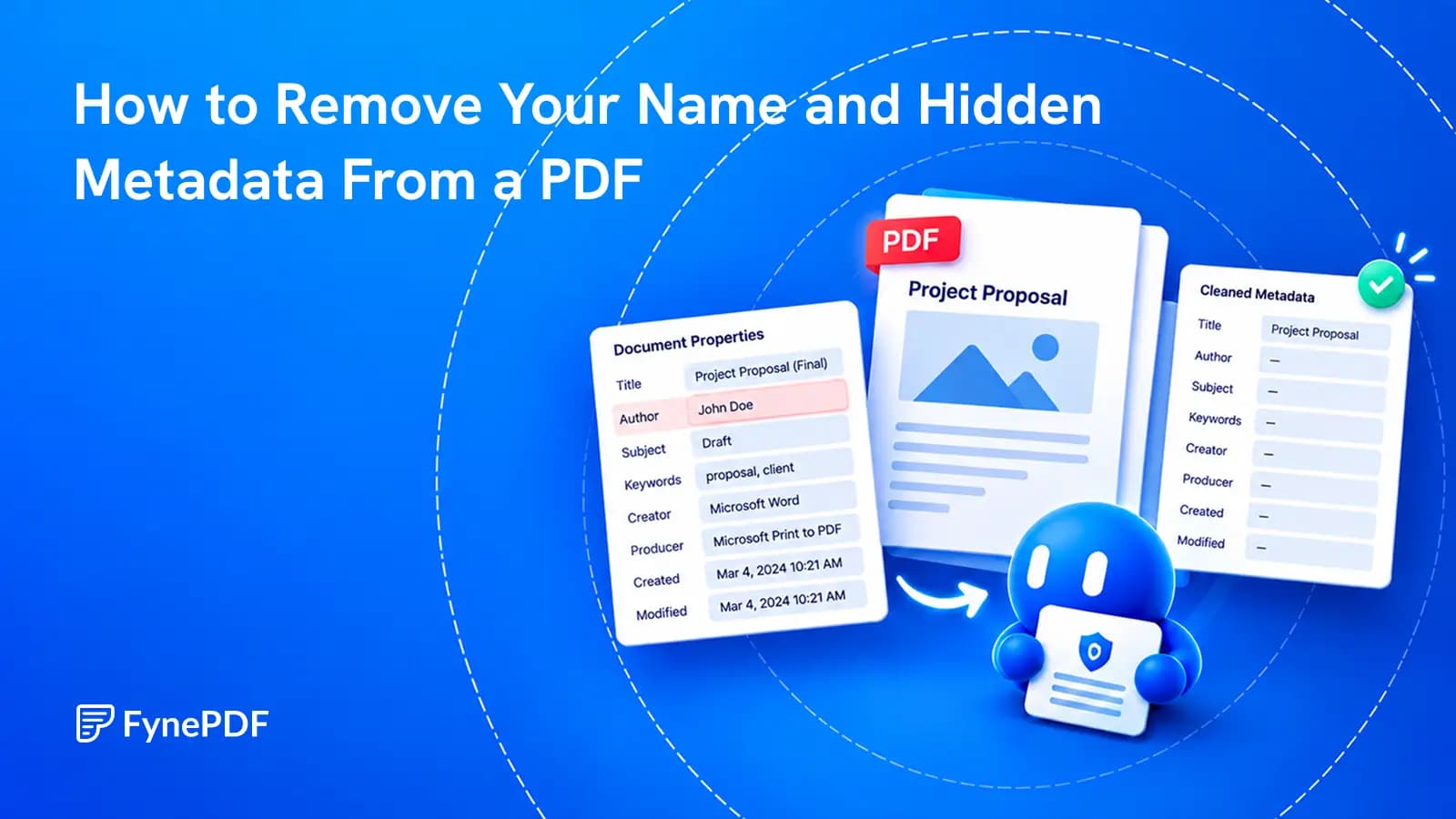
A clean-looking page can still carry an author's name, an old template title or details about the software that created it.
You remove your name from a report's first page, rename the file and send it for review. The recipient opens Document Properties and still sees your name under Author.
That name is stored separately from the visible page. To remove it, edit the PDF's author metadata or use a metadata-removal tool. If the purpose is privacy, check the document's XMP metadata as well as the familiar properties fields, then inspect the downloaded copy.
Metadata removal is a specific cleanup task, not complete anonymization. Names in comments, page text, attachments, form fields or scanned images can remain. Decide what the recipient should receive before choosing which information to remove.
PDF software can carry details from an authoring application into the finished file. An account name may become the author. A reused template may leave its old title behind. Creator and producer fields can describe software involved in making the PDF.
These details are often useful for organizing documents. They become a problem when they are inaccurate or inappropriate for the intended recipient.
Open the PDF in a reader that exposes document properties. In Acrobat, the properties view includes descriptive information such as title, author, subject and keywords; Adobe's document properties overview explains the available information.
The value shown in Author is editable metadata, not reliable proof of who wrote the document. Equally, an empty Author field does not prove that no identifying information remains elsewhere.
| What you want to achieve | Suitable starting point | What still needs checking |
|---|---|---|
| Correct a misspelled author name | Edit the author field | Other metadata copies and visible attribution |
| Remove personal details from a sharing copy | Clear the relevant fields or use metadata removal | Comments, attachments, page text and form values |
| Replace a template title in a client report | Set an accurate title and approved author | The cover, filename and final properties agree |
| Prepare an anonymous review copy | Follow the reviewer's anonymity requirements and inspect the whole file | Self-identifying wording and non-metadata content |
Do not remove everything automatically if the document needs useful descriptive information. A public report can benefit from an accurate title even when a personal account name should not be included.
W3C's PDF title technique describes the role of a meaningful document title and its display settings. Deleting the title is therefore not always the best cleanup choice. Set the information you want the reader to see, and verify any accessibility requirements separately.
PDF metadata can be stored in more than the basic document information fields. XMP is another metadata format used by PDF applications. A privacy check should not assume that blanking the visible Author box necessarily handles every metadata location.
FynePDF Edit PDF Metadata shows the current title, author, subject, keywords, creator, producer and dates. Its removal option is documented to clear the document properties, the XMP metadata stream and private editing data that some applications store on pages.
That broader removal scope is useful when your goal is a clean sharing copy rather than a single corrected field. The pages' text, images, links and layout are left unchanged by the metadata operation.
Keep the scope clear: this is not a promise that every kind of hidden content has been removed. Private editing data, an attached document and a review comment are different things to inspect.
Work on a separate copy. Keep the original when it forms part of an approval record, a signed document or a records-retention process. For evidence, regulated records or a formal disclosure, follow the responsible organization's requirements before changing metadata.
Do not mistake unchanged page appearance for an unchanged document. Altering metadata still changes the file and may affect digital-signature validation.
Write down the intended title and author, or note that a field should be blank. Check the recipient's instructions before removing required attribution.
For a fictional client report, the source might show Author as “Nora's laptop” and Title as “Quarterly template copy.” An approved release might instead use the report's real title and the authorized company name, or leave Author blank if attribution is handled elsewhere.
The objective is accurate, appropriate information. Do not replace provenance details with invented values to make the document appear to come from someone else.
Open the working copy in FynePDF's metadata tool. Review the displayed fields before changing them. Use selective edits for corrections, or the removal option when you need to clear the supported metadata categories.
This tool uses an upload workflow. Do not assume it has the same local-only editing behaviour as FynePDF's Edit PDF tool. Use it only when the file is permitted to be processed through that service.
Download the result under a clear release filename. Keep it separate from the original so the wrong attachment is not sent by mistake.
Inspect its properties in a PDF reader. Confirm that removed details are absent and retained details are correct. If your requirement explicitly covers XMP or other hidden metadata, use an inspection method that exposes that category, not only the operating system's file information panel.
Also check that the expected pages, links and bookmarks remain. Do not assume the result is complete merely because the tool produced a download.
A name in the page header is page content. A reviewer's name attached to a comment is part of the review material. A completed form can contain personal information in its fields. An attachment can contain an entirely separate document.
Adobe's PDF sanitization documentation distinguishes broader hidden-content cleanup involving metadata, comments and hidden layers. That is a wider operation than correcting an Author field.
If personal details must be removed from visible or searchable content, use an appropriate redaction process. Do not cover them with shapes, and do not assume flattening makes them confidential. Flattening can leave the same information visibly present on the page.
Our guide to finding and redacting personal details in PDFs covers that separate task. Metadata cleanup is one part of preparing a sharing copy, not a replacement for content review.
If you later edit, convert or re-export the PDF, inspect the final version again. Another application can write new properties. Checking an earlier cleaned copy says nothing conclusive about a later file produced from it.
For a recurring workflow, add a small release check: approved filename, correct visible content, appropriate properties, reviewed comments and attachments. Assign someone to inspect the exact file being sent.
No. The filename and author metadata are separate. Change the relevant metadata, then reopen the file to verify it.
Not necessarily. Filesystem dates and dates stored inside the PDF are different. Saving a new copy can create new filesystem timestamps even when internal date fields are cleared.
No. Review the entire document and follow the recipient's requirements. Identifying information can remain in places outside the metadata fields this operation handles.
Try it yourself
The standard changed in September 2026, but the legal reference has not changed yet. Here is what that means for PDF teams.
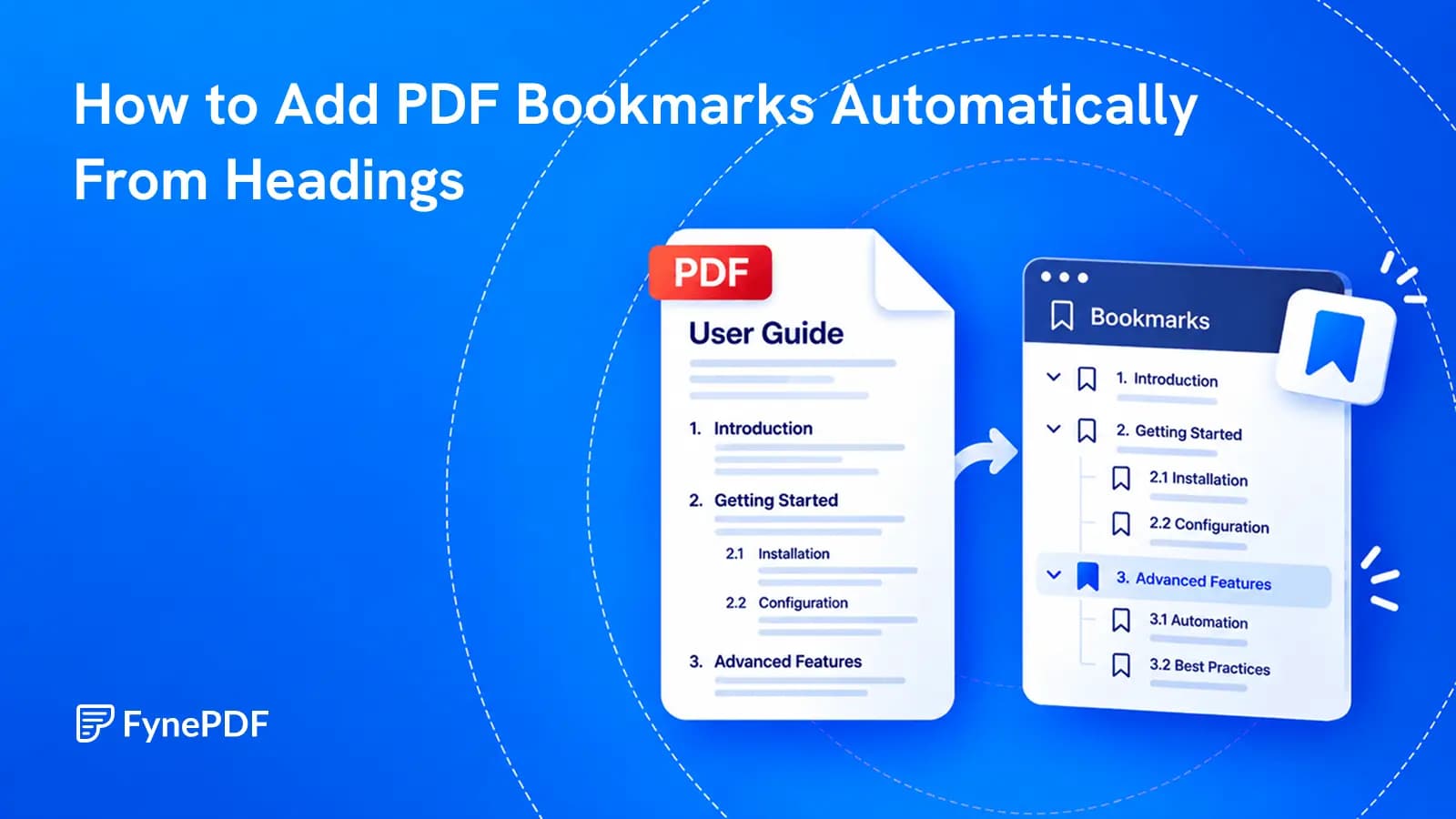
Build a useful sidebar outline from the document you already have, then check what automatic heading detection got right.
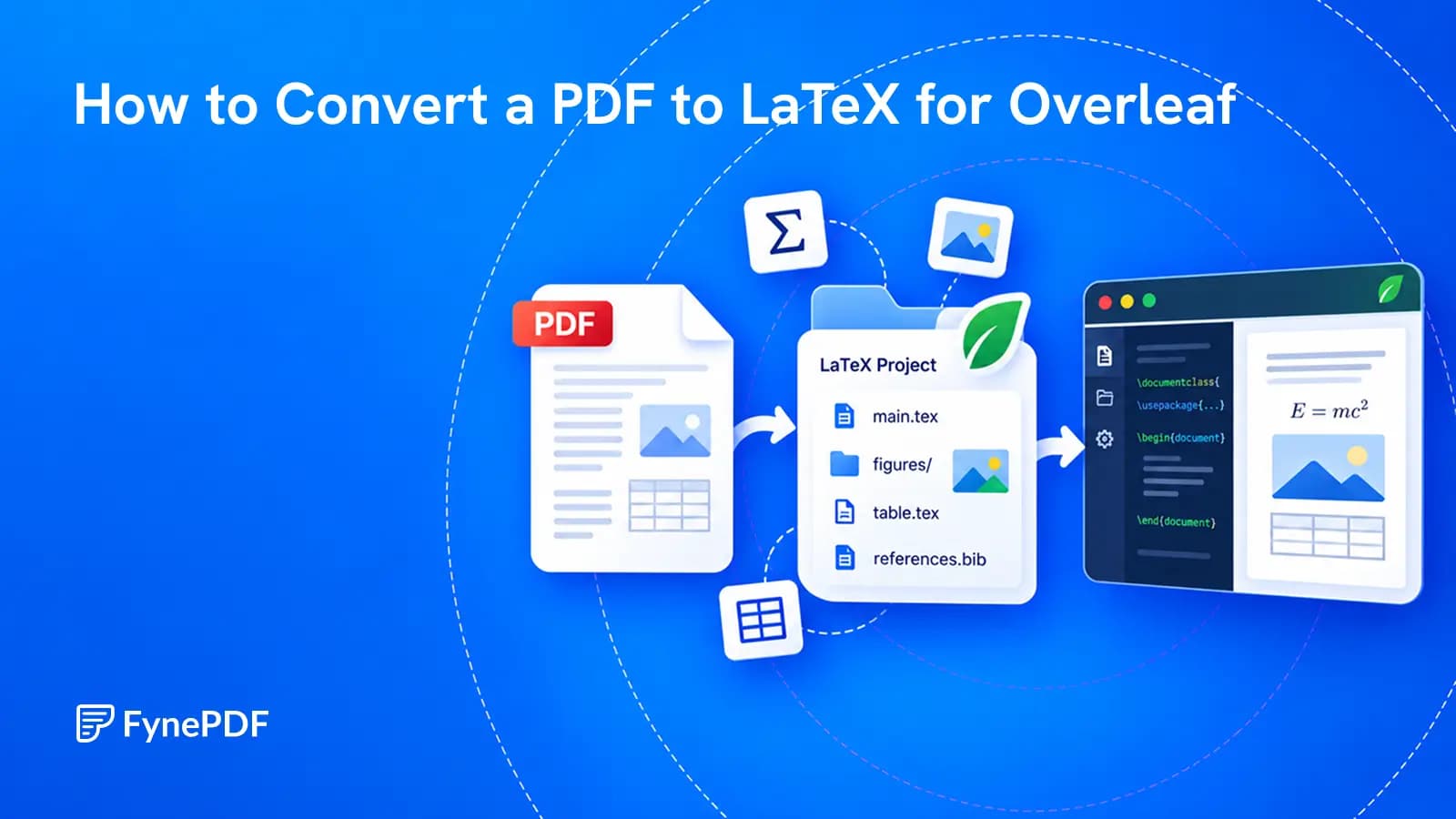
Recover a working source project from a finished PDF, with realistic expectations about what conversion can restore.