
How to Find and Redact Personal Details in a PDF With AI
Let AI help find the sensitive details. Keep the decision about what to remove, and the final check, with a person.
 By Biraj Paudel, Founder of FynePDF6 min read
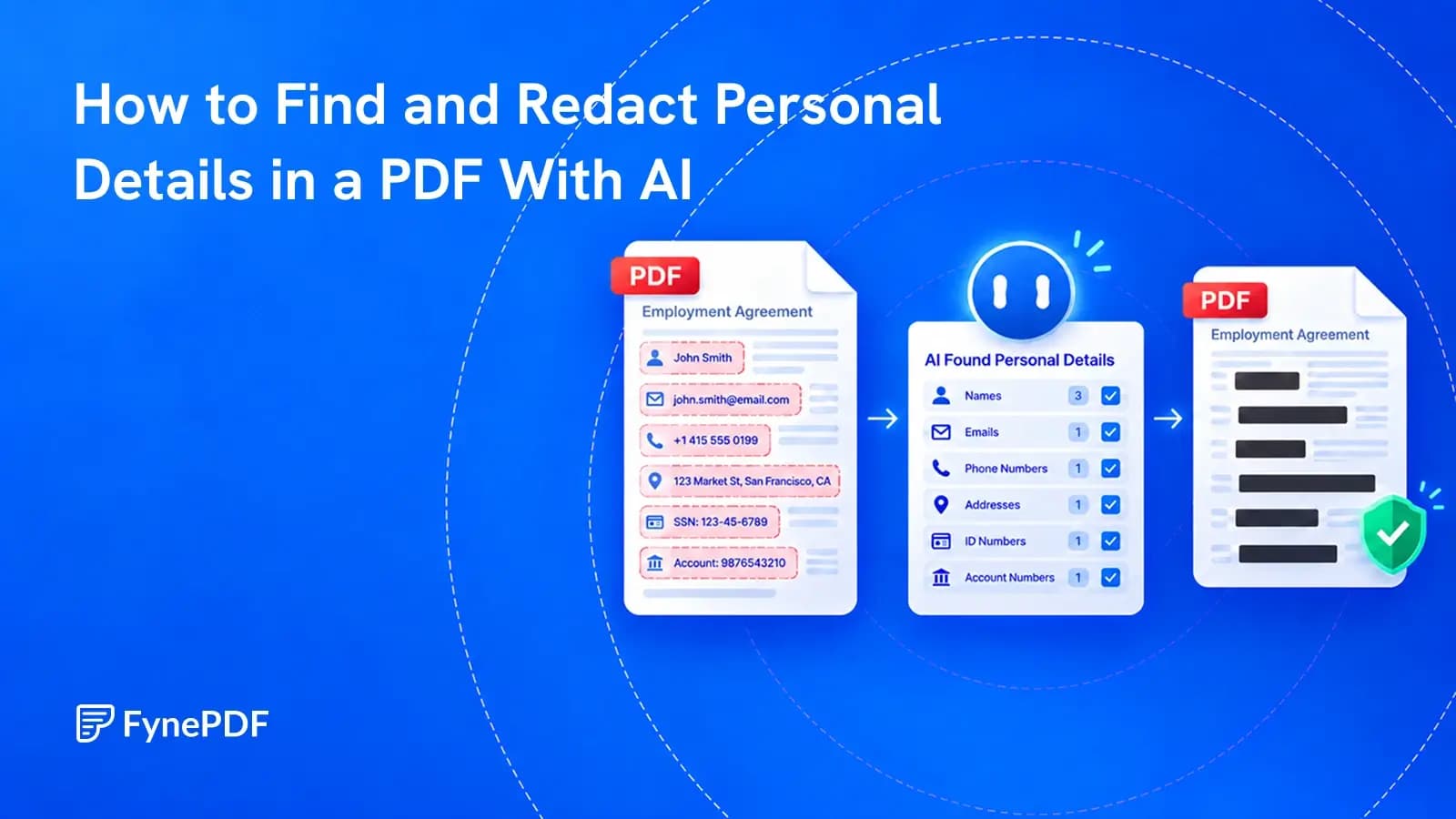
Finding a person's name on the first page is easy. Finding the same person in an email footer, a scanned attachment and a note on page 37 takes more care.
AI can help search a PDF for personal details and suggest what to redact. It cannot decide on its own what the recipient is entitled to see, and it can miss information or mark the wrong text.
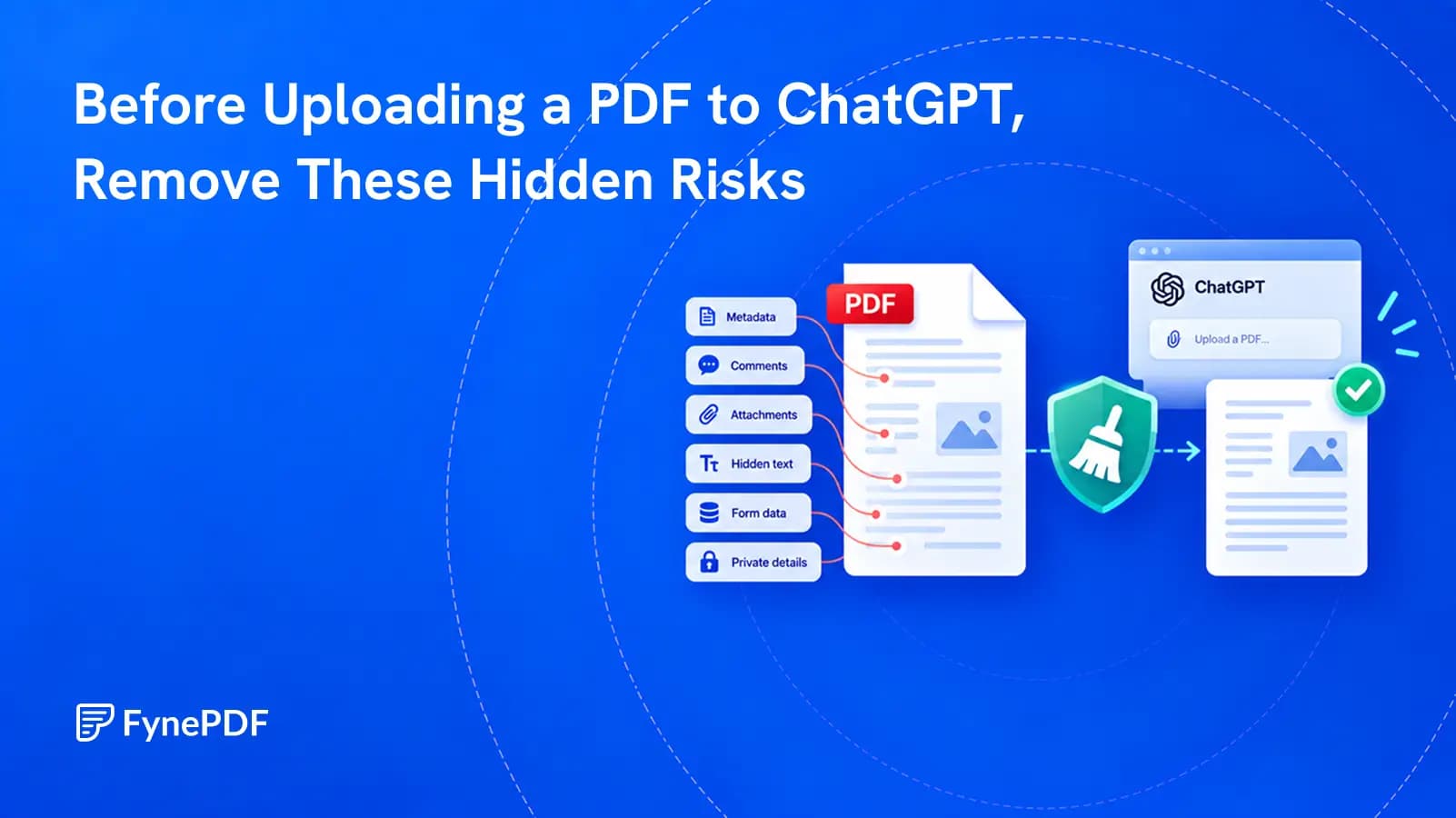
The safe workflow is to define the removal rules, review the suggested matches, apply actual redactions, and inspect the exported copy. Then check information outside the visible page, such as metadata and attachments, before sharing it.
Decide what the recipient actually needs
Begin with the purpose of the disclosure. Are you sharing a complaint for training, a contract for external review or a report with someone who does not need personal contact details?
Write down which information should be removed and which must remain. “Remove all personal data” sounds comprehensive, but it leaves difficult choices unstated.
For example, a training copy of a complaint might need the sequence of events but not the customer's name, home address, phone number or account identifier. A date may be important to the explanation yet also make the person easier to identify in a small group.
Do not remove information from an official submission merely because it looks sensitive. The recipient may require it. If you are uncertain about a disclosure obligation or retention rule, ask the responsible privacy or legal team.
Search for more than names and email addresses
Start with direct identifiers, then inspect the details that identify someone through context.
| Category | Examples to review |
|---|---|
| Direct identifiers | Names, personal email addresses, phone numbers, home addresses |
| Account and record details | Customer numbers, employee IDs, bank details, case references |
| Visual information | Signatures, faces, identity-document images, labels in screenshots |
| Contextual details | A rare job title, a specific event, an exact date combined with a location |
| Repeated or hidden locations | Headers, footers, comments, form fields, attachments and metadata |
This is a review list, not a claim that any one AI tool detects all these categories. Some need separate inspection or different software.
The ICO's guidance on disclosing documents securely highlights the risk of information remaining in documents beyond the text a reader sees. A clean-looking page is only part of the check.
Give the AI specific redaction instructions
Work on a copy and preserve the restricted original. Before uploading, confirm that you are allowed to send the unredacted document to the service you plan to use. Redacting after upload does not undo that initial disclosure.
Here is an example request for a training copy:
Find customer names, personal email addresses, personal phone numbers, home addresses and customer account numbers throughout this PDF. Include repeated mentions, headers, footers and visible text in scanned pages. Show proposed matches for review before applying redactions. Keep company names, product names, transaction amounts and the complaint's sequence of events unless they directly reveal a customer's identity. Do not guess that an unclear number is an account number; flag it for review.
Adapt the categories and preservation rules to the document. If you know relevant spelling variants or an exact identifier, include them. A targeted search for a known account number can complement a broader request.
Do not assume that instructions to inspect comments, metadata or attachments make a tool capable of doing so. Check its supported scope and handle those areas separately when needed.
Review both the matches and the pages without matches
Begin with the suggestions. Does each highlight cover the full detail without removing text that should stay? Has a common word been mistaken for a surname? Does a multiline address need a larger area?
Then review the document itself, not just the list of matches. A page with no suggestions may be clean, or the tool may have failed to read it.
Pay attention to handwriting, faint scans, rotated pages, signatures, screenshots and QR codes. A code or image may contain personal information even when no ordinary text is visible. If it is not needed for the disclosure, decide whether the entire area should be removed rather than relying on text detection.
Consistency matters too. Removing a full name while leaving a unique account number elsewhere may still identify the same person.
Apply redaction, not a drawing over the text
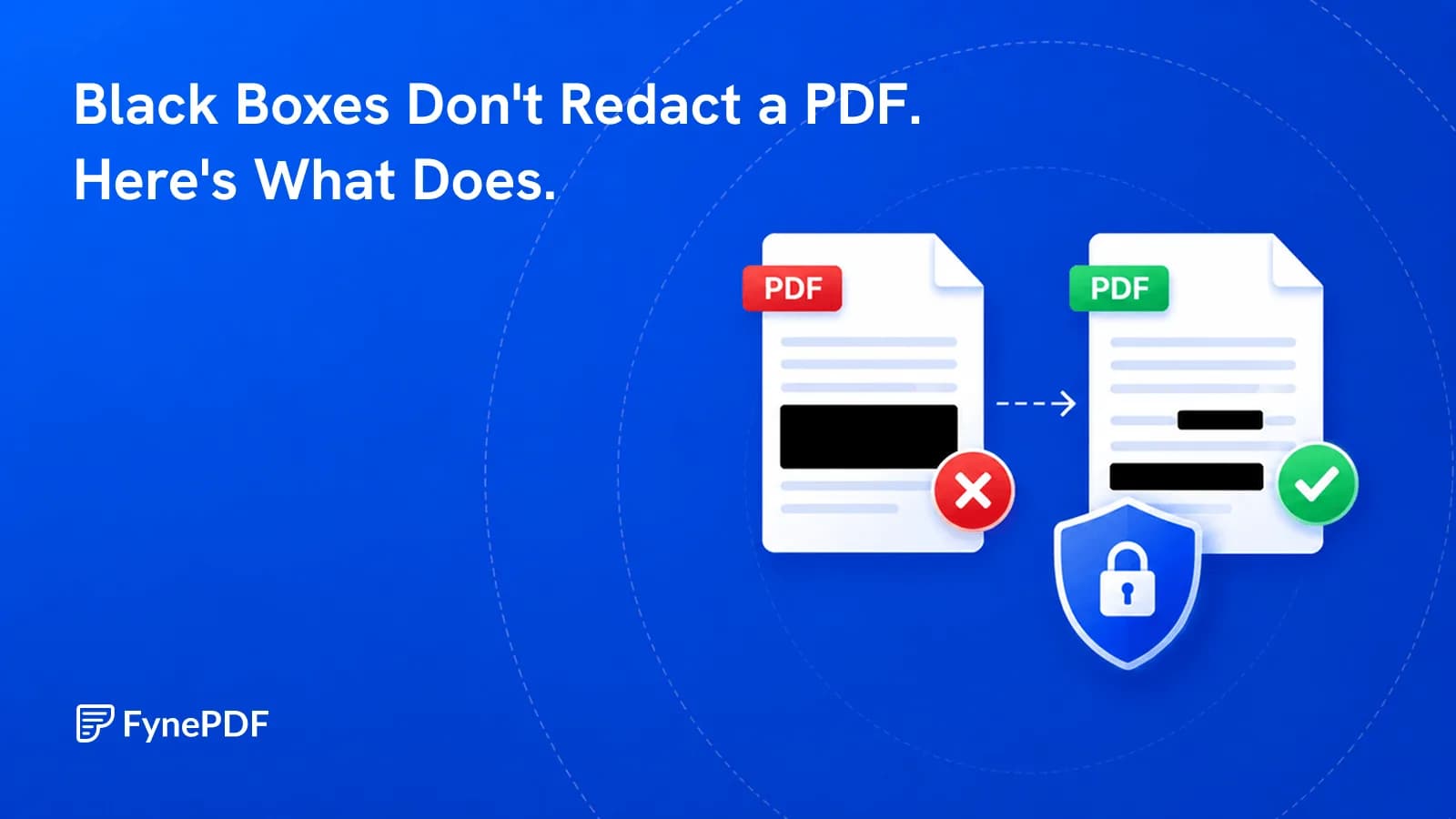
A black rectangle is not necessarily a redaction. If it is only an annotation or shape, the original information may still be available underneath.
Use a tool that applies redactions to the output document, then save the resulting copy. Adobe's redaction guidance distinguishes marking material from applying its removal. Our article on why black boxes do not redact a PDF explains the common overlay mistake.
Treat the applied copy as a new release candidate. Do not distribute the marked-up preview, and do not overwrite your only original.
Review AI suggestions in FynePDF
FynePDF's Redact PDF tool supports manual redaction and AI-assisted finding of sensitive information. In the AI workflow, describe what to find, review the suggested results, remove incorrect selections and add any missed areas before applying the redactions.
The exported result removes selected text and rewrites selected image areas, and Also remove hidden info, on by default, clears the document properties and XMP metadata in the same step. Comments, bookmarks and attachments are separate parts of the file, so check those too before you treat the download as fully sanitized.
For a simple document with a few known identifiers, manual search and area selection may be sufficient. Use AI where it helps with the search, not as a reason to skip the review.
Check the exact file you intend to send
Reopen the exported PDF, preferably in a separate trusted reader. Inspect every affected page and verify that the remaining material is readable and useful.
Search for the removed names and identifiers. Try selecting and copying text around redacted areas into a local document. Check image areas visually. These tests can reveal failures, but a search returning nothing does not prove that every copy of the information is gone.
Review document properties, attachments, comments and any remaining form content using tools that expose those features. If the disclosure is sensitive or public, use your organization's approved sanitization and independent-review process.
Finally, check the filename, email subject and accompanying message. A carefully redacted PDF named after the person can still disclose information you intended to remove.
Can AI guarantee it has found every personal detail?
No. Detection can fail because of image quality, unusual formatting, unfamiliar identifiers or context. Review the whole document and use a second reviewer when the consequences of a missed detail justify it.
Is a redacted PDF automatically anonymous?
No. Someone may still be identifiable from remaining details or information available elsewhere. Redaction removes selected content; effective anonymization requires a broader assessment of identification risk.
Can I undo a redaction after downloading?
Do not rely on undoing a properly applied redaction in the exported file. Keep the original in an appropriately restricted location and create a new redacted copy if the removal rules change.
 Redact PDF
 Compare PDF