


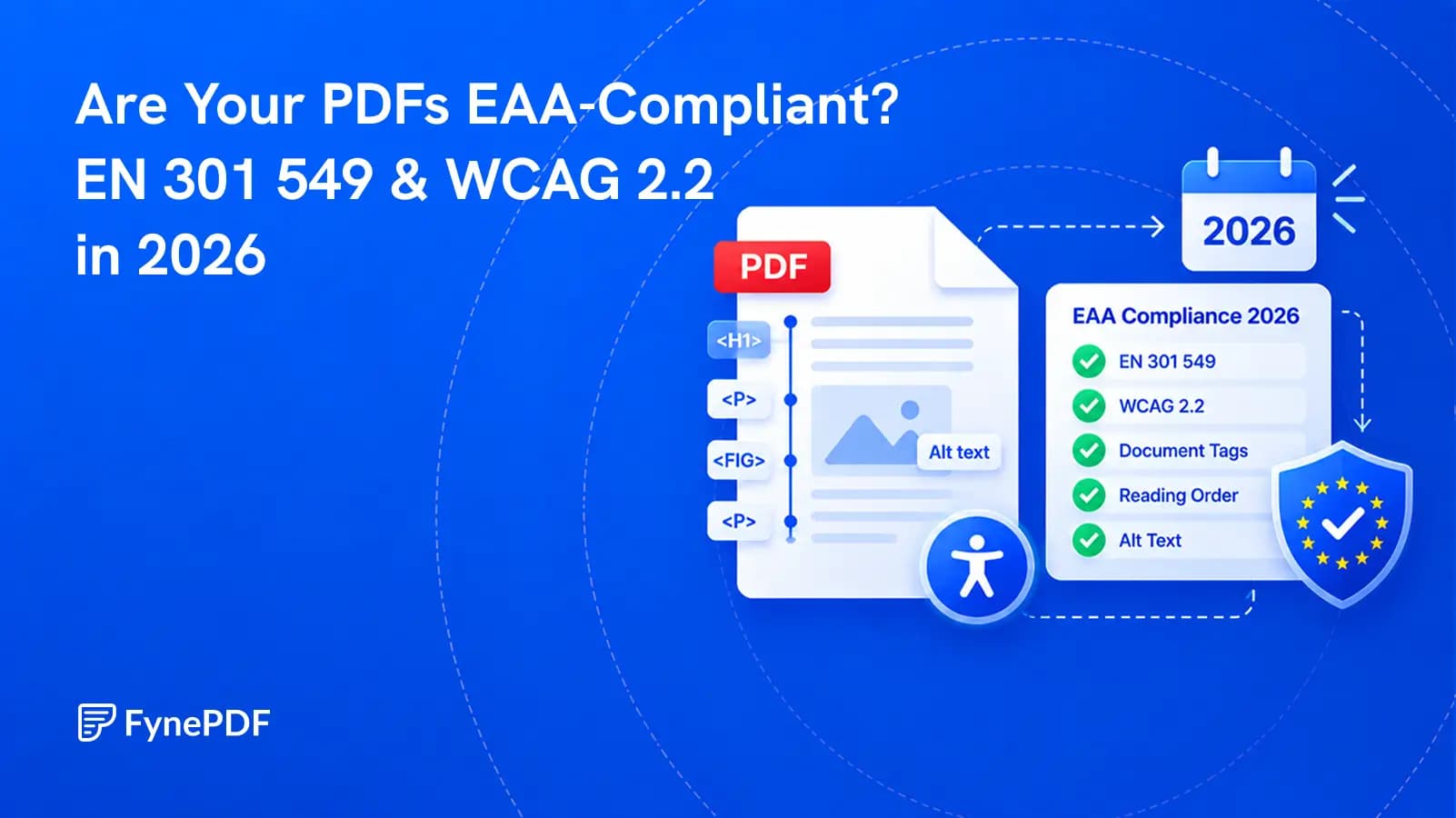
Are Your PDFs EAA-Compliant? EN 301 549 & WCAG 2.2 in 2026
The standard changed in September 2026, but the legal reference has not changed yet. Here is what that means for PDF teams.

19 September 2026 · By Biraj Paudel, Founder of FynePDF
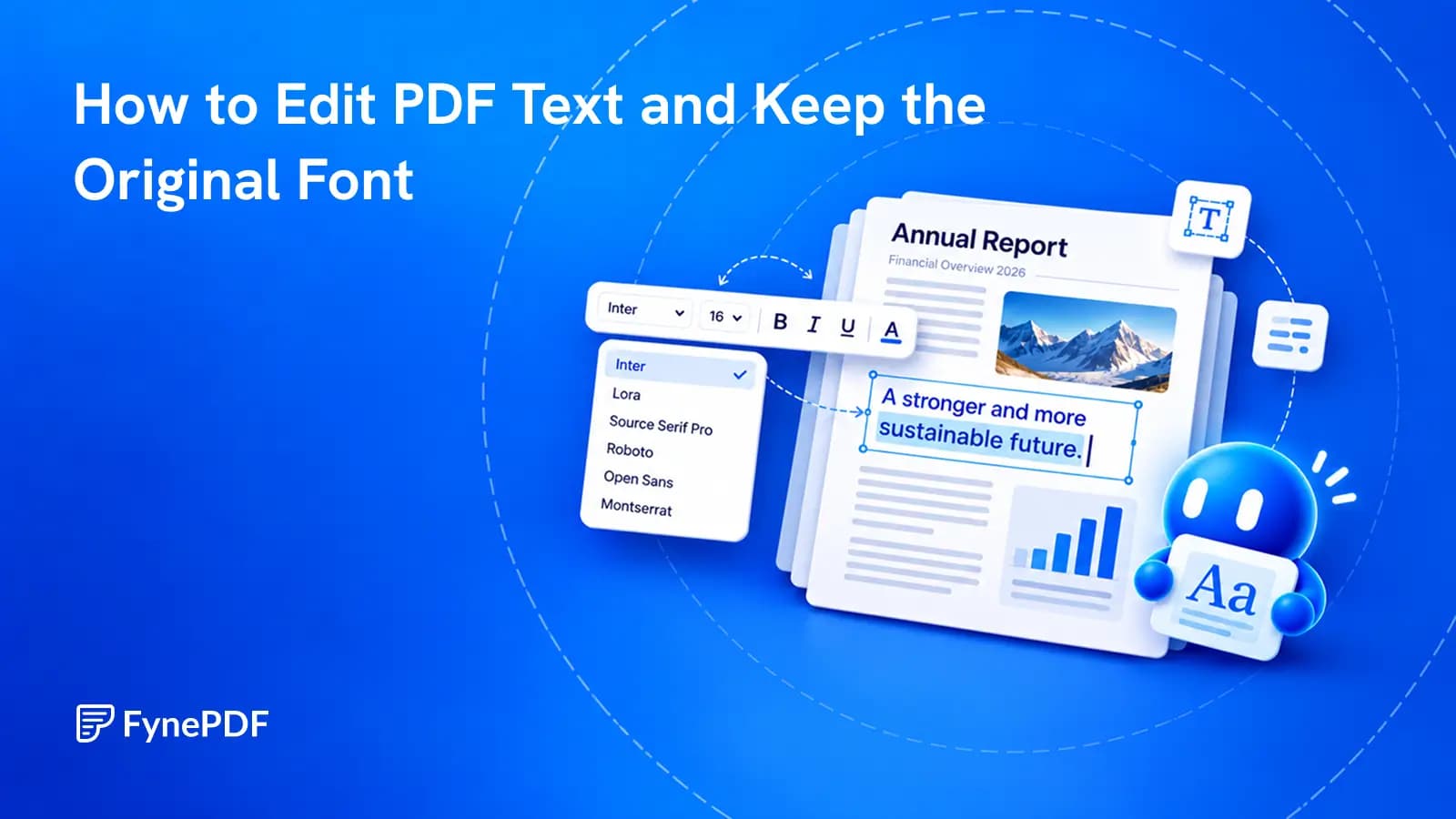
Change the words already in the document, then check the details that make the edit look like it belongs.
One word is wrong in a finished PDF. You add a white rectangle, type the correction over it and spend the next ten minutes trying to match the font. The page looks almost right, but the new word sits slightly too low.
The better starting point is an editor that changes the existing text itself. When the original font supports the replacement characters and the page can be edited safely, you can correct the words without rebuilding the document or placing a second text box over them.
There are limits. Scanned lettering is an image, some fonts contain only a restricted set of characters, and certain page features cannot be rewritten reliably. Check which case you have before changing the file.
Try selecting the words in a PDF reader, then open a working copy in the editor. Selection is a useful clue, but not a complete diagnosis: a scan can have a searchable OCR layer while its visible lettering remains part of an image.
| What you find | What it means for the edit | Best next step |
|---|---|---|
| The original paragraph opens as editable text | The editor has recognized a text object | Make a small correction and inspect the result |
| Clicking selects the whole scanned page | The visible words are part of an image | Use the source document or an appropriate OCR and reconstruction workflow |
| The editor warns about an unavailable character | The current font cannot supply everything you typed | Review the proposed substitute before accepting it |
| The page is marked as locked or unsupported | Editing may change features the tool cannot preserve | Keep the page intact and return to the source or a suitable specialist tool |
If your task is a substantial rewrite, the original Word, design or publishing file may still be the best place to work. Direct PDF editing is especially useful for a targeted correction when the source is unavailable or reopening the whole layout would be unnecessary.
Adding text and editing existing text are different operations. Add text creates a new object. An existing-text editor changes the object already on the page.
That distinction matters even for an ordinary typo. With a cover-up, the old word may remain searchable or selectable underneath. With an actual text correction, the aim is to change the document content, not merely its appearance.
Neither operation should be treated as a secure redaction method. If the purpose is to remove confidential information, use a redaction workflow and verify the result. Our guide to why black boxes do not redact a PDF explains the difference.
Open FynePDF Edit PDF and choose your working copy. You can also open the page's six-page sample to see the controls before using your own document.
Double-click the line or paragraph you want to change. The existing text opens for editing, with its font and size available in the toolbar. Replace only the necessary words first. Keep the current size and colour unless the task actually requires a design change.
Apply the edit, then inspect the whole paragraph. FynePDF rewraps text within the paragraph as you type, so a longer replacement may create another line. That does not mean every object below it will automatically move out of the way as it would in a word-processing document.
If space becomes tight, check whether the text box can be widened without entering another column or margin. Do not immediately make one sentence smaller than the surrounding text just to force it into place.
Use Undo if a trial change is unhelpful. Save the final result as a new copy so the original remains available for comparison.
A PDF may include only the font characters used when it was created. That can be sufficient for displaying the existing page, but it creates a separate question when you introduce new characters.
Font handling also differs by editor. Adobe's Acrobat text-editing documentation, for example, describes a local-font requirement for editing text with a specific font. Seeing the font correctly is not the same as having unrestricted editing access to it.
FynePDF's documented approach is to use the existing font where possible and offer a close match from its font library when a new character is unavailable. It warns before that substitution. Review the match rather than treating it as identical.
Pay attention to accented names, currency symbols and newly introduced scripts. A replacement that looks acceptable in one heading may be noticeably different in a dense paragraph. If exact brand typography is required and the necessary font cannot be used, make the change in an authorized source workflow instead.
If the font looks different before you make any edits, start with our guide to PDF fonts changing on another computer. That is a viewing or export problem, not necessarily a problem with your correction.
Consider a fictional workshop notice that says “Registration closes 12 March.” The approved correction is “Registration closes 19 March.”
First check the meaning. Is the new date correct, and does the same deadline appear elsewhere in the file? FynePDF includes Find text and a Replace option, but review matches in context before changing repeated wording. An old date in a historical example may need to remain.
Then check the presentation. Does the new line keep the same font weight, baseline, spacing and colour? Is any character missing? Did a line break push text into a rule, picture or footer?
The same process applies to a phone number, address or product description. Correct information in the wrong place is still a document error.
For a small correction, the useful combination is direct text editing, original-font handling and a browser workflow that does not require uploading the PDF for editing. The file stays on the device during editing; choosing Save to library is a separate upload action.
FynePDF also checks whether a page can be rewritten before allowing changes. Its documented safeguards lock unsupported pages, including some special print-colour and text-clipping cases, rather than silently changing their appearance. The saved output is reopened and checked against the edits before download.
These are practical reasons to choose it for this task. They do not eliminate the need to proofread, and they are not a promise that every PDF can be edited with no limitations.
Close the editing view and inspect the actual downloaded file in a PDF reader. Search for the replacement phrase, select and copy it, and check that the original incorrect phrase no longer appears where you changed it. Search is a content check, not a forensic test for removal of sensitive data.
Review nearby links, form fields and page breaks if they matter to the document. Preserve a digitally signed original: changing signed content can affect signature validation. Make authorized edits before the final signing step.
Not by treating the scanned letters as ordinary text objects. You can add content over a scan, but changing its original wording requires a different workflow. OCR can recognize text; it does not automatically recover the original editable design.
Usually not when the relevant text is directly editable. Converting introduces another layout reconstruction step. For a long rewrite, however, working from an editable source can be more manageable.
The current Edit PDF page states that downloads have no watermark. Free use has file-size and daily-task limits, so check the current allowance before starting a large job.
Try it yourself
The standard changed in September 2026, but the legal reference has not changed yet. Here is what that means for PDF teams.
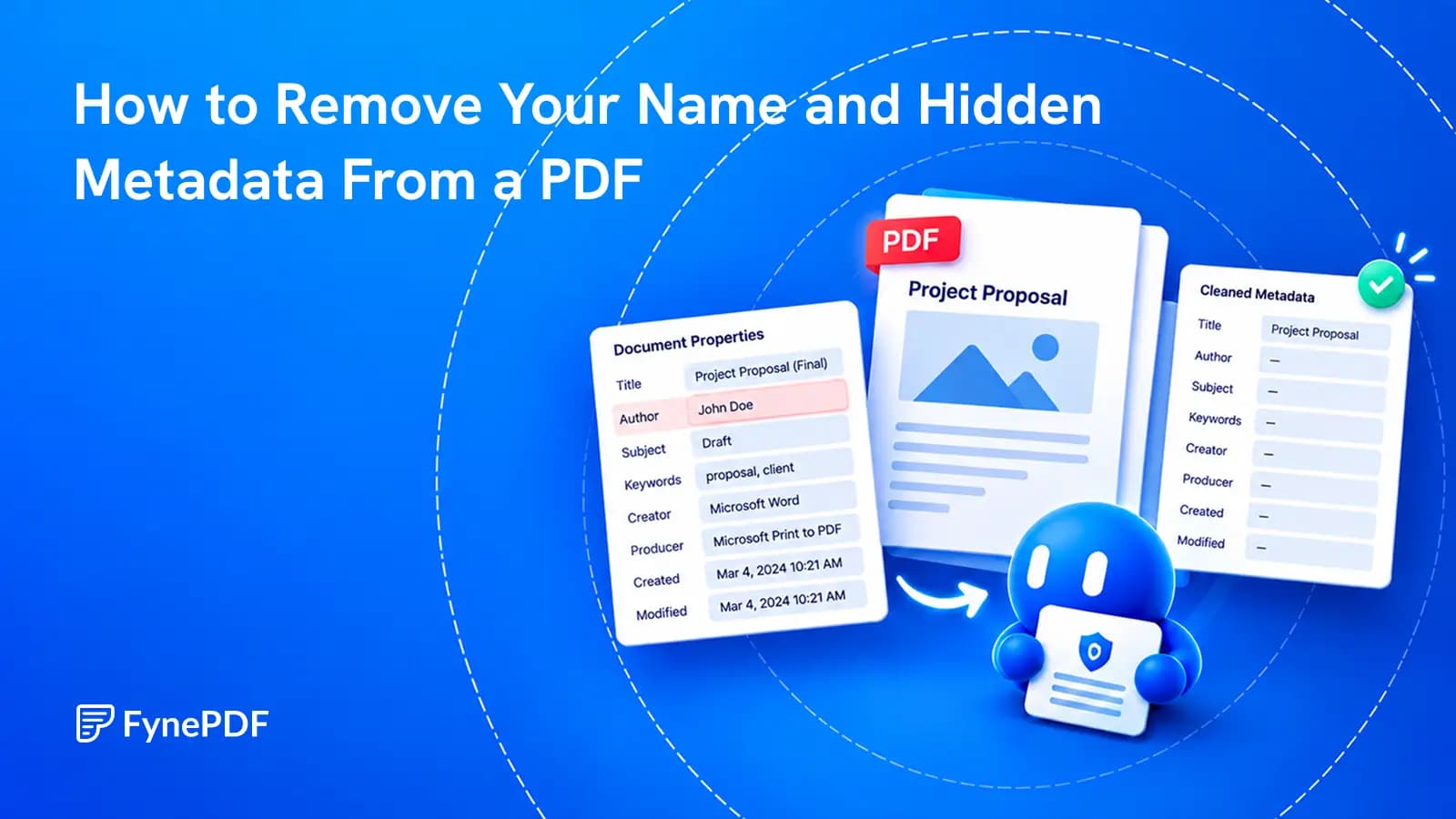
A clean-looking page can still carry an author's name, an old template title or details about the software that created it.
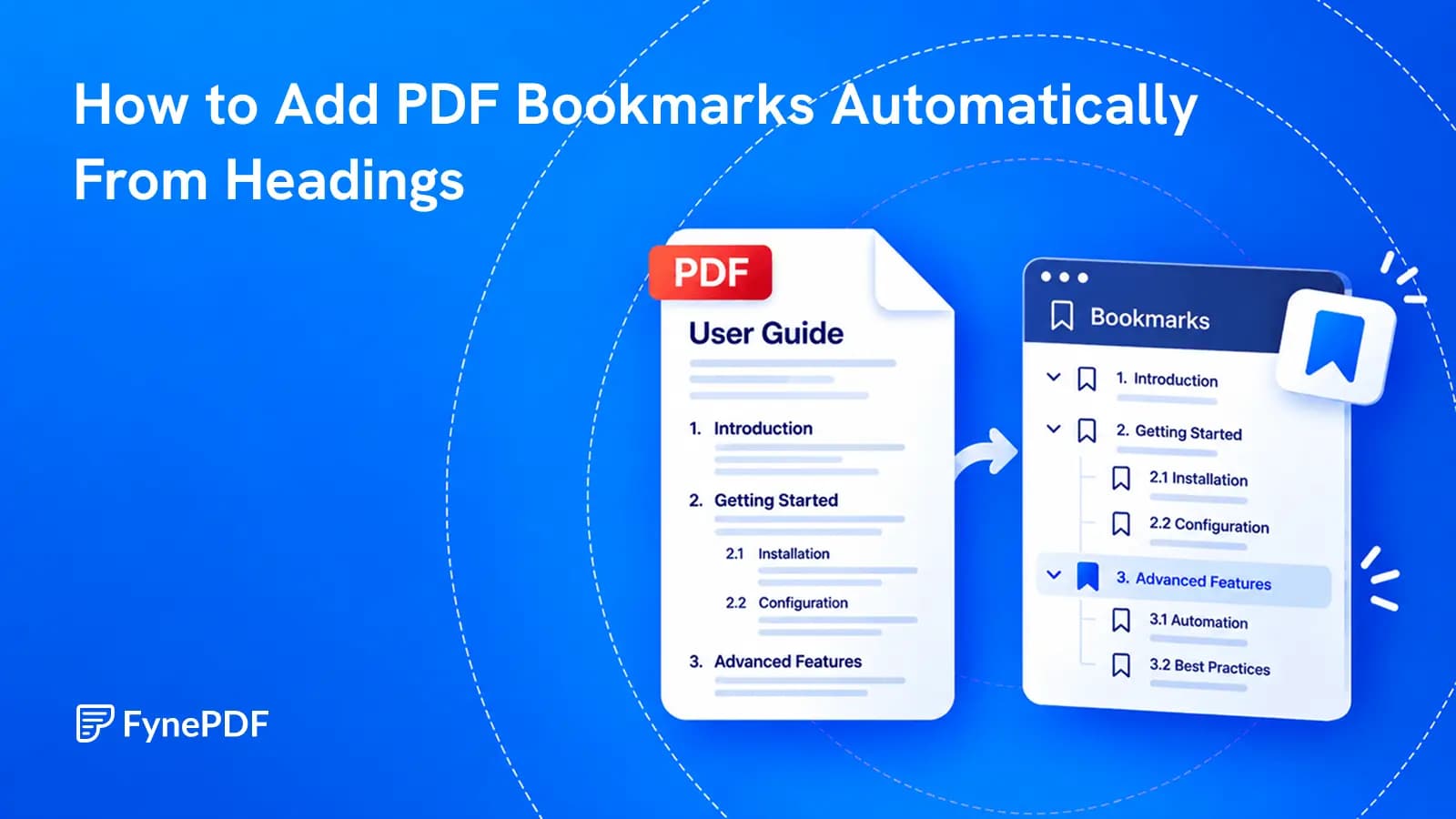
Build a useful sidebar outline from the document you already have, then check what automatic heading detection got right.