


Why Your Scanned Document Is in the Wrong Order
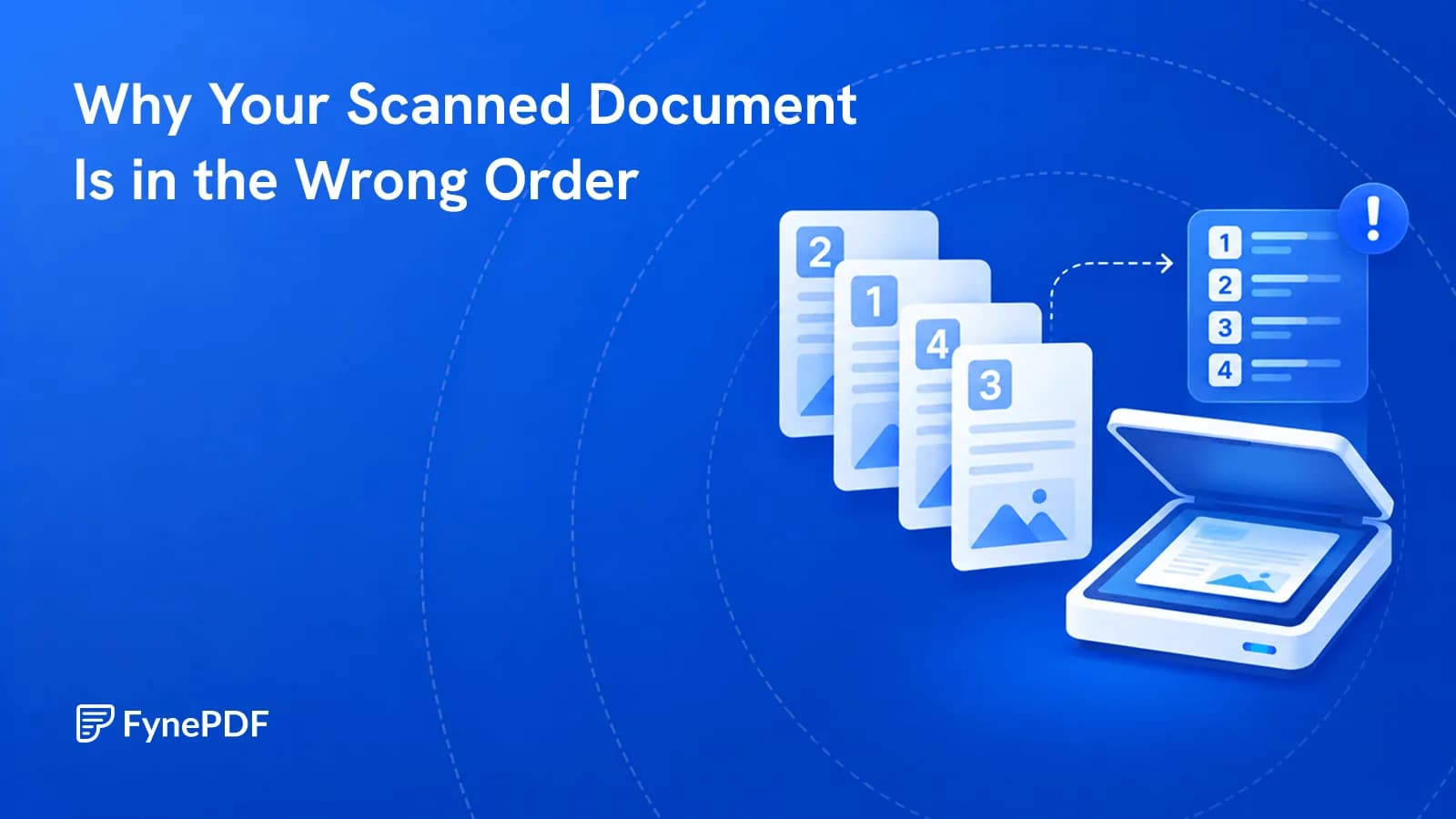
Double-sided scanning gives you all the odd pages, then all the even ones. Here's the fix.

25 September 2026 · By Biraj Paudel, Founder of FynePDF
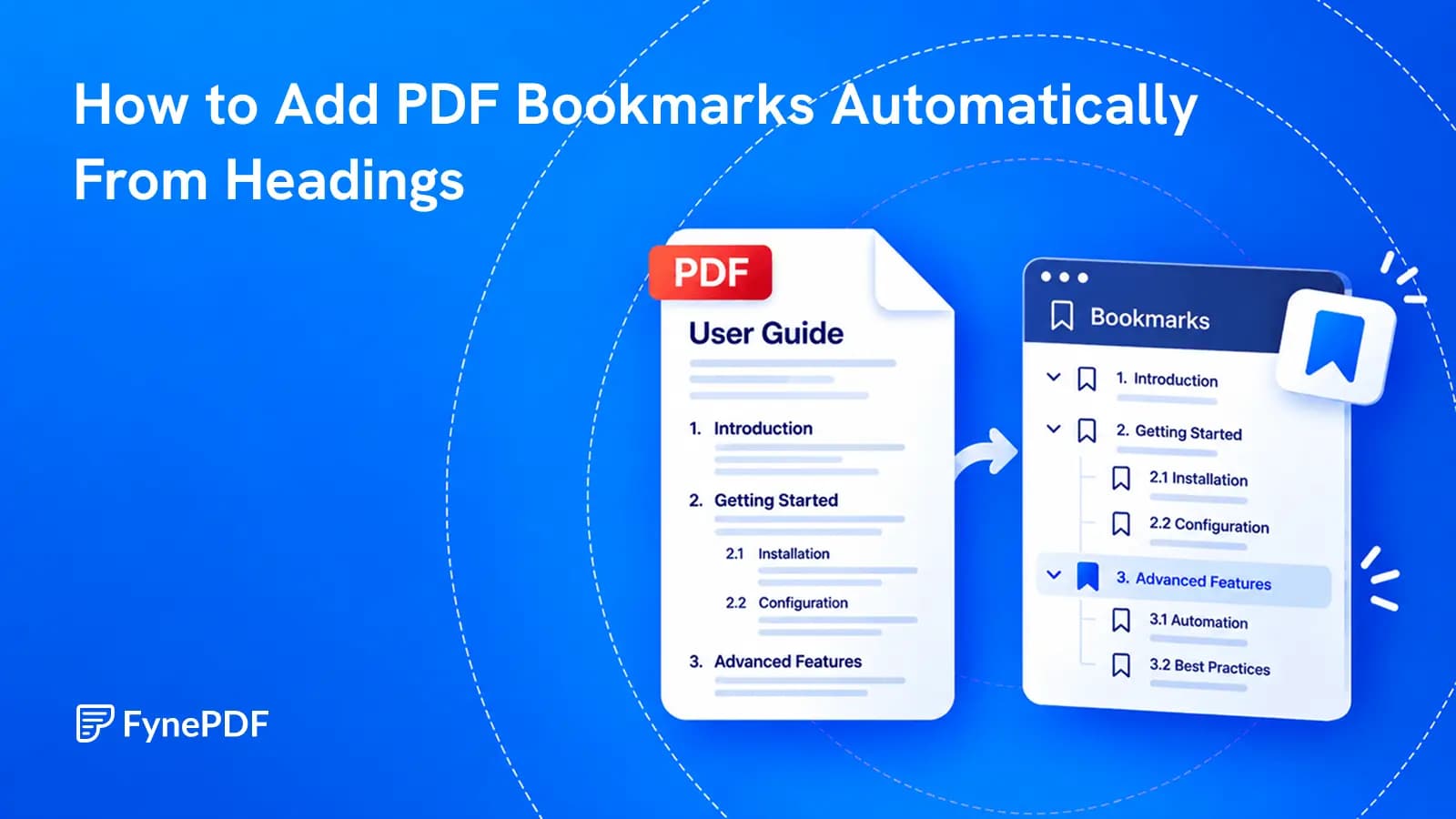
Build a useful sidebar outline from the document you already have, then check what automatic heading detection got right.
A handbook has clear chapter headings on its pages but no clickable outline beside them. Readers have to scroll, search or return to a printed contents page every time they need another section.
You can generate PDF bookmarks from the existing headings, then review their names, nesting and destinations. There is no need to rewrite the handbook just to give it a useful navigation sidebar.
Automatic generation is a starting point, not a finished editorial decision. A large quotation can look like a heading to software. A small but important section title can be missed. A useful outline needs a short human review before the PDF is shared.
The method depends on the tool. Some workflows use the structure created by heading styles in the original document. Others infer headings from how text appears in the PDF.
FynePDF Add Bookmarks to PDF uses text size to identify likely headings. Its current Generate from headings feature looks for text larger than the body text and uses the three largest heading sizes for three outline levels. It is designed to skip repeated running headers and join headings that wrap onto two lines.
That is useful when you have the PDF but cannot reopen its original source file. It is also why a page with oversized callouts needs checking. The tool is reading typographic clues, not deciding what the author considers a chapter.
Open the document and look at a chapter page, a subsection page and a page with a prominent quotation or statistic. Are headings visually consistent? Do top-level sections use the same treatment throughout?
Try selecting the text. A pure scan has no text for this detection process to read. OCR can provide recognized text, but it does not guarantee a useful hierarchy of font sizes. If the OCR layer does not distinguish headings clearly, manual bookmarks may be more reliable.
Also inspect any existing outline. It may contain useful entries that are not visible as large headings, such as an appendix or a particular exhibit. Keep an original copy and note those entries before generating a replacement or revised outline.
For a merged packet of unrelated files, chapter-style generation may not be the best starting point. A top-level bookmark for each original document can be more helpful than a long list of every large phrase in the packet.
Open your working PDF in FynePDF's bookmark tool and choose Generate from headings. Review the resulting list before saving. The tool also lets you add entries manually, rename them, change their page targets, nest them and drag them into a different order.
Start with the top level. It should show the document's main divisions in a sensible sequence. Remove obvious false headings and add major sections that were missed.
Next, place subsections under the correct parent. In a bookmark's menu, Make sub-bookmark nests it under the entry above, while Move out a level brings it back. The current tool supports up to five levels for manual nesting, though most everyday documents do not need that many.
Finally, review the names. Prefer a short, recognizable heading over a vague label such as “Section 4.” Keep numbering if readers use it to cross-reference the document, but do not let the numbers replace meaningful titles.
Consider a fictional training manual with 22-point chapter titles, 16-point subsections and an oversized 30-point statistic in a callout. A size-based detector may give that statistic too much importance.
| Text found on the page | Intended role | What to do in the outline |
|---|---|---|
| Safety procedures | Main chapter | Keep as a top-level entry |
| Before you start | Subsection within that chapter | Nest under Safety procedures |
| 95% completed the training | Visual callout | Remove unless readers genuinely need it as a destination |
| Training handbook, repeated at the top | Running header | Check that it has not become repeated entries |
| Appendix: equipment checks | Important reference section | Add manually if generation missed it |
Do not correct this by changing the handbook's actual typography just to satisfy a detector. Fix the generated outline. Its job is to help readers find content, not to reproduce every visual emphasis on the page.
A correct label pointing to the wrong place is worse than a missing convenience feature. Click every top-level bookmark and inspect its destination. Then check the nested entries, especially after covers, inserted pages or appendices.
Printed page numbers and PDF positions are not always the same. If a report has three introductory pages before the page labeled “1,” that labeled page is the fourth page of the file. Use the destination control's displayed page convention and confirm by clicking, rather than assuming the printed number is the correct target.
Reordering bookmarks changes the navigation list, not the order of the document's pages. If the PDF itself is assembled incorrectly, correct the page sequence first, then review the bookmarks again.
Adobe's bookmark documentation also distinguishes bookmark organization from destination changes. Check both when repairing an existing outline.
Bookmarks appear in a PDF reader's navigation panel. A table of contents is content on a page; it may contain clickable links, or it may simply list section names and page numbers. Adding bookmarks does not automatically create or update that printed page.
Nor does a bookmark outline establish that headings, tables, images and reading order are correctly represented for assistive technology. W3C describes PDF bookmarks as a navigation technique, not a complete accessibility solution.
For a document with accessibility requirements, review the structure separately. Our guide to PDF accessibility-check failures explains issues that a neat sidebar does not solve.
FynePDF's bookmark tool rewrites the outline while leaving the page text, images, links and layout unchanged. This makes it useful for a finished report whose contents have already been approved: you can improve navigation without reconverting the whole document.
The file itself still changes, so preserve signed originals and follow the recipient's rules before modifying a signed or certified document. Use an authorized upload workflow for confidential reports.
Download the revised PDF and open it in the reader your audience is likely to use. Find its bookmarks or outline panel, expand a chapter and test the links. Some embedded previews do not expose the same navigation controls as a full reader, so check the actual delivery experience.
Read the outline without looking at the pages. Does it give an understandable map of the document? Can a new reader distinguish chapters from subsections? Are there repeated headers, empty labels or overly long entries?
Then test the destinations and confirm that no pages are missing. A ten-entry outline that points to the right places is more useful than a hundred unchecked entries.
Yes. You can add them directly to an existing PDF, manually or through heading detection. Review the result against the actual content.
It may not be larger than the body text, may be part of an image, or may have text properties that do not clearly distinguish it. Add the entry manually and set its destination.
An outline-only update should not add content pages. Check the downloaded file anyway. Creating a separate table of contents would be a different operation.
Try it yourself
Double-sided scanning gives you all the odd pages, then all the even ones. Here's the fix.
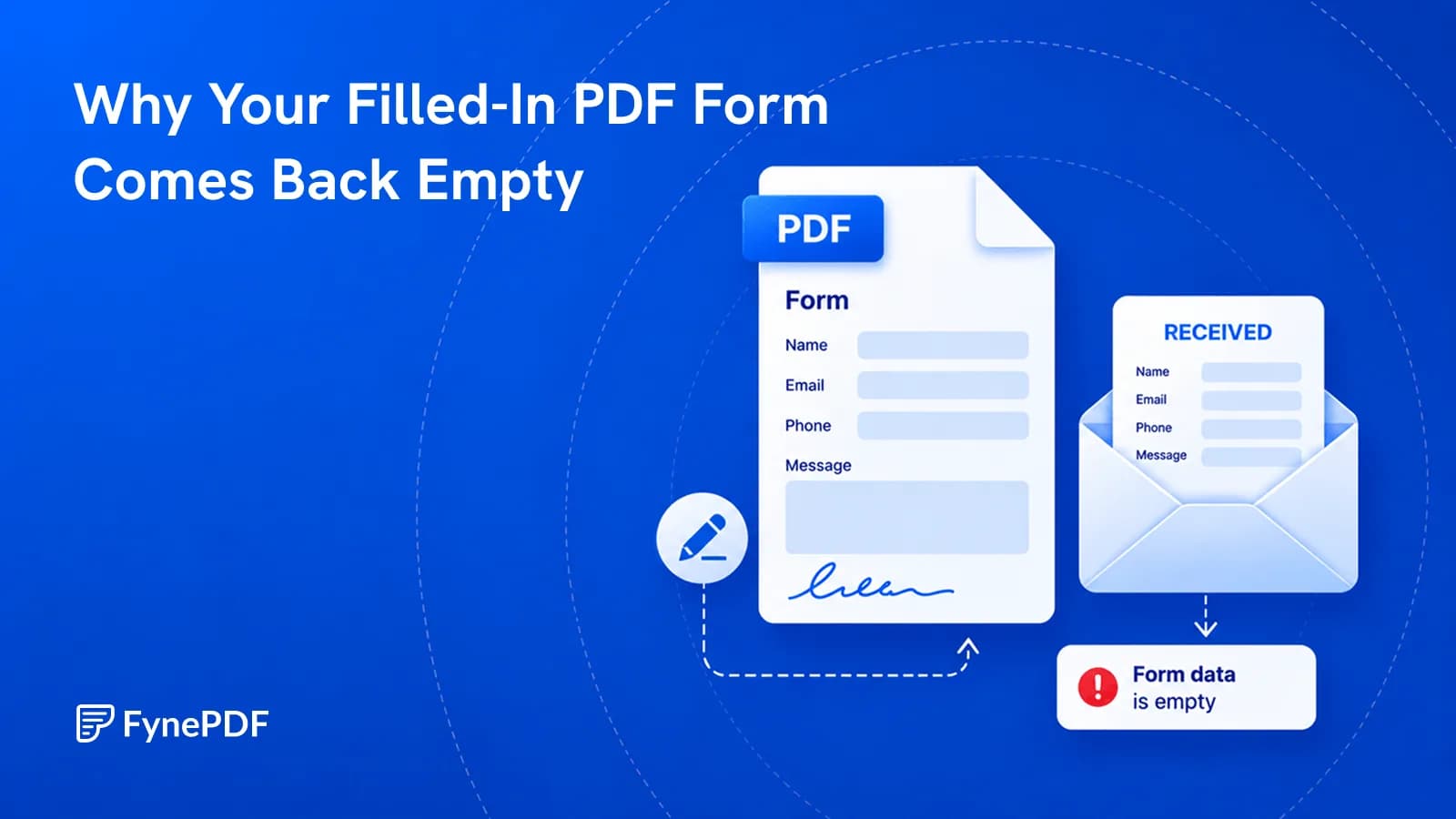
You typed everything in and they see blank boxes. Here's what actually went wrong.
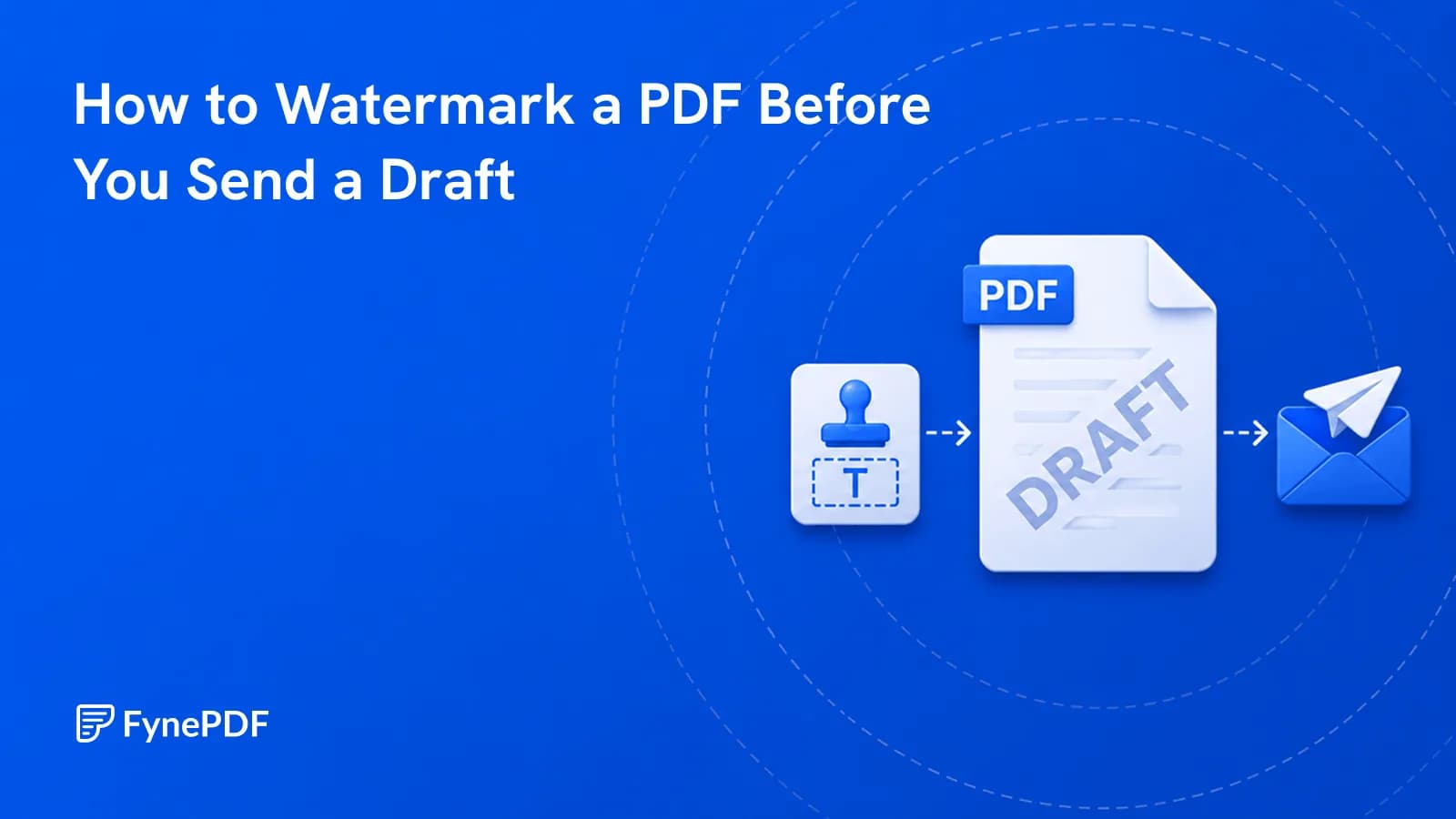
A draft with no DRAFT mark eventually gets treated as final. Here's how to prevent that.