
How to Sign a PDF Without Printing and Scanning It
Print, sign, scan, email is four steps and a worse file. Sign it directly instead.
 By Biraj Paudel, Founder of FynePDF4 min read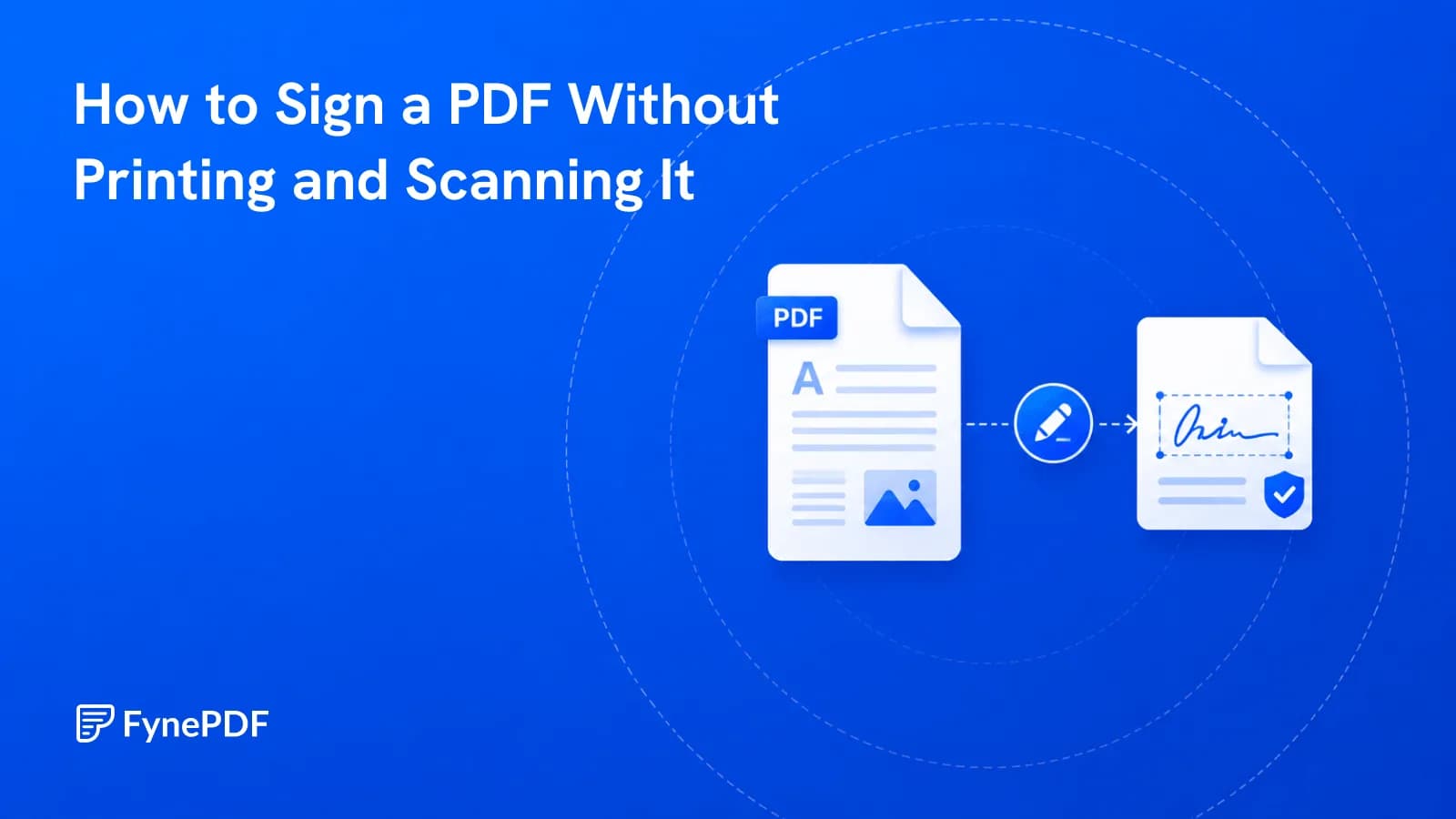
To sign a PDF without printing it, upload the document, place a signature where it's needed, and download the signed file. The document keeps its original text, stays searchable, and stays small. None of which survives the print-sign-scan cycle.
That cycle is worth examining, because most people run it out of habit rather than necessity.
What's actually wrong with print, sign, scan?
You start with a clean digital document containing real text. You print it, sign it, and scan it back, and now you have photographs of pages. The text layer is gone, so nobody can search it, copy from it, or process it further. The file is also much larger, often by a factor of ten or more, because scanned images carry far more data than the text they depict.
A twelve-page agreement that arrived as a 200KB PDF commonly returns as a 15MB scan that struggles against email limits. You've spent four steps to produce a worse file.
Signing directly skips all of it.
How do I sign a PDF?
- Open the Sign PDF tool.
- Upload the document.
- Place your signature where it's required.
- Download the signed file.
This runs in your browser, the document is processed on your own device rather than uploaded to a server. For signed agreements, that's the assurance worth knowing.
Where should the signature actually go?
Sounds obvious, and it's the most common cause of a document coming back. Before downloading, check:
- Every signature block, not just the last page. Agreements frequently need initials on each page
- Date fields, which are usually separate from the signature and easy to leave blank
- Printed name fields, which sit beneath the signature line and are often overlooked
- Witness or counterparty blocks, which you should leave empty rather than fill
- Checkbox acknowledgements, which sometimes sit above the signature area
Scroll the whole document once after signing. A missing initial on page 4 means the entire round trip repeats.
Do I need to flatten it afterwards?
Usually yes, and this is the step people skip. A signature placed as an annotation is a separate layer that some readers let you move or delete. Flattening merges it into the page so it behaves as part of the document.
Run Flatten PDF after signing if the document is going anywhere consequential. It also collapses form field values into the visible page, which prevents the awkward situation where a recipient opens the file and finds the fields still editable.
What about filling in the form fields too?
If the PDF has proper interactive fields, fill them before signing, the signature is the last step, and flattening afterwards locks everything at once.
If the form is flat, with printed lines rather than clickable boxes, Annotate PDF lets you place text anywhere on the page. Both of those tools also run locally in your browser.
| Document type | Approach |
|---|---|
| Interactive form with fields | Fill fields, sign, flatten |
| Flat form with printed lines | Annotate text, sign, flatten |
| Signature only, no fields | Sign, flatten |
| Scanned form | OCR first if you need searchable text |
Is a drawn signature legally valid?
Electronic signatures are widely recognised across jurisdictions, but the specifics vary by country and by document type. Property transfers, wills, and some regulated instruments carry additional requirements almost everywhere. This isn't legal advice, and for anything consequential the sensible step is confirming with a qualified professional in your jurisdiction what form of signature that particular document requires.
What is generally true: for routine business documents, a placed electronic signature is standard practice and is what most counterparties expect.
Common questions
Will my signature look the same every time?
Signature appearance doesn't determine validity, and minor variation between documents is normal. It's true of handwritten signatures too. Consistency matters more for recognisability than for enforceability.
Can I sign a password-protected PDF?
Remove the protection first with Unlock PDF using your password, sign the document, then reapply protection with Protect PDF if the recipient needs it.
The signature field won't let me click it. Why?
The document has printed signature lines rather than interactive fields. Very common with forms originally designed for paper. Use Annotate PDF to place your signature anywhere on the page instead.
How do I keep the signed file small?
Signing directly keeps it small by definition, since you're not adding scanned images. If the original was already oversized, Compress PDF will reduce it before you send.
To sign and shrink it in one go, “Sign the last page at the bottom right, then compress it” opens Smart Edit with that request ready for your file. You can point to the exact spot for the signature before anything runs.
Sign your document
Open the Sign PDF tool, place your signature, and scroll the whole document before downloading. Every block, every date field.
 Parse PDF
 Chat with PDF
 Repair PDF