
How to Password Protect a PDF Before You Send It
Encryption takes seconds. Sending the password in the same email defeats the whole thing.
 By Biraj Paudel, Founder of FynePDF4 min read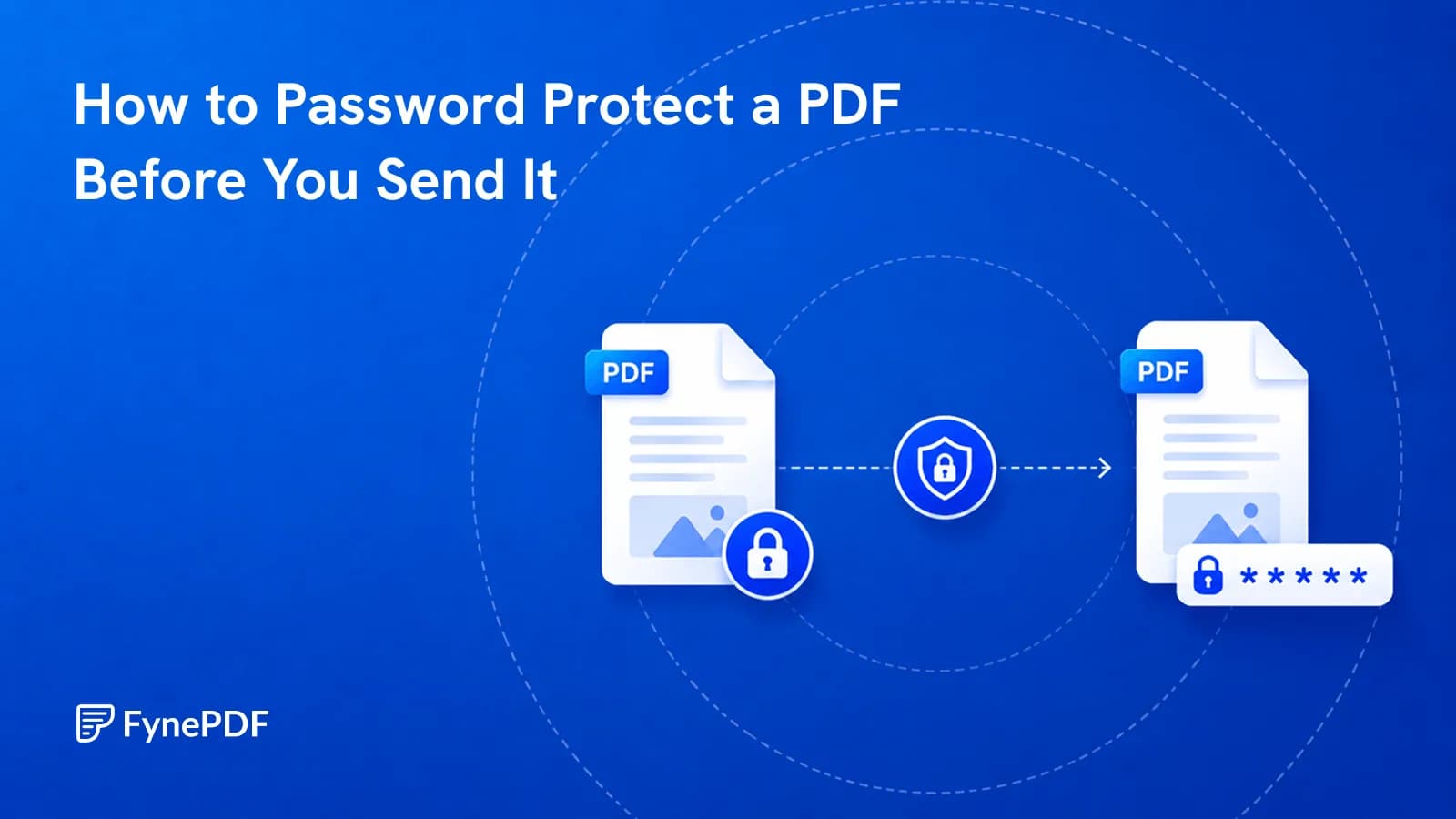
To password protect a PDF, upload it, set a password, and download the encrypted file. The document then can't be opened without that password. The part that determines whether it's actually secure is how you send the password, not in the same email as the file, which is the most common mistake by a wide margin.
Encryption is the easy half. Delivery is where protection usually fails.
What does a PDF password actually do?
There are two distinct kinds, and they're often confused.
An open password encrypts the file's contents. Without it, the document cannot be opened or read at all. This is real protection.
A permissions password allows anyone to open the file but restricts printing, copying, or editing. This is a request, not a barrier. Plenty of readers ignore it entirely, and it should never be relied on to protect confidential information.
If the content is sensitive, you want the open password.
How do I protect a PDF?
- Open the Protect PDF tool.
- Upload your document.
- Set a password.
- Download the encrypted file and store the password somewhere you'll find it.
That last clause matters more than it sounds. A genuinely encrypted PDF with a lost password is not recoverable, and no tool can honestly claim otherwise.
How should I send the password?
Through a different channel from the file. If both travel in the same email, anyone who accesses that inbox has both halves and the encryption has achieved nothing.
| Method | Suitable |
|---|---|
| Separate email | No, same channel, same risk |
| Text message or phone call | Yes |
| Signal, WhatsApp, or similar | Yes |
| Shared password manager | Yes, best option for teams |
| In the filename | No |
| In the document itself | No |
For recurring exchanges with the same recipient, agree a shared secret once and reuse it rather than transmitting a new password each time.
Where will password protection cause problems?
Government and institutional upload portals reject encrypted PDFs almost universally, because their processing systems can't open them. USCIS explicitly refuses password-protected files, and most court e-filing and job application systems behave the same way.
Protect documents you're emailing to a person. Send documents to a portal unprotected, and rely on the portal's own security.
Encryption also blocks other processing. If you need to compress, merge, or convert a protected file, remove the password first with Unlock PDF, run the operation, then reapply protection.
Easier still, make the other changes before you lock it. “Compress it, then lock it with a password” opens Smart Edit with that request ready: the lock always runs last, and the password you type into the plan goes only to the lock step, never to the AI.
Is a password enough for really sensitive documents?
Not on its own. Encryption stops someone opening the file; it does nothing about what's inside it once opened, or about the metadata attached to it.
For documents containing personal data you don't need to share, remove the information rather than just locking the container, Redact PDF deletes content permanently, and Flatten PDF collapses form fields that store values separately from the visible page.
What about the rest of the document?
Encryption protects the file, not the information inside it once opened. Two things commonly leak past a password.
Metadata travels unencrypted in some respects and often carries the author name, the creating application, and the original filename. A document called Q3_layoffs_draft_v4.pdf communicates plenty before anyone types a password.
Form field values are stored separately from the visible page and can be extracted from a document someone has legitimately opened. Running Flatten PDF collapses them into the page content first.
Common questions
What makes a good PDF password?
Length beats complexity. A passphrase of several unrelated words is both stronger and easier to communicate over the phone than a short string of symbols. Avoid anything derived from the document, the client's name, the project code, the date.
Can I remove the password later?
Yes, with Unlock PDF, provided you know the password. That's the legitimate use case: you own the document and want to lift protection you applied.
What if I forget it?
The file is not recoverable. Real encryption has no back door, which is precisely why it works. Keep an unprotected master copy somewhere secure before you encrypt.
Is my file safe while being encrypted?
Files transfer over encrypted connections and are permanently deleted within 15 minutes of processing unless you save them to your library.
Protect your document
Open the Protect PDF tool, set a password, and send it by a different route than the file itself.

 Unlock PDF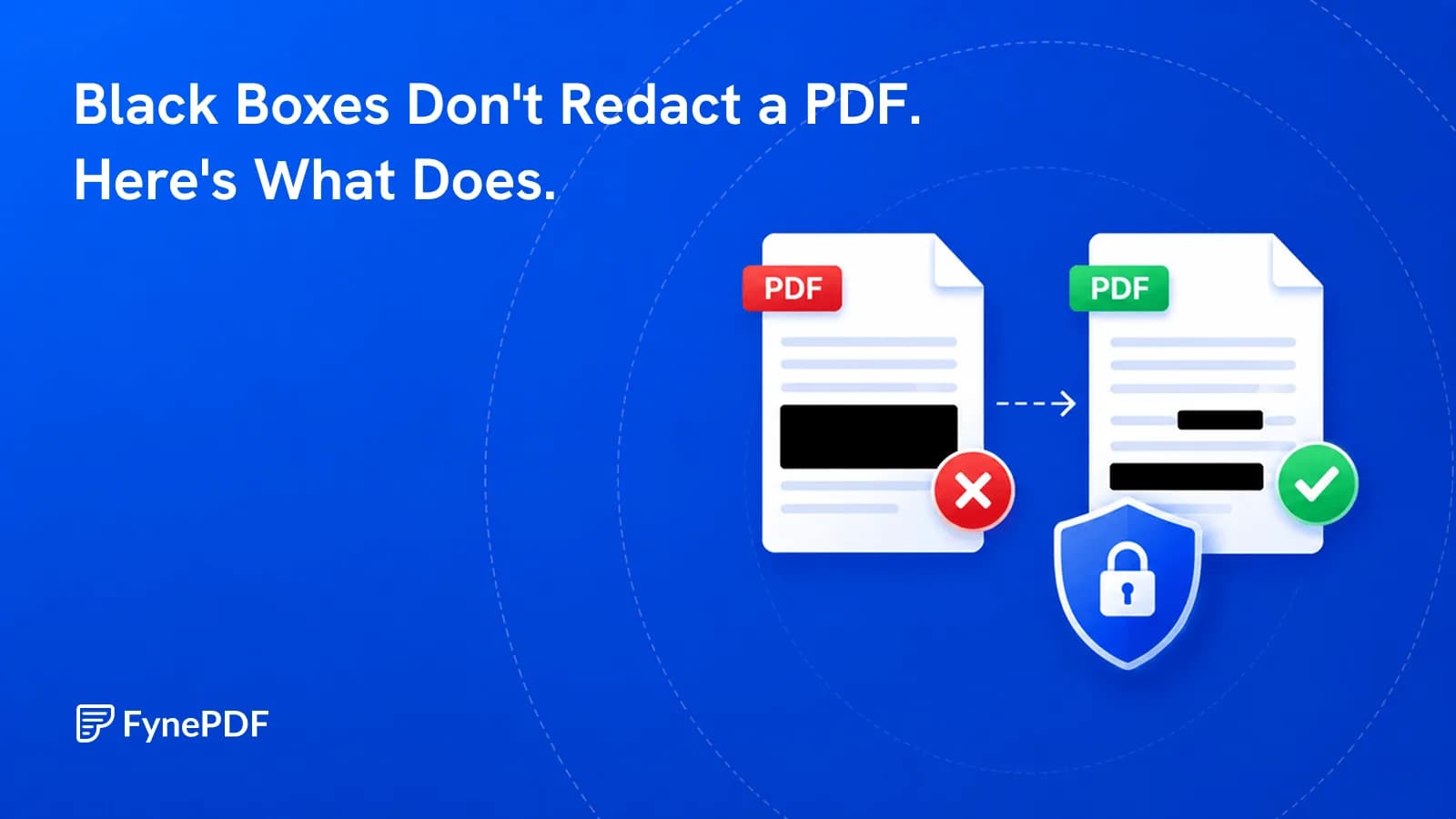
 Redact PDF