
How to Mark Up a PDF Without Printing It
Print, scribble, scan, email wastes an hour and produces a worse file. Mark it up directly.
 By Biraj Paudel, Founder of FynePDF4 min read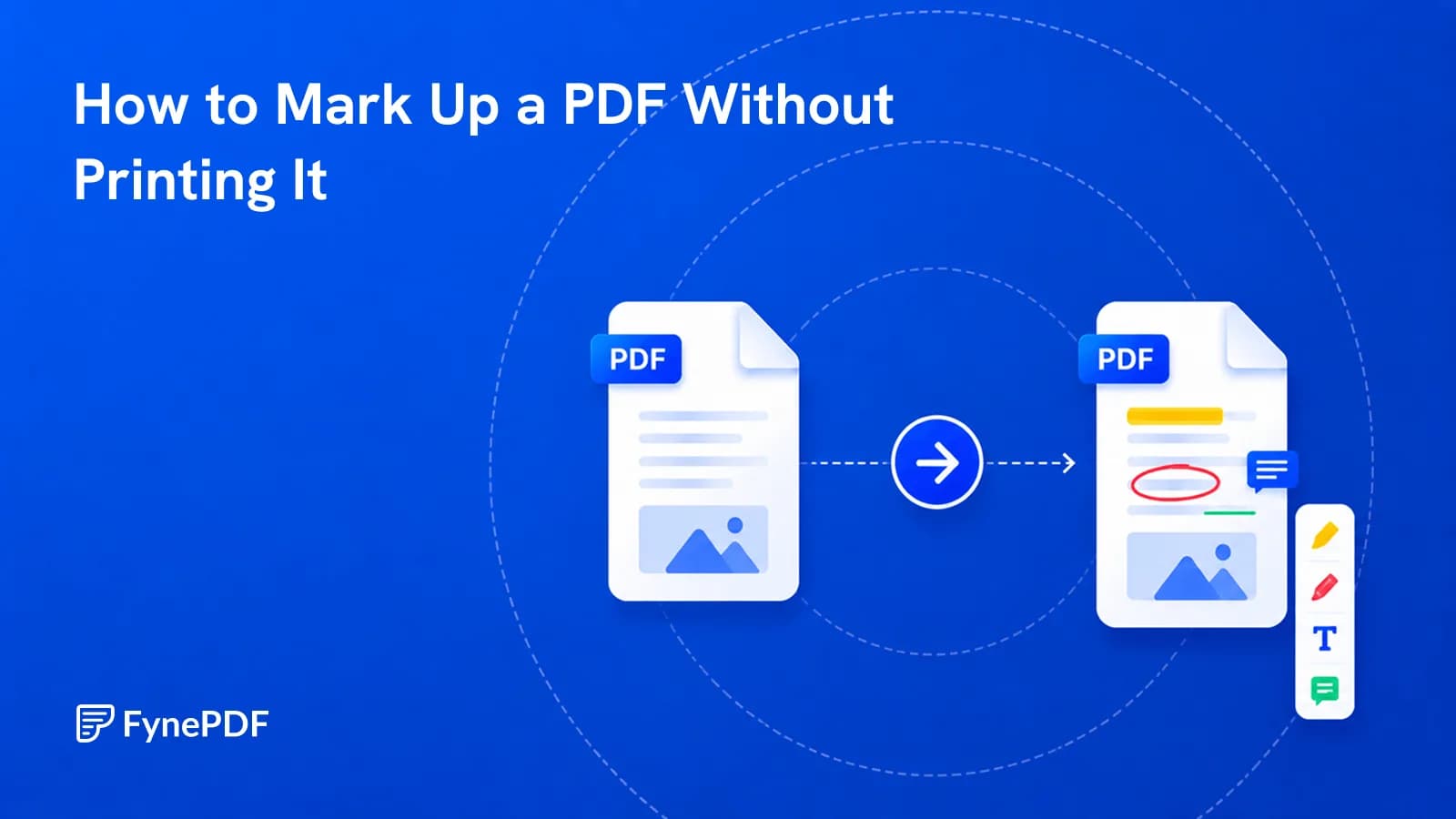
To mark up a PDF, upload it and add comments, highlights, and notes directly onto the pages. The document keeps its text layer, stays searchable, and stays small. None of which survives printing and scanning your handwritten notes back in.
The printed route also loses the one thing review comments need most: legibility.
Why not just print and scan?
Because you end up with photographs of pages. The text layer is gone, so nobody can search the document, copy a quoted passage, or run it through any tool that needs real text. The file becomes ten to twenty times larger, and your handwriting is now the permanent record of what you meant.
There's a collaboration cost too. Digital comments can be read, replied to, and worked through as a list. Handwritten margin notes have to be transcribed by whoever receives them, which is both slow and lossy.
How do I annotate a PDF?
- Open the Annotate PDF tool.
- Upload your document.
- Add comments, highlights, and notes where they're needed.
- Download the annotated file.
This runs in your browser, the document is processed on your own device rather than uploaded to a server. For documents under review before they're finalised, that's worth knowing.
Free accounts handle files up to 600MB.
What should I use for what?
Different markup types carry different meanings, and using them consistently makes review faster for everyone:
| Markup | Best for |
|---|---|
| Highlight | Flagging passages that need attention |
| Text comment | Explaining what's wrong and why |
| Note | Longer feedback that would clutter the page |
| Freehand or shapes | Pointing at layout and design issues |
| Text box | Suggesting replacement wording |
The habit worth building is making comments actionable. "This is confusing" tells the author there's a problem; "unclear whether this deadline is calendar days or business days" tells them what to fix. On a document going through several review rounds, that difference compounds.
Can I fill in a form this way?
Yes, and it's the right tool when the form isn't interactive. Many PDFs have printed lines that look like fields but can't be clicked. Forms originally designed for paper, or scans of them.
If you can tab between boxes, the form has real fields and should be filled directly. If you can't, annotation lets you place text anywhere on the page. Either way, run Flatten PDF afterwards so your entries render everywhere rather than only in readers that understand annotation layers.
Will my comments show up for everyone?
Not necessarily, and this catches people out. Annotations are stored in a separate layer from the page, and viewers differ in whether they display it. Browser previews and mobile mail apps frequently show a clean document with no visible markup at all.
Two approaches depending on your goal:
Comments meant to be worked through. Send as-is, and tell the recipient to open it in a proper PDF reader. Keeping annotations as a separate layer is what lets them be replied to and resolved.
Comments meant to be permanent. Flatten before sending, so the markup becomes part of the page. It can no longer be edited or replied to, which is the point for a final marked-up record.
Common questions
Can several people annotate the same document?
Each person's markup is saved into their copy of the file. Combining feedback means collecting the returned files and working through them, or agreeing a sequence where each reviewer annotates the previous version.
Will annotating change the original text?
No. Markup sits on top of the page content and doesn't alter it. To change the underlying document you need the source file, or a conversion through PDF to Word.
How do I remove annotations later?
Most readers let you delete individual annotations from the layer. Once flattened, they're part of the page and can't be removed.
Is my document uploaded anywhere?
This tool runs locally in your browser. The file is processed on your device.
Mark up your document
Open Annotate PDF and add your comments. Flatten before sending if the markup needs to be visible everywhere.
 Flatten PDF
 Organize PDF Pages
 Extract PDF Pages