
How to Resize a PDF by Cropping Unwanted Margins
Cropping removes unnecessary margins so your PDF fits the page better when printing or sharing.
 By Biraj Paudel, Founder of FynePDF4 min read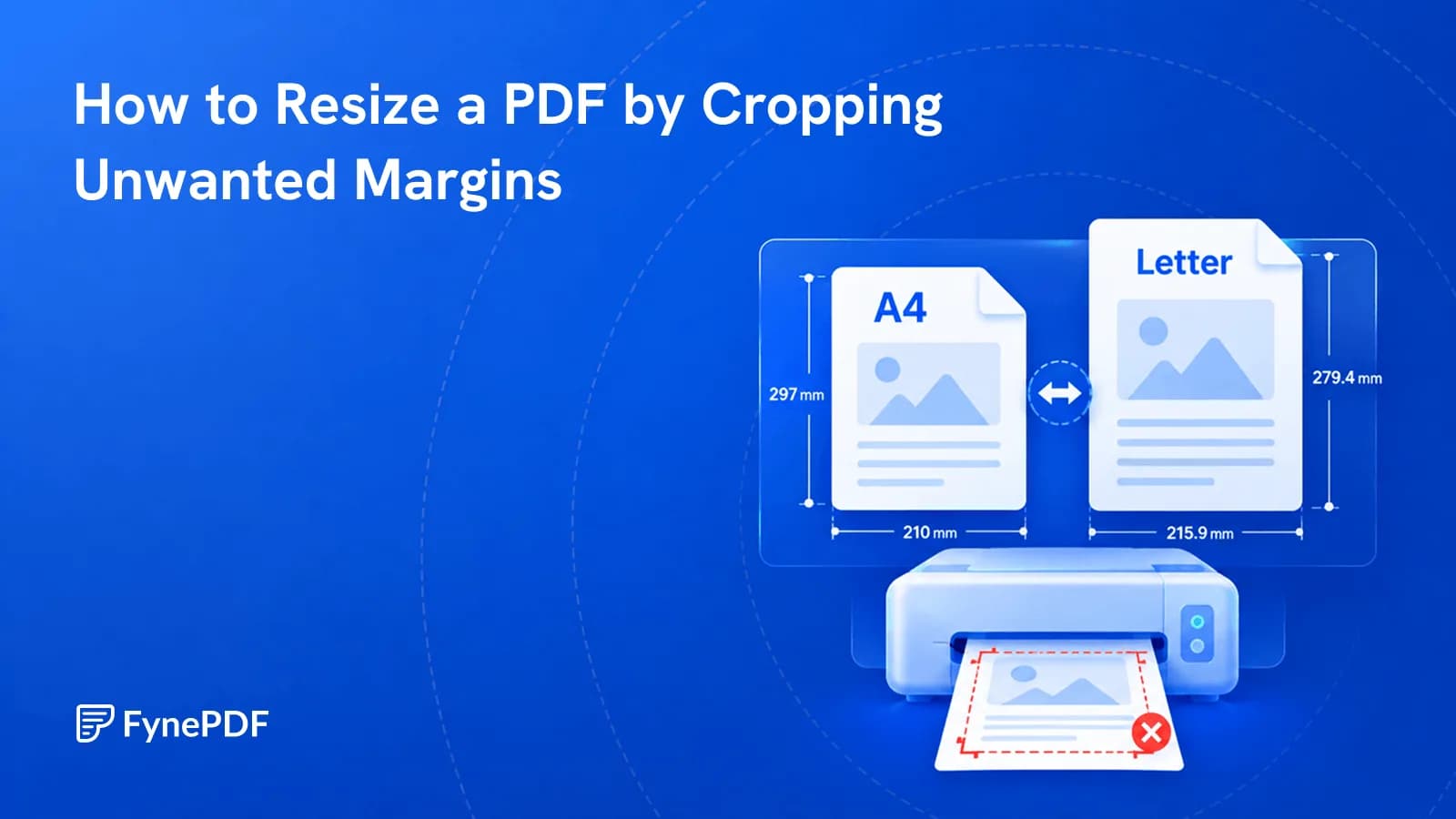
Documents don't always print the way you expect. A PDF created for one paper size may leave large white borders, place content too close to the edges, or simply waste space when printed on another printer.
While changing the page size is one solution, many documents only need their unnecessary margins removed. Cropping a PDF trims those outer areas without changing the text, images, or layout inside the remaining page.
Why would I crop a PDF?
Cropping is useful whenever the document contains more whitespace than necessary or when you only want to keep the important part of each page.
Common situations include:
- Removing large white margins before printing.
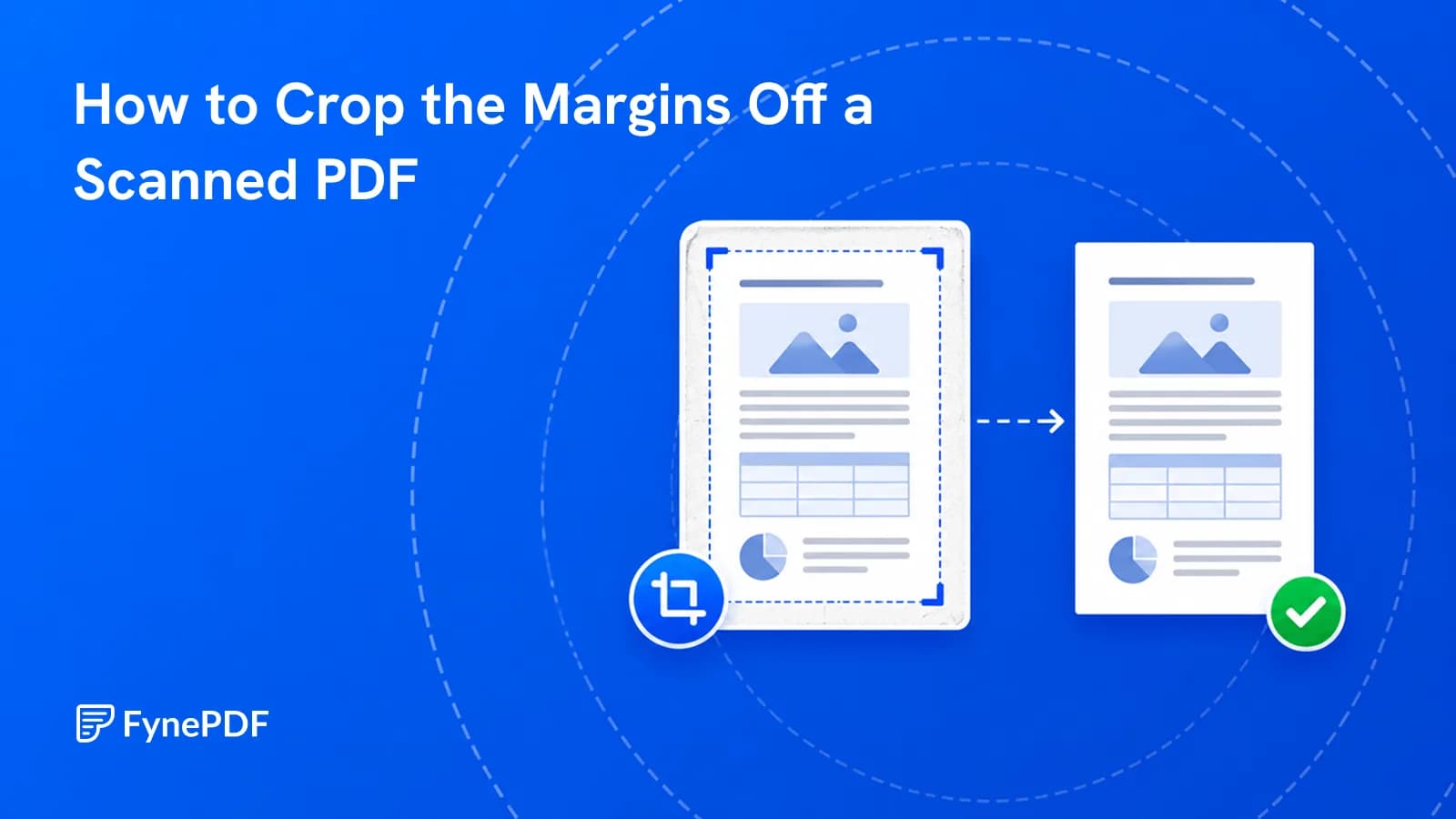
- Cleaning up scanned documents with dark borders or scanner marks.
- Focusing attention on the document content instead of surrounding whitespace.
- Preparing PDFs for presentations or sharing.
- Making documents easier to read on tablets and smaller screens.
- Removing unwanted page edges before sending a file to someone else.
Unlike resizing, cropping doesn't scale your content. It simply removes the areas you don't want.
How do I crop a PDF?
- Open the Crop PDF tool.
- Upload your document.
- Select the area you want to keep.
- Apply the crop to the current page or all pages.
- Download the cropped PDF.
Free accounts support files up to 600MB.
After cropping, quickly review the first few and last few pages to make sure important headers, footers, and page numbers are still visible.
Will cropping make my PDF fit the page better?
Often, yes.
Many PDFs appear too small on paper because they contain unusually large margins. Removing those margins allows the important content to occupy more of the printable area.
Cropping can also improve the appearance of scanned documents by removing black scanner borders, uneven edges, and unnecessary whitespace.
However, cropping does not change the actual paper size of the PDF. If the original document was designed for A4 or Letter paper, it remains that paper size after cropping. The tool simply removes unwanted portions around the content.
Can cropping affect my document?
Cropping permanently removes anything outside the selected area in the new PDF.
Before saving, check carefully for:
Headers and footers. Documents often place page numbers, dates, company names, or legal notices near the page edges. Cropping too aggressively can remove them.
Tables and diagrams. Wide spreadsheets, engineering drawings, and charts may extend closer to the page boundaries than regular text.
Printed forms. Government forms, contracts, and applications sometimes include alignment marks or required margins. Avoid cropping unless you're certain those areas aren't needed.
Using a preview before downloading helps catch these issues.
When should I crop instead of resize?
Cropping and resizing solve different problems.
| Situation | Better choice |
|---|---|
| Large white margins | Crop PDF |
| Scanner borders or black edges | Crop PDF |
| Remove unwanted page edges | Crop PDF |
| Focus on a section of the page | Crop PDF |
| Keep only the important content | Crop PDF |
If your goal is simply to remove unnecessary space while preserving the original appearance, cropping is usually the better option.
Common questions
Will cropping reduce my file size?
Sometimes, but not by a significant amount.
Cropping removes parts of each page that are outside the selected area, but it doesn't automatically recompress images or optimize the PDF. If your goal is to make the file much smaller for email or storage, use a dedicated PDF compression tool after cropping. Cropping is primarily intended to improve the document's appearance rather than reduce its storage size.
Can I crop only certain pages?
Yes.
Many documents only need a few pages adjusted. For example, a scanned cover page may have large borders while the remaining pages are already clean. Cropping only the affected pages preserves the rest of the document exactly as it is and avoids unnecessary editing.
Will cropping change my text or image quality?
No.
Cropping doesn't resample or redraw the contents of your PDF. It simply defines a new visible page area. Text remains sharp, vector graphics stay crisp, and images keep their original quality within the cropped region.
Can I undo a crop later?
It's always a good idea to keep the original PDF.
The cropped file contains only the visible page area you chose to keep. If you later discover that important information near the edges was removed, having the original document allows you to crop again with different settings.
Is my document stored?
Your files are transferred over encrypted connections and are automatically deleted within 15 minutes of processing unless you choose to save them to your library.
This helps protect sensitive business documents, contracts, reports, and personal files while they're being processed.
Crop your PDF
Upload your document to Crop PDF to remove unwanted margins, scanner borders, or unnecessary page edges.
Review the preview before downloading to make sure important content near the page boundaries remains visible.
 Crop PDF
 PowerPoint to PDF
 Compress PDF