
How to Save a Webpage as a PDF That Actually Looks Right
Ctrl+P captures cookie banners and misses images. Here's how to archive a page properly.
 By Biraj Paudel, Founder of FynePDF4 min read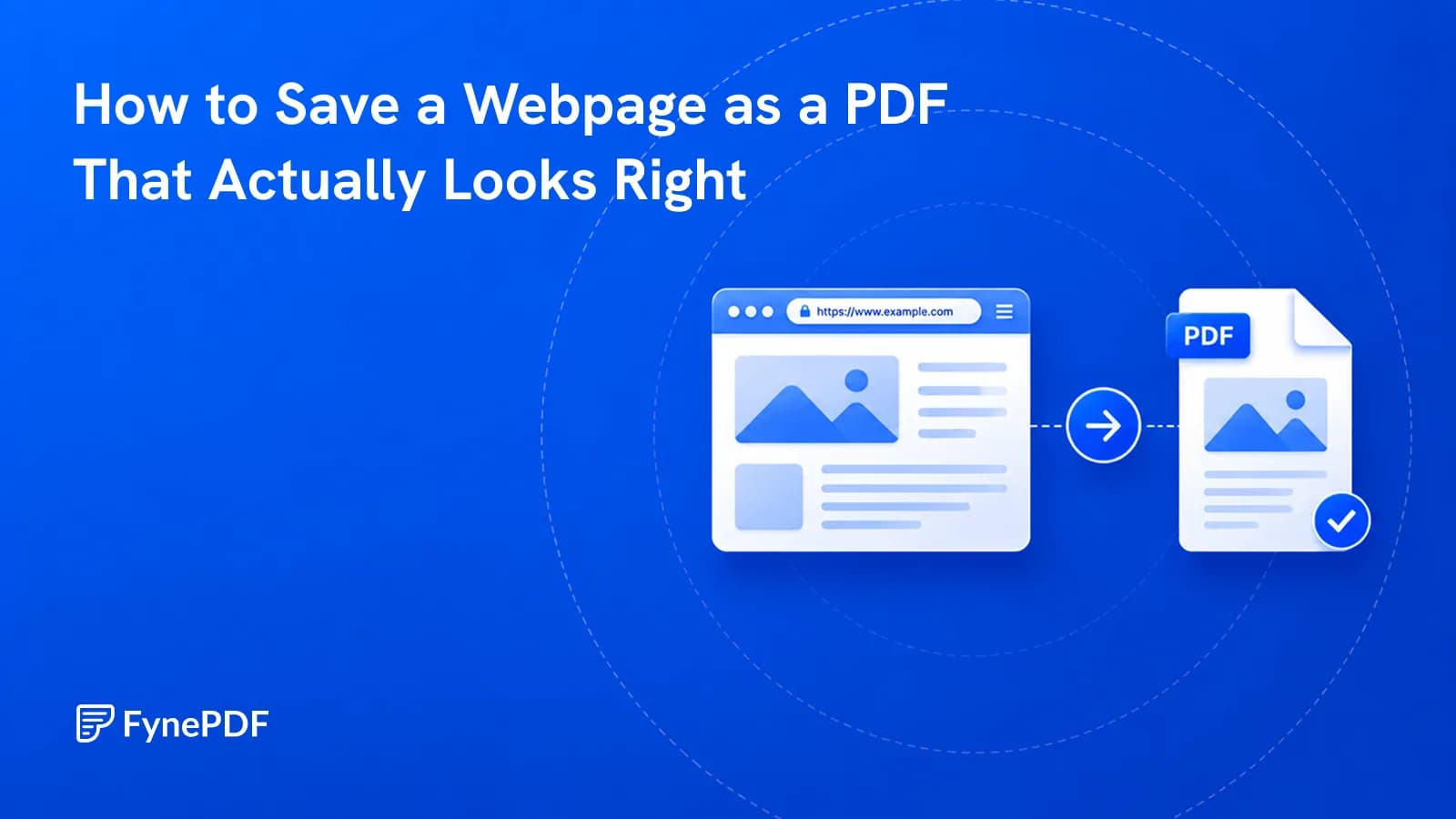
To save a webpage as a PDF, paste its URL and convert. The page is rendered in full before being paginated, so images load and layout holds. This avoids the two failures of printing from a browser: cookie banners baked into the output, and lazy-loaded images captured as blank placeholders.
Both are common enough that most people have a folder of half-broken printed pages somewhere.
Why does Ctrl+P produce a mess?
Three reasons, and they compound.
Print stylesheets are usually neglected. Sites define how they should look when printed, and that CSS is written once and rarely tested again. Columns collapse, sidebars land on top of body text, and navigation appears mid-article.
Overlays get printed. Cookie consent bars, newsletter modals, sticky headers, and chat widgets are part of the page, so they're part of the printout. A banner covering the first paragraph is the classic result.
Lazy-loaded images never load. Most sites only fetch images as you scroll to them. Printing captures the page in its current state, so anything below the fold that you never scrolled past prints as an empty box.
Rendering the full page first, then paginating, sidesteps all three.
How do I convert a webpage?
- Copy the URL.
- Open the Webpage to PDF tool.
- Paste the link and convert.
- Download the PDF.
Nothing to install, no browser extension. Free accounts can convert 5 sites; paid plans remove the limit.
What is this genuinely useful for?
- Research and citation. Evidence that a page said something on a given date, which a bookmark cannot provide once the page changes
- Documentation you depend on. Vendor setup guides get rewritten without notice, and your team may be running on a specific version
- Receipts and confirmations. Order and booking pages expire out of accounts faster than you'd expect
- Competitor or reference material. Everyone reviews the same snapshot rather than whatever the page looks like when they happen to open it
- Regulatory records, where you need to show what disclosure was published and when
The common thread is permanence. Bookmarks save a pointer; PDFs save the content.
What won't convert cleanly?
Worth knowing before you try, because these are properties of the format rather than fixable settings.
| Content | Result |
|---|---|
| Anything behind a login | Not accessible, the page is fetched as an anonymous visitor |
| Paywalled articles | Only the visible portion |
| Embedded video | A still frame |
| Interactive maps | A fixed image at whatever position loaded |
| Calculators and configurators | Captured in their default state |
| Infinite-scroll feeds | Only the content loaded at capture time |
For pages behind a login, your browser's own print-to-PDF is the fallback. It has your session, even if the output is rougher.
Is the text searchable afterwards?
Yes. Text is captured as real text rather than as a picture of the page, so you can search it with Ctrl+F, select it, and copy from it. That's the main advantage over screenshotting, and it means the resulting file works with everything else. You can query it with Chat with Doc or pull content out with OCR PDF.
Screenshots give you pixels. This gives you a document.
Common questions
Can I convert several pages into one PDF?
Convert each page separately, then combine them with Merge PDF in whatever order makes sense. Useful for archiving a documentation set or a multi-part article as one file.
The page is very long. What happens?
It paginates automatically across as many PDF pages as needed. Long-form articles and documentation handle fine. Endless feeds are the exception, since only loaded content can be captured.
Will the links still work?
Hyperlinks are preserved, so the PDF behaves more like the original page than a flat image would. External links will of course break if the target eventually disappears, which is an argument for archiving the linked pages too if they matter.
Are converted pages stored?
Files transfer over encrypted connections and are permanently deleted within 15 minutes of processing unless you save them to your library.
Archive your page
Paste the URL into Webpage to PDF. You'll get a searchable, permanent copy rather than a printout with a cookie banner across the top.
 OCR PDF
 Word to PDF
 PDF to EPUB