
Print to PDF vs Save as PDF: What Changes?
The page may look the same while navigation, accessibility and other document features change.
 By Biraj Paudel, Founder of FynePDF6 min read
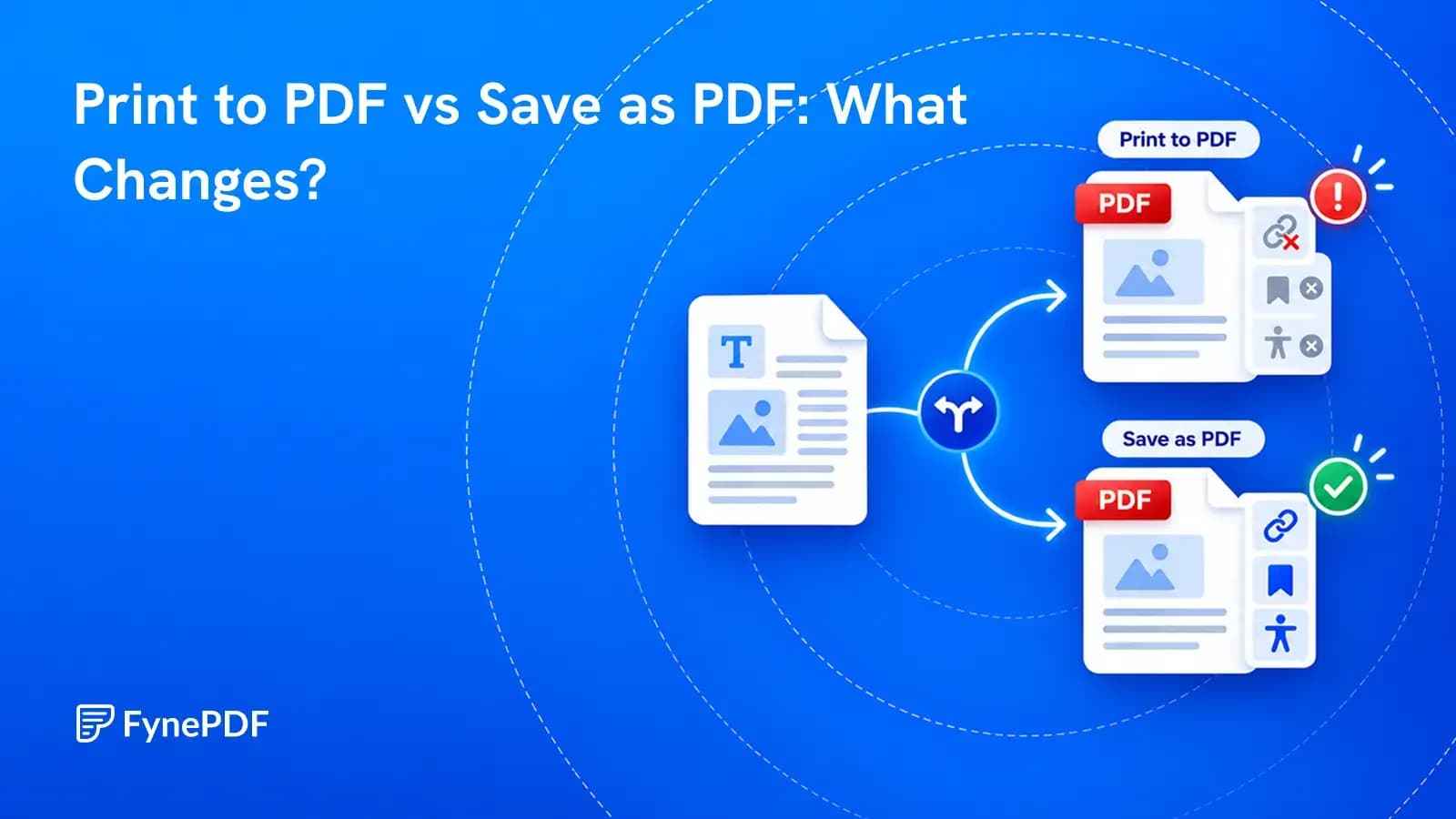
A colleague exports a report to PDF. You print the same report to PDF. Both files open, both contain the right words, and both look much like the original. Yet one has bookmarks and the other does not.
Print to PDF generally uses an application's printing workflow. Save as PDF or Export to PDF may use a document-aware export workflow with options for structure and navigation. The exact result depends on the application, operating system, PDF driver and settings.
When the original application offers a proper PDF export, start there, especially for documents that need working links, bookmarks or accessibility features. Use a print workflow when you need its particular page output, then check what survived.
The button name does not tell the whole story
On a Mac, Save as PDF is available inside the system Print dialog. Apple's instructions for saving a PDF use that route. The words “Save as PDF” therefore do not always mean a separate, document-aware export process.
In Word for Windows, by contrast, saving or exporting the document as a PDF gives you a different set of controls from selecting Microsoft Print to PDF as the printer.
To compare methods accurately, name the whole route: “Word for Windows, Save As, PDF” or “the application's Print dialog, Microsoft Print to PDF.” Avoid a universal rule that every Save button preserves everything and every Print button removes it.
What can change between the two files?
The table below is a checklist of differences to inspect, not a guarantee about every application.
| Feature | Why it can differ | How to check the result |
|---|---|---|
| Page layout | Printing uses paper size, scaling and other print settings | Compare page dimensions, margins and page count |
| Links | The output may retain link objects, plain text or different link behavior | Click a named external link and an internal reference |
| Bookmarks | Export may offer bookmarks derived from headings | Open the PDF reader's bookmarks panel |
| Document structure | A visual print path may not preserve tags | Inspect tags and reading order with suitable tools |
| Images and fonts | Different settings can change resolution or font handling | Zoom in on small text and detailed images |
| Forms and signatures | Recreating a PDF can change interactive features or signed content | Preserve the original and verify the recipient's requirements |
Check navigation in the actual file, not only in one reader. Some readers automatically recognize a printed web address and make it clickable. That does not establish that the PDF contains the original link, especially if its visible text is something like “Read the report.”
Word for Windows: choose export options deliberately
In desktop Word, save or export as PDF and open the available PDF options. Menu names can vary by version.
Microsoft's Office PDF export documentation describes controls for page range, bookmarks based on headings or Word bookmarks, document properties and structure tags. It also distinguishes publishing the document from publishing it with tracked-change markup.
Do not accept those settings without checking them. A public report may need bookmarks but should not show internal review markup. A document intended for assistive technology needs more than a visually correct page.
If the Word source uses bold text instead of actual heading styles, choosing heading-based bookmarks may not create the navigation you expect. Prepare the source structure before exporting.
Printing to PDF is not an accessibility shortcut
A PDF's visual appearance does not tell you whether its headings, reading order and tables are represented correctly for assistive technology.
Adobe's accessible-PDF guidance recommends creating tagged PDFs from suitable authoring applications where possible. It identifies PDFs made with the Adobe PDF Printer as an example that can need tagging afterward.
That is a reason to prefer an appropriate export workflow, not a promise that export alone produces an accessible document. Check the resulting structure, links, language and other relevant requirements. Our guide to PDF accessibility-check failures explains why a single checkbox does not settle the matter.
Compare two copies with a small test document
Before choosing a routine for an important report, create a short source document with two heading levels, a descriptive hyperlink, a small table and an image with alternative text.
Save one copy through the application's PDF export and another through the print-to-PDF route you intend to use. Give them distinct filenames and record the application version and settings.
Then inspect both copies:
- Check whether the intended pages and margins are present.
- Try selecting and copying a paragraph.
- Test the hyperlink and open the bookmarks panel.
- Inspect structure and reading order if accessibility matters.
- Compare image clarity and file size.
Record the results for your own setup. The useful outcome is knowing which route preserves the features your document needs, rather than choosing the button that sounds safer.
Why is the printed PDF sometimes larger?
Different output paths can encode images, fonts and page content differently. A change in image quality or font handling can increase or decrease the size.
Neither method is always smaller. Compare files made with equivalent page ranges and quality settings before attributing the difference to the route alone.
A small file can also be the wrong file: it might omit pages or reduce image detail too far. Check completeness first. If the verified output is still too large, compression becomes a separate task rather than a reason to choose an unsuitable export method.
Do not use either method as a blanket security fix
Reprinting an existing PDF is not a reliable way to redact it, preserve a digital signature or prove that hidden information has been removed. Saving another copy does not make the contents uneditable either.
For a signed or regulated document, preserve the original and follow the recipient's rules. For redaction, use an actual redaction workflow and inspect the final file.
If you have a Word file but need a separate conversion option, FynePDF's Word to PDF tool is available. Check the result against the same requirements; changing tools does not remove the need to inspect links, layout and structure.
Which method should I use for a resume?
Start with the source application's PDF export. Check that the text remains selectable, the reading order makes sense and links work. Follow the employer's required format rather than assuming every PDF route produces equivalent results.
Does Print to PDF turn every page into an image?
Not necessarily. A print-generated PDF can contain text and vector content. Check the actual output instead of identifying it as a scan merely because it came from a print dialog.
Can Save as PDF preserve a digital signature from another file?
Do not assume so. A new export is a new document, not a way to carry over the original PDF's cryptographic signature. Retain the signed original and use the approved handling process.

 Word to PDF
 PDF to Excel
 PDF to Word