Why PDF to Word Puts Everything in Text Boxes
A Word file can look like the original PDF and still be difficult to edit. Choose the structure you need before fixing the layout.
 By Biraj Paudel, Founder of FynePDF6 min read
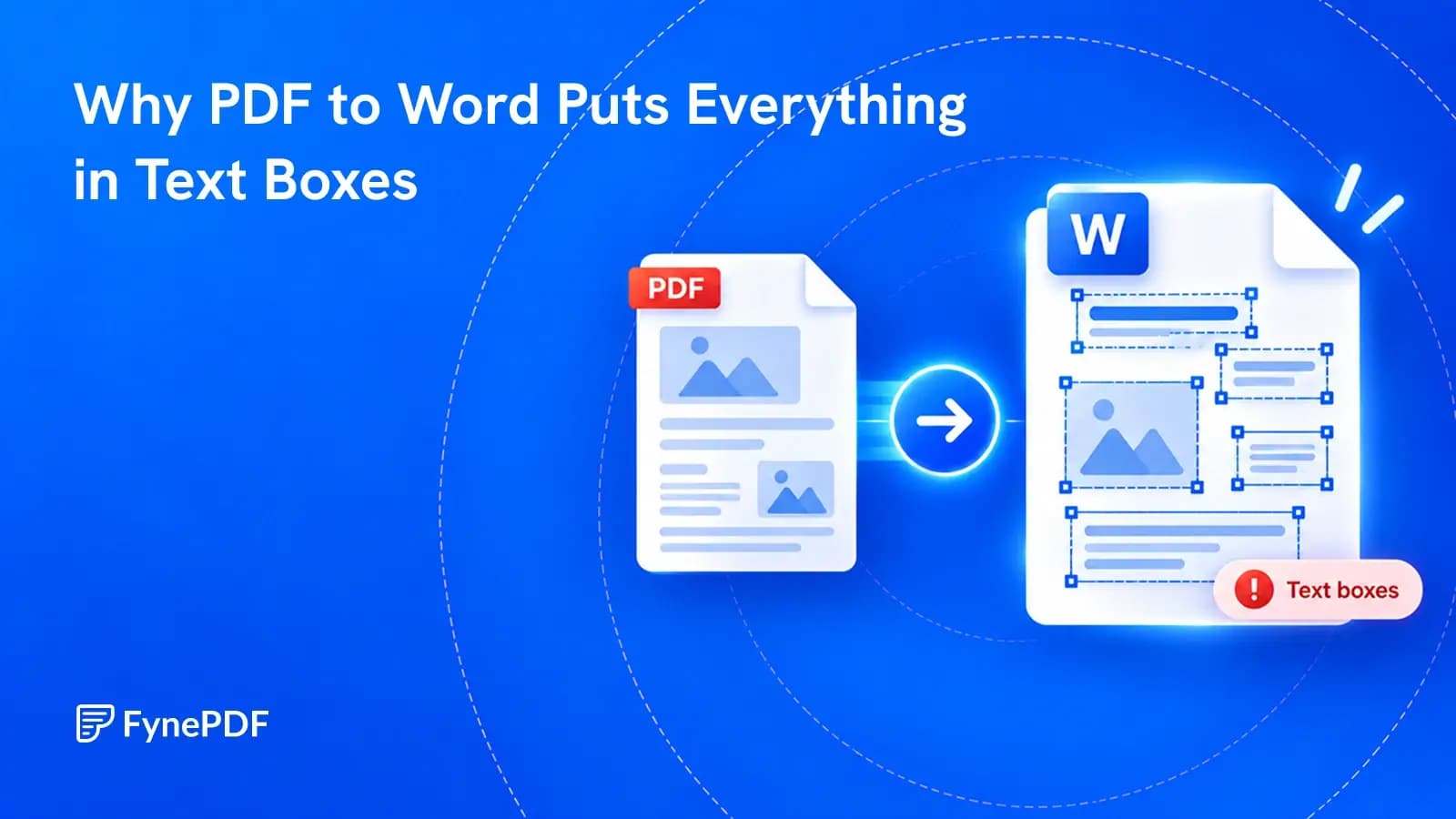
The conversion looks successful until you try to edit a sentence. Each paragraph sits inside its own box. Adding a line pushes text out of view instead of moving the next paragraph down. Selecting the whole page does not behave as expected.
PDF-to-Word converters often use text boxes to preserve where content sits on the page. A PDF may contain positions for text and images without a clear description of the paragraphs and sections that Word needs for normal editing.
The fix depends on your goal. Keep the layout if you only need a small change. If you need to rewrite, resize or reuse the content, aim for ordinary paragraphs instead of a page that merely looks the same.
Why the converter creates boxes
A PDF describes a finished page. A Word document also needs instructions about how content should move when you edit it.
The converter must infer whether a line belongs to the paragraph above it, a separate column, a caption or a sidebar. Putting text inside positioned boxes can preserve the original appearance without fully resolving those relationships.
Microsoft's explanation of opening PDFs in Word describes this reconstruction problem. It also notes that text-heavy documents tend to convert better than complex layouts, and that some pages can become images rather than editable text.
This is why a conversion can be visually close but structurally poor. Appearance and editability are different measures of success.
First check what you actually received
Click inside a problem area. Can you place the cursor between letters? Does clicking the edge select a separate object? Do you see cells and table controls instead?
| What you find | Likely situation | Useful next step |
|---|---|---|
| Editable text inside a movable border | A text box or similar positioned object | Keep it for a small edit, or move its text into normal paragraphs |
| A whole page selected as one picture | Image-based output | Use OCR or a conversion method that recognizes scanned text |
| Rows and columns with cell controls | A table used for structure or layout | Inspect the table before deciding whether to keep or convert it |
| Ordinary text with a break after every line | Hard line breaks or short paragraph fragments | Clean up the breaks selectively |
These problems can look similar, but they need different fixes. Removing an image does not turn it into text. Deleting a text box can delete the words inside it.
Work on a copy of the converted document and keep the original PDF beside it for reference.
If you only need to change a few words
You may not need to rebuild the document. For a short correction in a layout that must stay close to the original, editing the existing box can be practical.
Check that the replacement fits, that nothing overlaps and that the text is still visible when you save or export. Review the whole affected page, not only the sentence you changed.
This approach becomes less useful when your edits change paragraph length, page size or the number of sections. A document made from many positioned boxes can require repeated manual adjustments.
For a broader layout-preservation workflow, see how to edit a PDF in Word without losing formatting. The rest of this guide focuses on making the text flow normally.
Move the text, then remove the empty box
For a short document, a clean Word document is often easier to manage than a damaged conversion.
- Copy the text from inside the first box, not the box itself.
- Paste it into the new document as text only, using the paste option available in your Word version.
- Repeat in the correct reading order, checking against the PDF.
- Apply heading, paragraph and list styles in Word.
- Recreate any genuine tables separately and check their values.
If you are repairing the existing document instead, confirm that the text has been moved successfully before deleting the now-empty box. Deleting the box first is not a shortcut to keeping its contents.
Text-only pasting removes formatting. Expect to rebuild emphasis, hyperlinks, tables and other meaningful structure. For a two-page letter, that may be a reasonable trade. For a long report with footnotes and diagrams, consider a new conversion before doing it manually.
Do not assume that Select All has gathered every floating object in reading order. Check the first and last passage from each page and any sidebars or captions.
When it is better to convert again
If the whole document has become boxes, look for an output option that prioritizes flowing text over exact layout. Different converters use different labels; the goal is editable paragraphs, not fixed positions.
You can also ask an AI conversion tool to extract the main content in a defined structure:
Convert the main body of this PDF into an editable Word document with ordinary flowing paragraphs. Preserve the wording, section order, headings and numbered lists. Keep real tables as tables. Do not recreate the original page using a separate text box for each line or paragraph. Keep footnotes and captions identifiable. Exclude repeated running headers and page numbers from the body, and flag any uncertain reading order or unreadable text.
That is a request, not a guarantee. Check the output for missing content, changed wording and misplaced footnotes. If the document has legal, financial or other sensitive wording, do not rely on an unchecked AI reconstruction.
FynePDF's PDF to Word tool offers standard conversion and an AI option with instructions about the content you want. Use the AI option when a particular section or a cleaner content structure matters more than copying the original layout exactly.
What if the PDF is a scan?
A scanned page starts as an image. Text recognition, or OCR, is needed before the words can become editable.
OCR solves recognition, not necessarily layout. A converter may recognize every word and still place the results in separate boxes. You may need both reliable text recognition and an output method that builds normal paragraphs.
Check small numbers, punctuation and similar-looking characters after conversion. A readable-looking paragraph can still contain an incorrect date or amount.
Finish the structure before polishing the page
Once the text flows, correct reading order and paragraph breaks first. Then apply consistent headings, spacing, lists and page breaks.
Avoid a document-wide replacement that deletes every paragraph mark or hyphen. That can join headings to body text, break lists or alter compound words. Review repeated patterns on a small section before making wider changes.
Compare the final version with the PDF for content, not identical pagination. A document rebuilt for editing may legitimately use a different number of pages.
Are text boxes always a mistake?
No. They can be appropriate for a small sidebar, caption or designed callout. The problem is using them for ordinary body text that needs to flow across pages.
Can I remove every text box in one click and keep the words?
Do not assume so. Deleting a text box generally removes its contents too. Save a copy and transfer the text before removing the object, or use a conversion workflow designed to produce flowing text.
Will changing the file extension from PDF to DOCX help?
No. Renaming changes the filename, not the document's structure. Use an actual conversion or return to the original Word source if it is available.
 PDF to Word
 PDF to Excel