How to Extract Only the Data You Need From a PDF Into Excel
Ask for the records your spreadsheet needs, then check what was included and what was left out.
 By Biraj Paudel, Founder of FynePDF6 min read
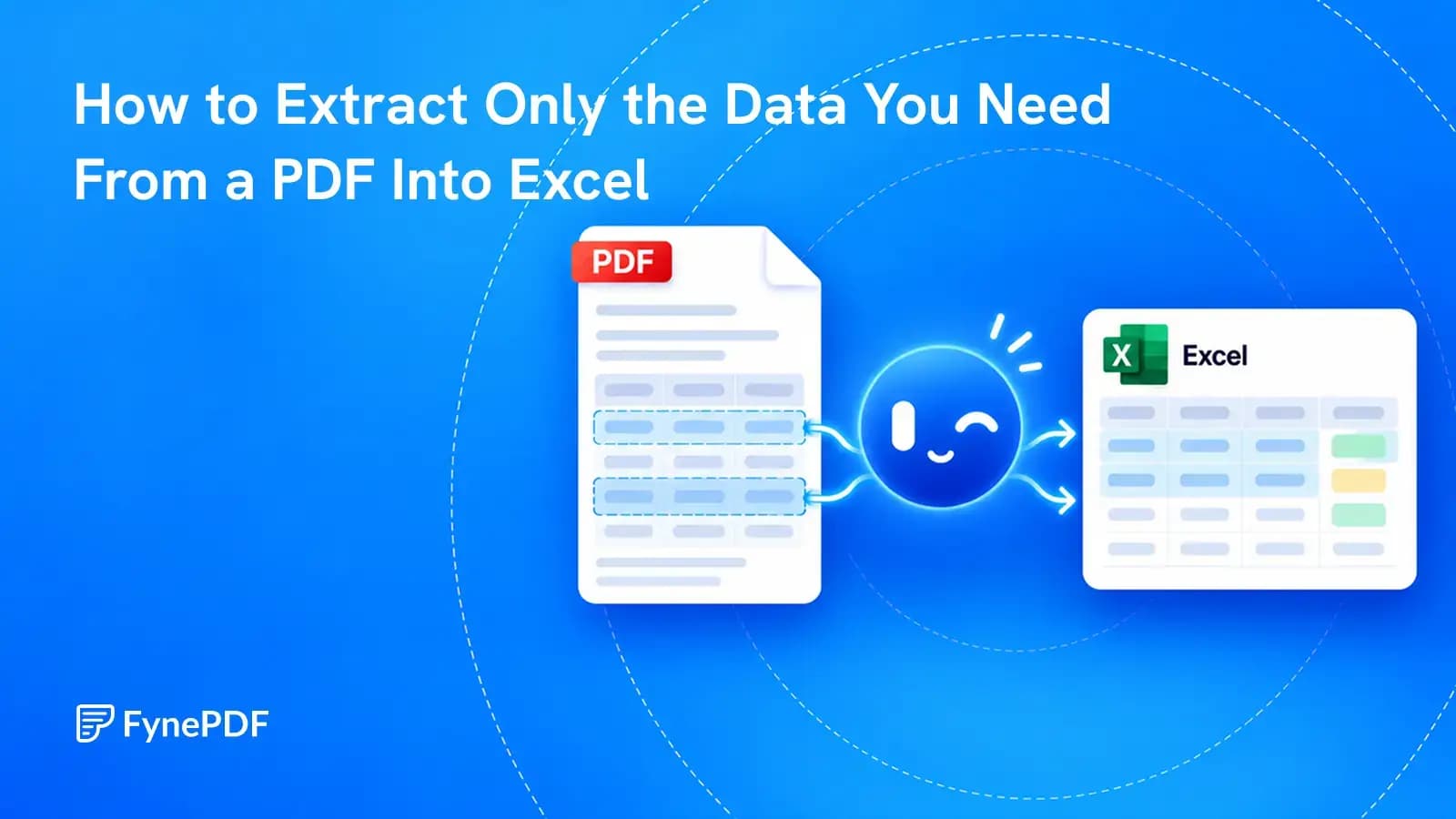
You need six figures from a report. Converting the whole PDF gives you dozens of tables, repeated headings and notes that have nothing to do with your task.
To extract only specific data from a PDF into Excel, define the records you want, the columns they should use and the rules for including a row. An AI conversion tool can follow that request, but you still need to check both the extracted values and the records it left out.
The useful question is not “Can this PDF become a spreadsheet?” It is “What should one row in this spreadsheet represent?”
Define the row before writing the prompt
Suppose you have a maintenance report containing equipment descriptions, inspection results, service charges and payment instructions. You want a list of completed repairs above $500, not every number in the document.
One row should represent one completed repair. It should not represent a page, a paragraph or a subtotal.
Decide these details before converting:
| Decision | Example rule |
|---|---|
| Record type | One completed repair per row |
| Date range | Service dates from July 1 through September 30, 2026 |
| Amount condition | Repair amount greater than $500, before tax |
| Fields | Job ID, service date, equipment, work description, amount, currency, source page |
| Exclusions | Estimates, cancelled jobs and summary totals |
| Missing information | Leave the value blank and add a review note |
“Greater than $500” excludes a repair costing exactly $500. If you mean to include it, say “$500 or more.” Small wording choices can change the row count.
Also specify which date matters. A service date, invoice date and payment date can refer to three different reporting periods.
A prompt for selected records and fields
Here is a reusable example. Replace the reporting period, threshold and fields with your own requirements:
Create an Excel worksheet with one row per completed repair whose service date is July 1 through September 30, 2026 and whose pre-tax amount is greater than USD 500. Use these columns: job ID, service date as printed, equipment, work description, pre-tax amount, currency, PDF page number and review note. Exclude estimates, cancelled jobs, repeated headings and summary totals. Preserve job IDs as text, including leading zeros. Do not infer a missing status, date or currency. Put records with unclear eligibility in a separate review sheet. Do not summarize several repairs into one row.
If the document contains mixed currencies, a single threshold is not enough. Ask for separate groups or provide a conversion rule with a stated rate and date. Do not let the AI silently choose one.
The source-page column is a request for traceability, not a guarantee that every reference will be accurate. Check those references when reviewing the output.
Worked example: check the records that did not qualify
These fictional report entries show why checking only the downloaded spreadsheet is insufficient:
| Job ID | Service date | Status | Pre-tax amount | Expected handling |
|---|---|---|---|---|
| 00108 | July 12, 2026 | Completed | USD 680 | Include |
| 00109 | August 8, 2026 | Completed | USD 500 | Exclude: not greater than $500 |
| 00110 | August 9, 2026 | Estimate | USD 920 | Exclude: not completed |
| 00111 | September 30, 2026 | Completed | USD 540 | Include |
| 00112 | October 1, 2026 | Completed | USD 750 | Exclude: outside the period |
| 00113 | September 18, 2026 | Not stated | USD 610 | Review separately |
The expected main sheet contains two rows, totaling $1,220. Job 00113 belongs in the review sheet because its status is unknown. It should not be silently accepted or discarded.
That review sheet is especially useful when the source uses unclear dates, different status labels or a note such as “pending confirmation.” Keeping the uncertainty visible is better than producing an apparently complete answer from incomplete records.
Preserve the context that gives a number meaning
A value of 680 is not self-explanatory. It needs a unit, currency, period and description.
Keep the heading that establishes whether a report uses dollars, thousands of dollars or millions. If a footnote changes what a figure includes, preserve that qualification in a notes column or alongside the extracted table.
Do not convert blanks, dashes or “not applicable” into zero without checking the source's meaning. Those entries may describe missing or irrelevant information rather than an amount of nothing.
Avoid automatic date cleanup until you understand the document's convention. Keep the original date text when 07/08/2026 could mean July 8 or August 7. A tidy but wrong date is harder to notice than an unresolved one.
When ordinary table extraction is enough
If the information already sits in one clean table, extract that table and filter it in Excel. You may not need AI to decide which rows qualify.
Microsoft's Power Query PDF connector lets supported applications select detected content and transform it before loading. Its documentation also notes that multiline rows can need cleanup. Check availability in your Excel version and platform.
AI is more useful when the requested fields are scattered across sections or when the selection depends on wording rather than a simple column filter. For straightforward conversion, our PDF-table extraction guide covers the broader workflow.
Extract selected data with FynePDF
FynePDF's PDF to Excel tool offers an AI option where you describe the fields, tables or subset you want. Start with a small, representative document and use a precise request like the example above.
Before uploading business records, confirm that the processing method is permitted by your organization. Then download the workbook and inspect it in Excel. Keep the original PDF and the extraction request with your working files so another person can repeat the review.
For invoice-specific rows, quantities, discounts and tax checks, use the separate guide to extracting invoice line items.
Check completeness, not just correct-looking cells
Review the first and last eligible record, the records near each date boundary and values near your amount threshold. Check every included row against its source before relying on it for a consequential decision.
Then inspect excluded and uncertain records. A spreadsheet can contain no wrong values and still be incomplete because qualifying records never reached it.
For a large report, establish a reconciliation method before extraction: section counts, known totals or a separate list of source record IDs. A sample check can reveal problems, but it does not prove that every row is correct.
Can I ask for only selected columns?
Yes. Name the fields explicitly, including any units or identifiers needed to interpret them. Removing unnecessary columns is helpful; removing the context needed to understand a figure is not.
Can AI extract information that is not in a table?
It can attempt to organize fields from prose, forms or scanned pages. Ask it to preserve the source wording where needed and leave absent values blank. Extraction should not invent a record to fill the requested structure.
Should I ask for a summary instead of a spreadsheet?
Use a summary when you need an explanation. Use row-level extraction when you need to sort, filter, reconcile or calculate. A paragraph describing “several high-cost repairs” cannot replace the individual records behind that statement.
 PDF to Excel