


How to Get Tables Out of a PDF and Into Excel
Copy-paste dumps everything into one column. Here's how to get real rows and columns.

8 October 2026 · By Biraj Paudel, Founder of FynePDF
We ran 56 test PDFs through both modes. Here is what came out, with the real spreadsheets.
A PDF table converts cleanly without AI when the PDF holds real text and the table has a clear layout: ruled tables, invoices and simple tables without lines all came back cell for cell in our tests. Scans always need AI, because there is no text in them to read. So do tables that Manual Conversion can't find, and most messy real-world reports.
We ran 56 PDFs through FynePDF's PDF to Excel on 8 October 2026, once with Manual Conversion and once with Convert with AI. Every example below comes from that run, and you can download the sample PDFs to try them yourself.
Every file went through the same steps fynepdf.com uses, on the same code, once in each mode, signed out on the Free plan. For the files we built, we counted how many of the known rows and cells came back exactly. For the real-world files, we counted how many of the PDF's numbers came back, and whether each landed in a cell of its own.
Manual Conversion reads the text and lines in the PDF and rebuilds the grid from them. It doesn't use AI, and when the PDF was made on a computer and the table has a clear layout, it is exact.
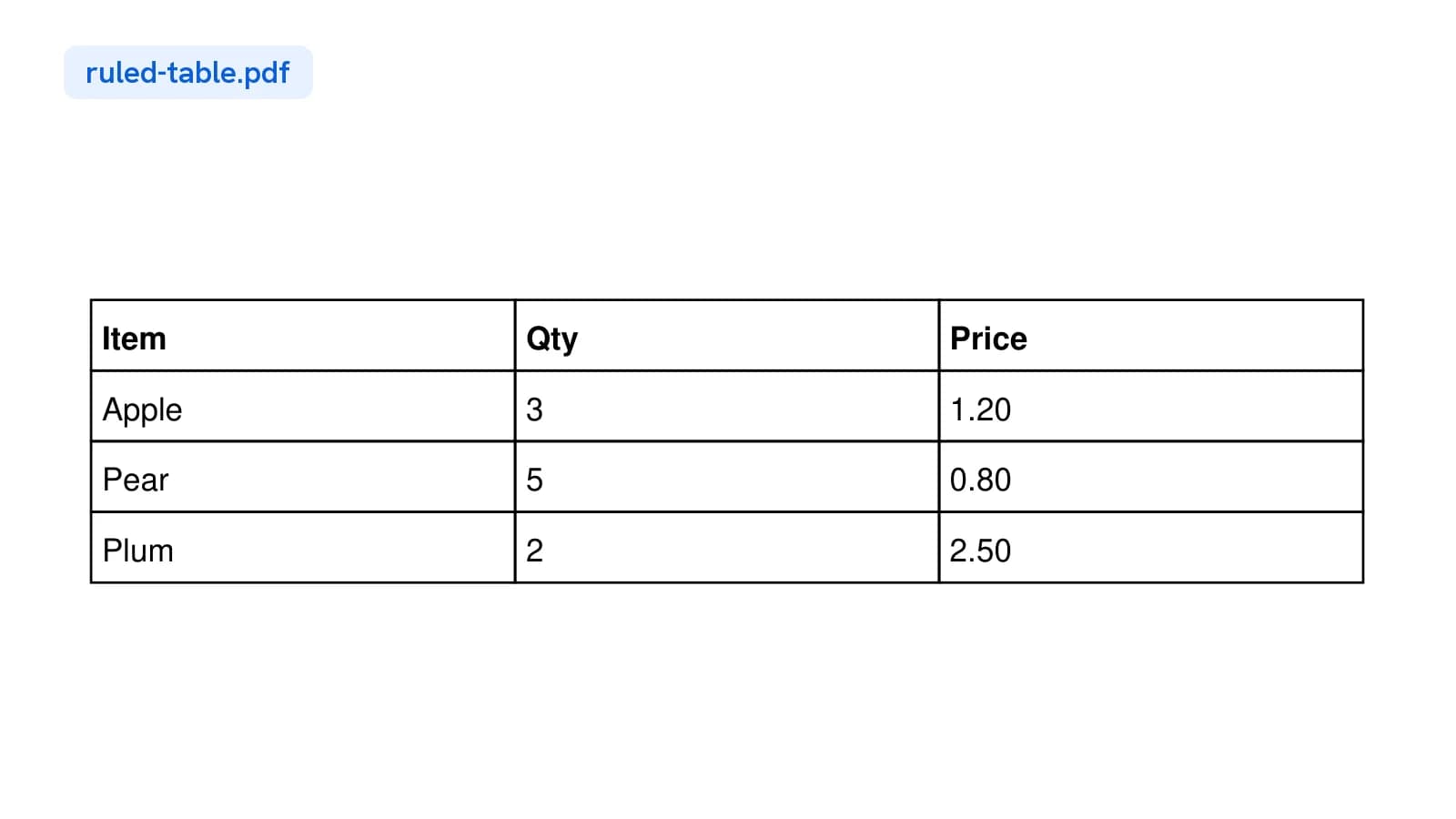
Manual Conversion returned all 4 rows and 12 cells:
| Item | Qty | Price |
|---|---|---|
| Apple | 3 | 1.2 |
| Pear | 5 | 0.8 |
| Plum | 2 | 2.5 |
Qty and Price came back as numbers, so SUM works straight away. The prices show as 1.2 rather than 1.20 because Manual stores the plain number; format the column as 0.00 to show two decimals. Convert with AI returned the same table and kept the two decimals. Download ruled-table.pdf
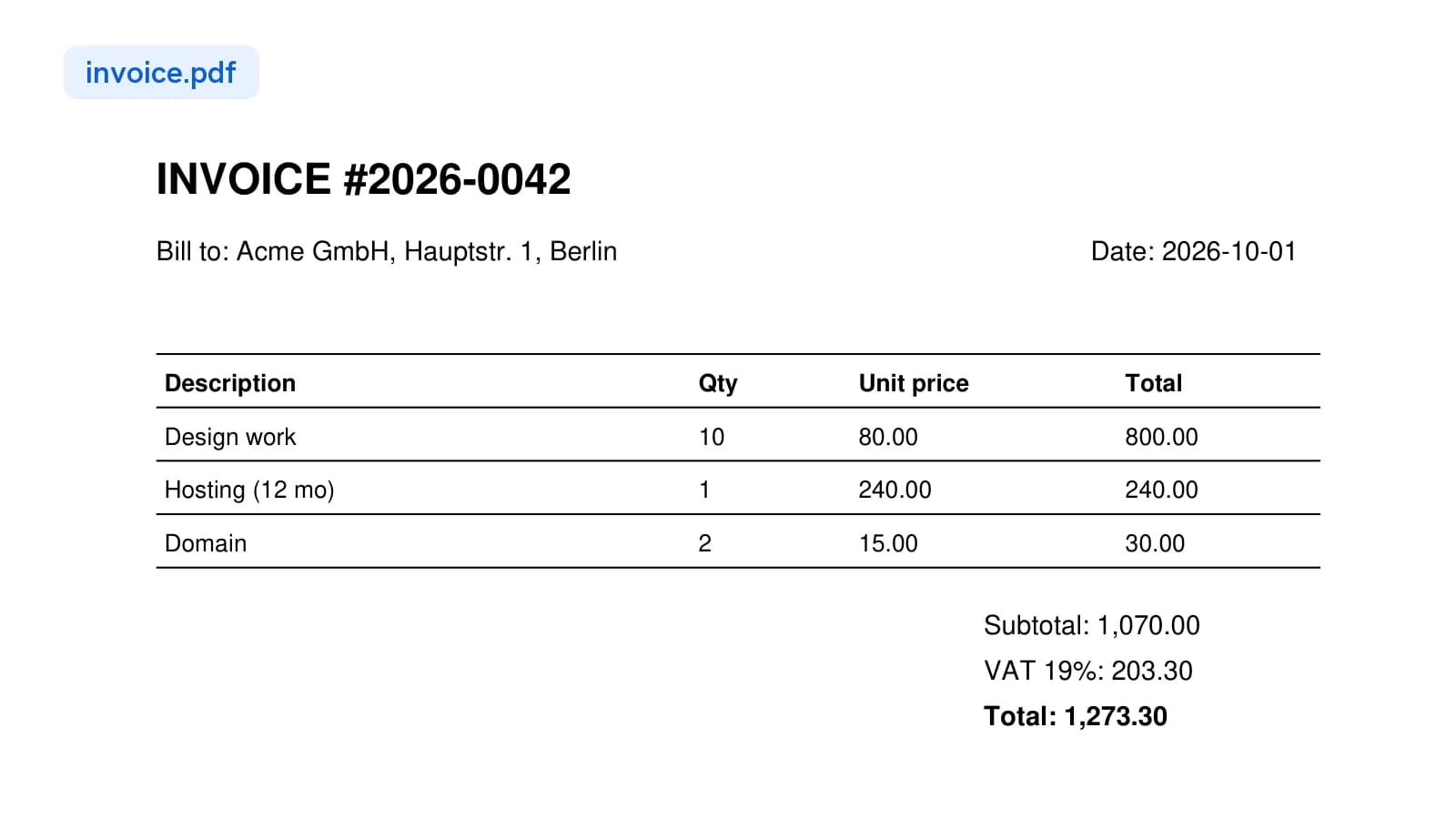
Manual Conversion returned the line items exactly, with every amount as a number:
| Description | Qty | Unit price | Total |
|---|---|---|---|
| Design work | 10 | 80 | 800 |
| Hosting (12 mo) | 1 | 240 | 240 |
| Domain | 2 | 15 | 30 |
The subtotal, VAT and total under the table aren't part of the grid, so Manual leaves them out. Convert with AI returned the same line items and added the three total lines below them, also as numbers. Download invoice.pdf
A simple table with no lines at all, a table with only horizontal rules, two tables on one page, a 14-column landscape table, a rotated page and a sheet exported from a spreadsheet with its gridlines all came back exactly with Manual Conversion. So did Chinese and accented text.
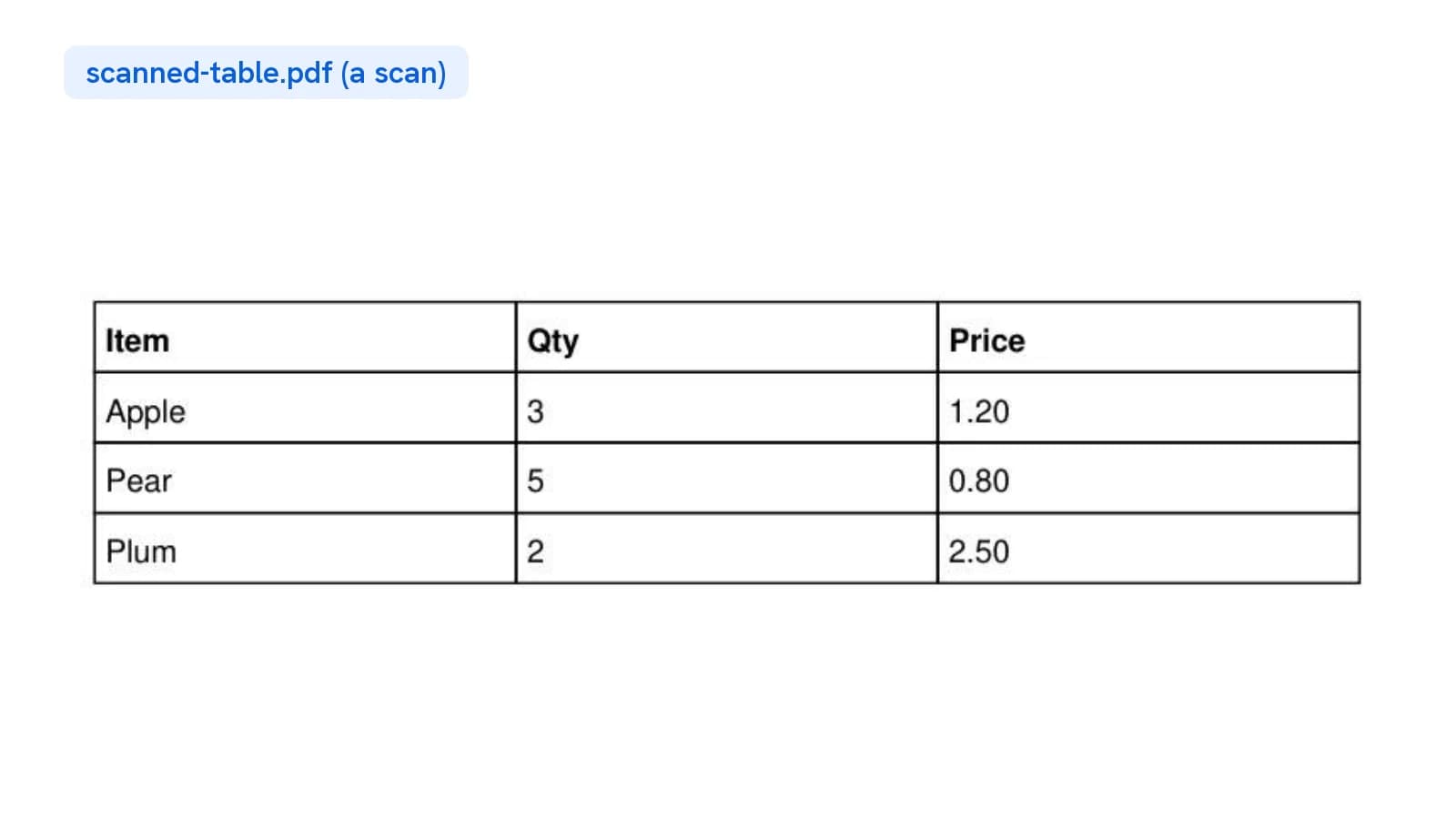
This is a picture of the ruled table above, saved as a PDF. It looks the same, but there is no text in it, only pixels. Manual Conversion stops and says so before it runs: "This PDF is a scan", with a Convert with AI button. Convert with AI read the picture and returned all 4 rows and 12 cells, with numbers as numbers.
Across our four scans, AI got three exactly right. The fourth was a scan of tricky number formats: AI stored 1,234.56, (300.00), 12.5% and $9,999,999.99 as real numbers, but read €1.234,50 as -1.234,50. AI reads scans well, not perfectly, so check a total against the PDF. Download scanned-table.pdf
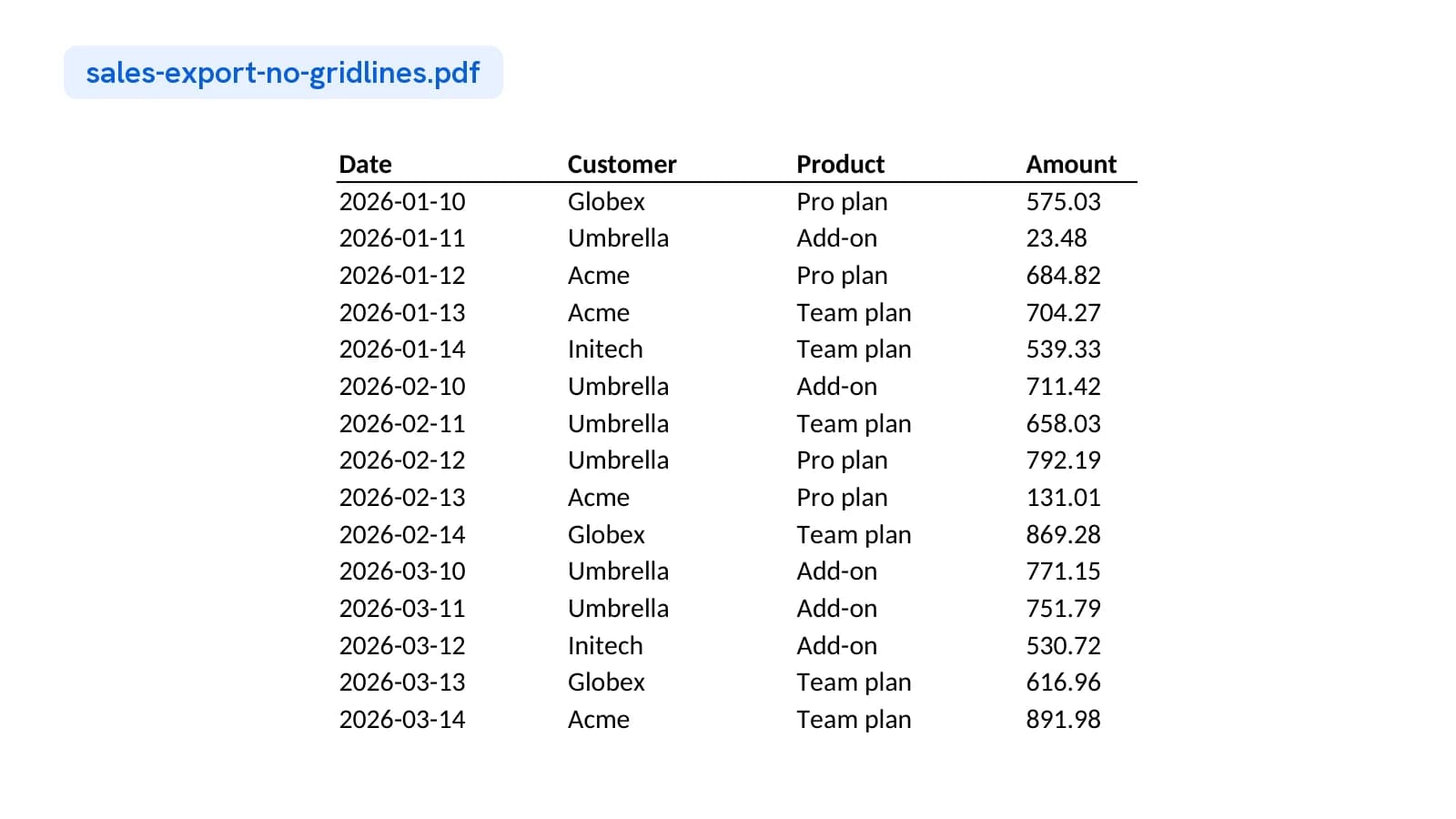
This is a common one: a sheet saved as PDF with gridlines turned off, leaving a single rule under the header. Manual Conversion found no table and said: "No tables were found in this PDF. If the table has no lines around its cells, Convert with AI usually finds it." Convert with AI returned all 16 rows and 64 cells, with the amounts as numbers. Download sales-export-no-gridlines.pdf
AI also did better on long and messy tables:
Manual still has its place on long files. On our 60-page file, Manual returned 2,150 of 2,160 rows in a few seconds, while AI on the Free plan takes up to 50 pages a file.
| Manual Conversion | Convert with AI | |
|---|---|---|
| Ruled table, invoice, exported sheet with gridlines | Exact | Exact |
| Table with no lines, or only horizontal rules | Exact | Exact |
| Sheet saved without gridlines | No table found | Exact |
| Scan | Says it's a scan | 3 of 4 exact |
| 120-row table over three pages | 112 of 121 rows | Exact |
| Real-world reports: every number in its own cell | 5 of 24 files | 11 of 24 files |
| 60 pages | 2,150 of 2,160 rows | Over the Free plan's 50 pages |
| Form fields, right-to-left text | Header or words out of order | Same |
Of the 32 files we built, Manual Conversion returned 15 exactly and Convert with AI returned 20. Almost every file Manual couldn't do, it said why.
Yes, with Convert with AI. Manual Conversion needs text in the PDF, and a scan has none, so it says the PDF is a scan and offers AI. In our test, AI returned three of four scanned tables exactly; the fourth had one misread currency value.
Manual Conversion stores the number itself, 1.2, in Excel's General format, which drops trailing zeros. The value is right and SUM works. Format the column as 0.00 to show two decimals. Convert with AI keeps the number format from the PDF.
It reads them, and reading can go wrong, mostly on scans. In our run it stored currency, percentages and bracketed negatives as real numbers, and misread one euro amount in a scan. Check a total against the PDF before you rely on the sheet.
Files transfer over encrypted connections and are permanently deleted within 15 minutes of processing unless you save them to your library.
Download the samples and convert them yourself in PDF to Excel: ruled-table.pdf, invoice.pdf, scanned-table.pdf and sales-export-no-gridlines.pdf. Start with Manual Conversion, and switch to Convert with AI when it tells you to.
Try it yourself
Copy-paste dumps everything into one column. Here's how to get real rows and columns.
Review a whole document set against the same questions, then verify every important finding at its source.
Describe the job, approve the steps and check the result. A practical guide to FynePDF Smart Edit and the document checks behind it.