


How to Find What Changed Between Two Versions of a Document
A contract came back edited with no track changes. Here's how to find every difference.

7 October 2026 · By Biraj Paudel, Founder of FynePDF
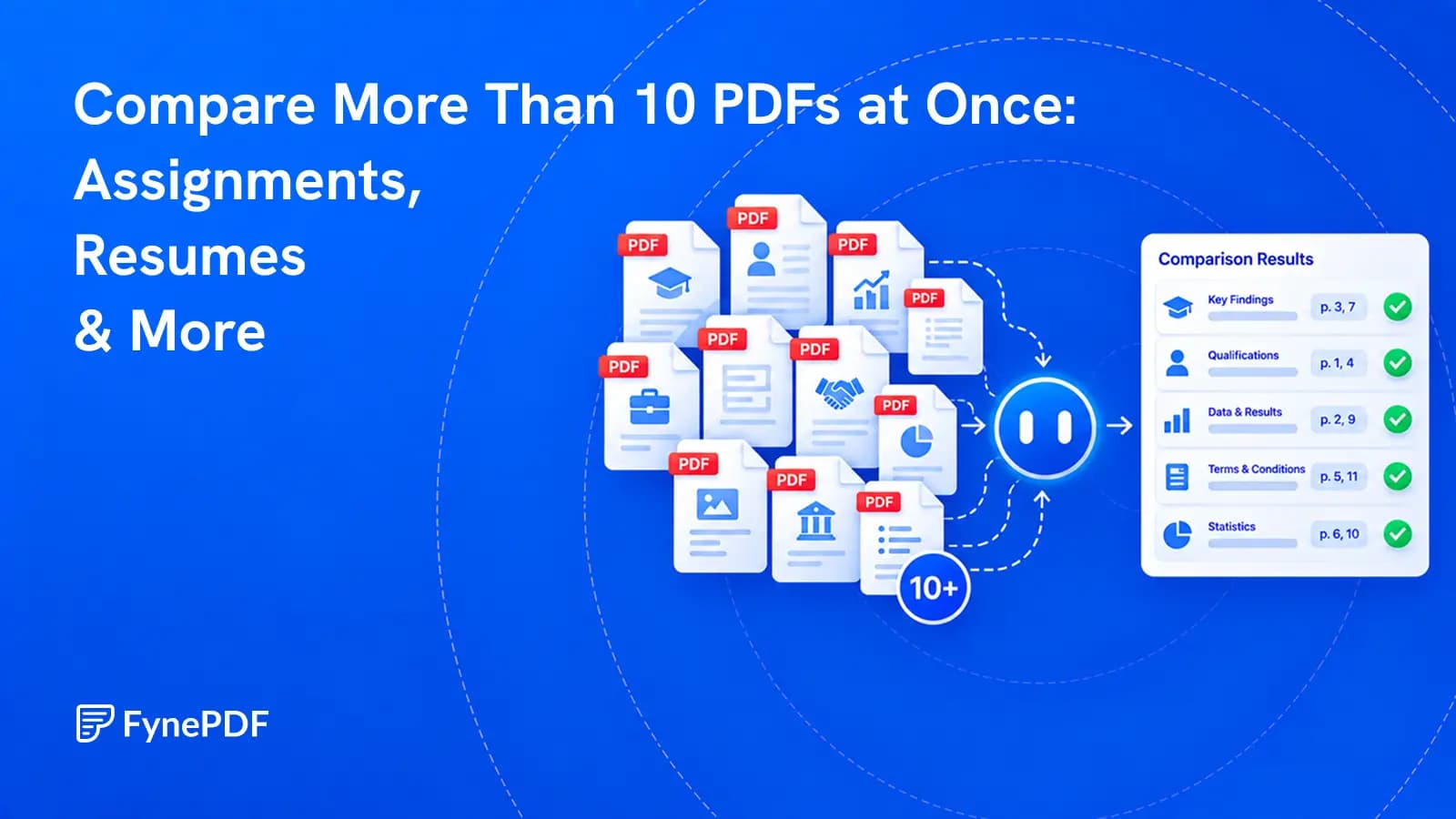
Review a whole document set against the same questions, then verify every important finding at its source.
Most PDF comparison tools begin with two boxes: the old file on one side and the new file on the other. That works when you need to find edits between two versions.
Real review work is often much larger. A teacher may have a class of assignments. An HR team may have a folder of resumes. A buyer may need to compare every vendor response to the same request. An analyst may need one answer across months of reports.
FynePDF's Compare PDF is built for that broader job. You can compare more than ten PDFs in one workflow, ask the same question across the set, and receive a structured answer with filename and page citations.
The important part is not uploading the largest possible pile. It is applying the same clear criteria to every document and checking the evidence before making a decision.
Use one comparison workspace rather than opening each PDF in a separate tab or AI chat.
This is a semantic comparison. It compares what the documents say, even when their layouts differ. It is not limited to finding character-by-character changes between two nearly identical files.
A visual diff and a multi-document analysis both use the word “compare,” but they answer different questions.
| Comparison method | Main question | Best suited to | Typical result |
|---|---|---|---|
| Two-file visual diff | What was inserted, deleted, moved, or reformatted? | An old and new version of the same document | Marked changes or a side-by-side redline |
| Multi-PDF semantic comparison | How does every document address the same criteria? | Assignments, resumes, proposals, reports, policies, or research papers | A cited matrix, grouped findings, gaps, and follow-up answers |
Conventional tools from Adobe Acrobat and iLovePDF focus on comparing two files or two versions. That is useful for revision tracking. It becomes repetitive when the task involves a folder rather than a pair.
If your only question is “What exact wording changed between draft A and draft B?”, use a visual redline when one is available. If your question is “Which of these proposals covers weekend support, and where does each one say so?”, use a multi-document comparison.
AI comparison becomes unreliable when the instruction is only “compare these.” The system has to guess which differences matter, and its idea of importance may not match yours.
Define the comparison before uploading. A useful instruction contains four parts:
For example:
Compare every vendor proposal against these criteria: total price, implementation timeline, support hours, data location, termination terms, and stated exclusions. Return one row per proposal. Cite the filename and page for every value. Write “not stated” when the document does not provide the answer. Do not treat missing information as a promise.
That prompt is stronger than “Which proposal is best?” It lets the AI organize evidence while leaving the final business judgment with the person responsible.
A teacher can use multi-PDF comparison to reduce the mechanical part of reviewing assignments. The aim should be consistent evidence gathering, not automatic grading.
Useful tasks include:
Start with the actual rubric. Convert each criterion into a question that can be answered from the submission. If “critical analysis” is worth 20 points, explain what evidence counts as critical analysis. Do not ask the AI to invent a definition.
A useful assignment-review prompt is:
Review every assignment against the attached rubric. For each submission, list the evidence found for criteria 1 through 5, cite the page, and mark missing evidence as “not found.” Do not assign a final grade. Do not infer plagiarism or AI use from writing style. End with common class-wide issues that I should teach again.
This approach helps a teacher locate evidence more consistently. It does not replace reading the work. A model can misunderstand an argument, miss a diagram, or reward a polished sentence that does not answer the question.
Student assignments may be education records. Teachers should check whether the service is approved by their school or district before uploading identifiable work. The U.S. Department of Education's student privacy guidance advises teachers to check with school or district administration before using an online application that collects personally identifiable information from education records.
Where policy permits, use student IDs or neutral filenames instead of names. Remove addresses, personal email accounts, health information, accommodation details, and unrelated comments. Apply the same process to every submission.
Two assignments may share wording because students used the same source, template, problem statement, or classroom vocabulary. A comparison can show matching passages and citations. It cannot establish intent by itself.
Use any similarity finding as a reason to inspect the work and source material. Do not label a student dishonest from an automated comparison alone.
Resume review is another task where a folder of PDFs is more useful than a two-file diff. The safest approach is to extract job-related evidence, not ask the AI to choose a person.
Begin with the approved job description. Turn required and preferred qualifications into a consistent review matrix, such as:
Then ask for documented evidence and page citations. Do not ask the system to infer personality, culture fit, age, health, family status, ethnicity, religion, disability, or other protected or irrelevant characteristics.
A responsible prompt is:
Compare these resumes only against the attached job criteria. Create one row per candidate file. Quote brief evidence for each requirement and cite the page. Use “not stated” when evidence is absent. Do not infer protected characteristics, personality, or future performance. Do not rank or reject candidates. Flag items that need human verification.
The output can make a review easier to audit because every entry points back to the resume. A recruiter or hiring manager should still review the original applications, consider reasonable accommodations, and make the decision.
The U.S. Equal Employment Opportunity Commission notes that anti-discrimination laws apply when AI or other technologies are used in recruiting, screening, and hiring. Its guidance on AI in employment decisions also warns that apparently neutral systems can create unlawful effects. Rules differ by location, so organizations should involve their legal, HR, and privacy teams before using AI in a hiring workflow.
Vendor proposals rarely follow the same order. One places pricing at the front, another hides exclusions in an appendix, and a third describes support across several sections.
Multi-PDF comparison can normalize those documents around the decision criteria:
Separate facts from interpretation. “The proposal states 24/7 support on page 18” is evidence. “This vendor provides the best support” is a judgment that depends on coverage, response times, channels, exclusions, price, and your needs.
Ask the comparison to preserve both:
Build a matrix using the nine published evaluation criteria. Cite every factual entry. Put assumptions in a separate column. Identify contradictions within each proposal. Do not calculate a final score until I provide the approved weighting.
After the broad comparison, a procurement team can open a finalist in FynePDF's Proposal Analyzer for a deeper single-document review.
A folder of contracts can answer questions that a pairwise redline cannot:
Use exact criteria and require citations from every contract. Treat “not found” differently from “the contract says no.” A missing clause, an unreadable scan, and an explicit prohibition are not the same result.
AI can help locate and organize language. It cannot decide legal effect or replace a lawyer's review. Definitions, amendments, incorporated documents, and local law can change the meaning of an apparently simple clause.
Monthly reports and policy sets often repeat a common structure. That makes them good candidates for batch comparison.
An analyst might ask:
Do not compare numbers before checking their units, dates, populations, and methods. A revenue figure in thousands should not sit beside a figure in full currency units without a clear conversion. A percentage can describe growth, share, completion, or error rate.
Ask the AI to return the original value, unit, period, filename, and page. Perform calculations separately when the decision depends on numerical accuracy.
A multi-paper review can help organize a literature set without pretending to automate scholarship.
Useful comparison fields include:
Require page citations and preserve the authors' wording around uncertainty. “No significant difference was detected” does not mean the treatments are equal. A small study and a large study should not be counted as two equal votes.
Use the comparison to identify papers that deserve closer reading, not to replace reading the methods and results.
| Role | Strong comparison prompt |
|---|---|
| Teacher | Compare every assignment against rubric criteria A through E. Cite evidence by filename and page, mark missing evidence as “not found,” and do not assign final grades. |
| HR reviewer | Compare every resume only against the approved job requirements. Cite documented evidence, avoid protected traits and unsupported inferences, and do not rank or reject candidates. |
| Procurement team | Build one row per proposal using the published evaluation criteria. Separate stated facts, assumptions, exclusions, and missing answers, with page citations. |
| Contract reviewer | Find the specified clauses across all agreements. Quote the relevant wording, cite the file and page, and distinguish absent language from an explicit “no.” |
| Analyst | Extract the requested metric with its period, unit, definition, filename, and page. Flag restatements and inconsistent definitions before comparing values. |
| Researcher | Compare study design, sample, outcome, results, and author-stated limitations. Preserve uncertainty and cite the supporting page for every field. |
These prompts share one design choice: the AI gathers evidence in the same shape for every document. That consistency is what makes a large comparison useful.
A comparison can only use what the files make available.
Names such as document-final.pdf, document-final-2.pdf, and scan003.pdf make citations hard to follow. Use neutral, descriptive names appropriate to the task.
For assignments, a student ID may be safer than a full name. For resumes, follow the organization's approved naming and privacy process. For reports, include the period or department. Do not place sensitive information in filenames unless it is necessary and permitted.
FynePDF can process scanned documents through OCR, but poor images still create poor evidence. Rotate sideways pages, check the page order, and make sure names, dates, decimal points, and table values are legible.
If a cited passage looks wrong, open the original page. Do not correct the AI answer from memory.
Do not include identity documents, cover emails, internal notes, medical information, or other material that the comparison does not need. Data minimization makes the analysis clearer and reduces privacy risk.
More files do not automatically create a better comparison. A folder containing resumes, invoices, meeting notes, and contracts does not share one useful question.
Group files by purpose. Compare applications for one role together. Compare submissions for one assignment together. Compare proposals responding to one RFP together. Stable criteria matter more than the size of the batch.
Go to Compare PDF and add the PDFs that belong to the review.
Ask for one row per file and one column per criterion. Require filename and page citations. Tell the system how to mark missing, unclear, or conflicting information.
Open citations behind unusually high values, missing requirements, serious risks, and close decisions. These findings have the greatest chance of changing the outcome.
Useful follow-ups include:
One precise question is easier to verify than another full comparison.
After comparing the set, open the documents that need closer attention. Students can use Assignment Review to check their own work before submission. Procurement teams can use Proposal Analyzer for a focused proposal review. Contract reviewers can use the relevant legal agent or Chat with PDF for page-specific questions.
Keep the comparison criteria, output, cited pages, corrections, and final human decision together according to your organization's policy. A later reviewer should be able to see what the AI found, what a person verified, and why the decision was made.
Best can mean cheapest, safest, fastest, most complete, most experienced, or easiest to implement. Define the decision before asking for a winner.
“Not stated” is not the same as “no.” It may require a follow-up question rather than a penalty.
Check currencies, units, time periods, definitions, and scope before placing values in one column.
A clean matrix can contain a wrong extraction. Verify the facts that affect grades, jobs, contracts, money, safety, or legal rights.
Polished writing and attractive formatting can make one document sound stronger than its evidence. Ask for concrete facts tied to the same criteria.
NIST's AI Risk Management Framework emphasizes defined human roles, accountability, transparency, privacy, fairness, and ongoing evaluation. AI should organize evidence and reveal where to look. A qualified person should own consequential decisions.
Compare PDF is designed to find meaningful similarities, differences, missing information, and risks across a set of documents. It works across different layouts because it focuses on content rather than pixel position.
It can help you:
It should not be used to:
This boundary makes the tool more useful. It tells you where AI saves time and where professional judgment still matters.
Yes. FynePDF Compare PDF supports comparisons involving more than ten PDFs, so a review does not have to stop at a pair or a small handful. Keep the set focused on one purpose and apply the same criteria to every file.
Yes, when the school's policy permits the service and the files can be handled under its student-privacy rules. Use a clear rubric, neutral identifiers where appropriate, and human review. The tool can locate evidence and common gaps, but the teacher should decide feedback and grades.
Yes, but the comparison should be limited to approved, job-related criteria. Ask for evidence rather than personality judgments or automatic rankings. A human reviewer remains responsible for fair consideration, accommodations, privacy, and the final decision.
It can surface repeated wording or unusually similar passages for a person to inspect. Similarity alone does not prove plagiarism. Shared sources, templates, quotations, and assignment language can produce legitimate matches.
Yes. The comparison focuses on meaning rather than requiring the files to place information in the same position. This is useful for resumes and vendor proposals, where every author uses a different structure.
Yes. OCR makes scanned text available for comparison. Image quality, handwriting, tables, and unusual layouts can still cause recognition errors, so verify cited pages.
No. It produces a content-based, cited analysis rather than a marked-up page showing every insertion and deletion. Use a visual diff when exact formatting or character-level changes are the main concern.
No. Upload only the documents needed for one clear task. A focused set produces a more useful comparison and reduces unnecessary data exposure.
The value of multi-PDF comparison is not that AI makes the final decision. It is that every file can be asked the same question, in the same format, with evidence attached.
A teacher can find where students need more instruction. An HR team can locate job-related evidence consistently. A buyer can compare promises and exclusions across proposals. A researcher can map methods and limitations across papers. A contract team can find one clause across an agreement set.
Use Compare PDF to bring the documents together. Define the criteria before the analysis, require filename and page citations, and let a responsible person make the decision after checking the source.
Try it yourself
A contract came back edited with no track changes. Here's how to find every difference.
Describe the job, approve the steps and check the result. A practical guide to FynePDF Smart Edit and the document checks behind it.
AI can copy a bank's design in seconds. The safest check is not how the PDF looks, but whether its claims match a trusted source.