
How to Export a Spreadsheet to PDF Without Cutting Off Columns
The last three columns landed on their own page. Here's how to set it up before exporting.
 By Biraj Paudel, Founder of FynePDF4 min read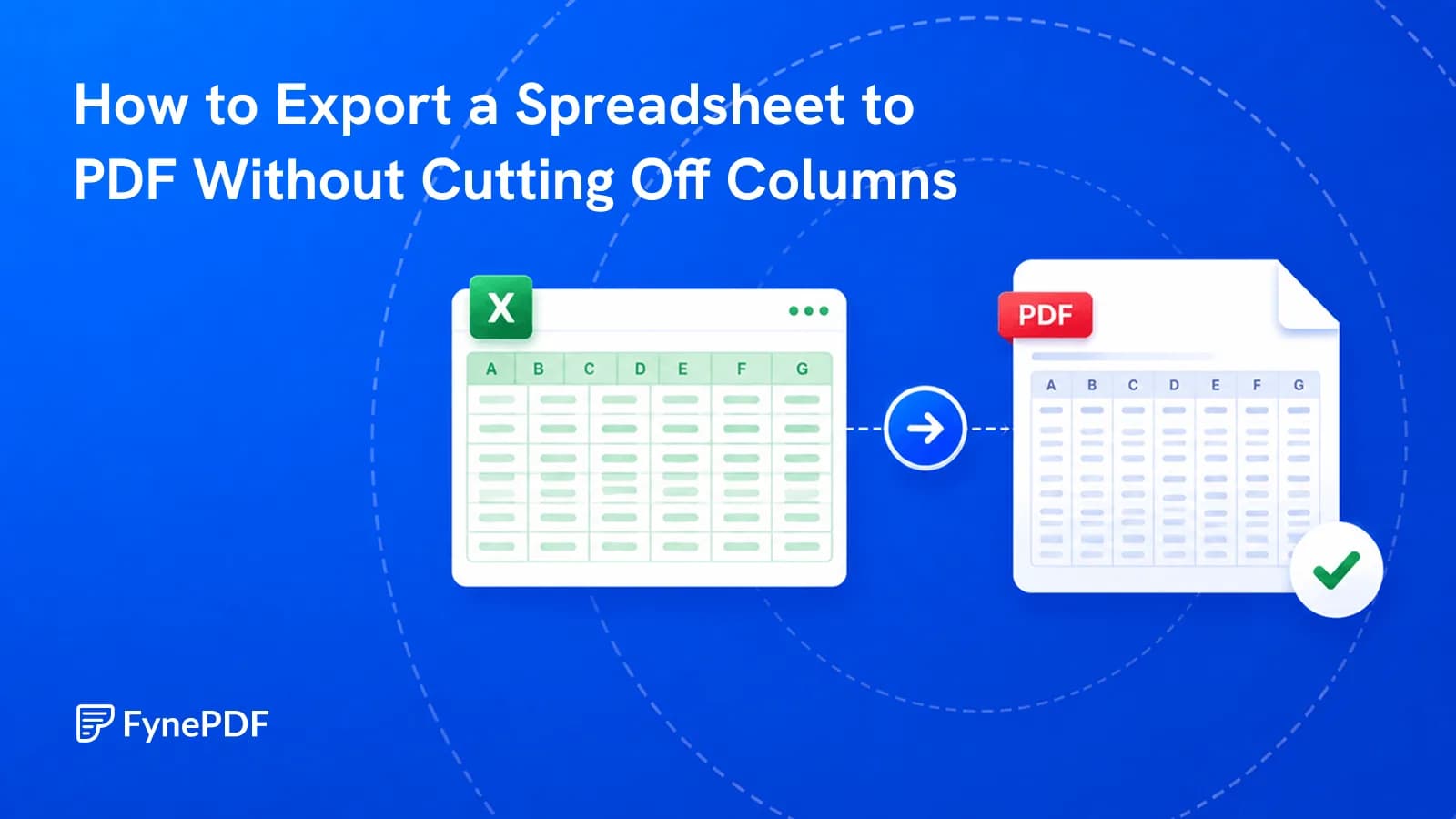
Spreadsheets lose columns when exported to PDF because a worksheet has no fixed page width and a PDF does. Excel decides where to break, and by default it breaks at the paper edge. Pushing remaining columns onto separate pages. Setting the print area and scaling before you export solves it.
Almost every complaint about spreadsheet exports traces back to settings that were never configured in the source file.
Why does Excel break the page there?
Because a worksheet is theoretically infinite. It has no page concept at all until something forces one, and printing is that something. Excel then fits as many columns as the paper allows and moves the rest to a new page, in an order that makes no visual sense. Columns A–G on page 1, H–J on page 2, then rows continuing the same way.
The result is a document nobody can read. A 12-column financial summary becomes six pages that have to be laid side by side to reconstruct one table.
What to set before exporting
Configure these in the spreadsheet first. Doing it here is far easier than fixing the PDF afterwards:
- Print area. Select the range that should appear, rather than letting Excel guess where your data ends
- Orientation. Landscape for anything wider than about eight columns
- Scaling, "Fit all columns on one page" is the setting that solves the core problem
- Repeat header rows, so multi-page tables carry column names on every page
- Gridlines. Off by default in print; usually worth turning on for data tables
- Page breaks. Check Page Break Preview to see exactly where the splits fall
Fit-to-width scaling is the one that matters most. It shrinks the content until every column fits the page width, which is nearly always preferable to splitting.
How do I convert a spreadsheet to PDF?
- Set the print area and scaling in your spreadsheet.
- Open the Excel to PDF tool.
- Upload the file.
- Convert, then check that no columns are missing.
Free accounts handle files up to 250MB. That fourth step takes ten seconds and catches the problem this article exists to prevent.
What about multiple sheets?
A workbook with a dozen tabs will convert them all, which is often not what you want. Internal calculation sheets and lookup tables ending up in a document sent to a client.
Either delete the sheets you don't need from a copy of the workbook first, or extract the relevant pages from the finished PDF with Extract Pages. The first approach is cleaner; the second is faster if you've already converted.
How do I keep it readable?
Scaling has a floor. Fitting 30 columns onto one landscape page produces text nobody can read on screen or in print.
| Column count | Approach |
|---|---|
| Up to 8 | Portrait, fit to width |
| 8–15 | Landscape, fit to width |
| 15–25 | Landscape, consider splitting the table |
| Over 25 | Split into logical tables, or send the spreadsheet |
At a certain width, a PDF is the wrong format. If the recipient needs to work with 40 columns of data, they need the spreadsheet, a PDF that requires zooming to 400% helps nobody.
When should I send the spreadsheet instead?
PDF when the numbers are final and you want them read exactly as presented. Board reports, invoices, published summaries, anything attached to a contract. The fixed layout is the point, and it prevents accidental edits.
Spreadsheet when the recipient needs to sort, filter, recalculate, or extend the data. Converting to PDF and forcing them to reconstruct it with PDF to Excel wastes their time and introduces transcription risk.
Sending both is common practice for financial reporting: the PDF is the record, the spreadsheet is the working file.
Common questions
Will my formulas be visible?
No. The PDF shows calculated values, not the formulas behind them. That's usually desirable. It prevents recipients seeing the internal logic of a model, but it means errors are no longer traceable, so verify before converting.
Can I export just one sheet?
Set the print area on that sheet and remove the others from a copy of the workbook before uploading. Alternatively convert everything and extract the pages you need afterwards.
Why are my charts cut in half?
Charts positioned across a page break get split like any other content. Move them fully within a page boundary in Page Break Preview before exporting.
Is my financial data kept?
Files transfer over encrypted connections and are permanently deleted within 15 minutes of processing unless you save them to your library.
Export your spreadsheet
Set fit-to-width scaling first, then upload to Excel to PDF. Check the column count in the output before you send it anywhere.
 OCR PDF
 Word to PDF
 PDF to EPUB