fynepdf logo

Annotate PDF

Highlight, draw and write notes on a PDF to review, study or give feedback.

  • Search and highlight every match
  • No watermark on downloads

or drop your file here

File upload

Complete Markup Toolkit

Draw with pen or marker, add text, images, shapes and your saved signature.

Annotate on Any Device

Works in any browser on Mac, Windows, Linux, iPhone and Android. No install.

Mark Up Plans and Drawings

Circle changes and add notes on floor plans, drawings and design proofs.

Three Steps to a Fully Annotated PDF

Annotate a PDF in three steps, no software to install, no account needed.

1

Upload your PDF

Drag and drop or select your document up to 600MB free, 2.5GB on Pro and 5GB on Premium.

2

Choose your output

Highlight, underline or strike through text, draw freehand, and drop in text, images or shapes.

3

Download the Result

Your annotated PDF is ready to download immediately. The annotation work happens locally in your browser.

Review, Edit, and Mark Up Your Files.

Static documents are hard to collaborate on. Here is how adding visual annotations, text, and shapes streamlines your review process.

Grade Student Assignments

Use ticks, crosses, and freehand drawing tools to mark up digital papers. Type detailed feedback notes directly into the margins.

Proofread Text & Articles

Visually highlight typos, draw lines through incorrect sentences, and type the corrected text right above the errors for easy revisions.

Find Every Mention

Search the document for a word or phrase and highlight every instance at once, across contracts, reports or textbooks.

Fill Non-Interactive Forms

Easily complete static, unfillable forms by typing text over the blank lines and adding custom tick shapes directly into checkboxes.

Team Collaboration

Highlight important clauses in contracts and type visible sticky notes to ask colleagues questions or request approvals.

Active Study & Reading

Highlight key textbook passages and type your own summary notes directly onto the page to create powerful study materials.

How PDF annotation works

FynePDF adds your markup as a layer over the page rather than changing the document underneath. Your original text, images and layout stay exactly as they were, and every highlight, note and drawing can be moved or removed before you download.

Markup on top

Highlights, drawings, text and shapes sit above your page. Nothing in the original document is altered.

Search and highlight

Type a word into the search bar to find and highlight every instance, instead of scrolling for them by hand.

Make it permanent

Annotations stay editable in the downloaded file. Use Flatten PDF to merge them permanently into the page.
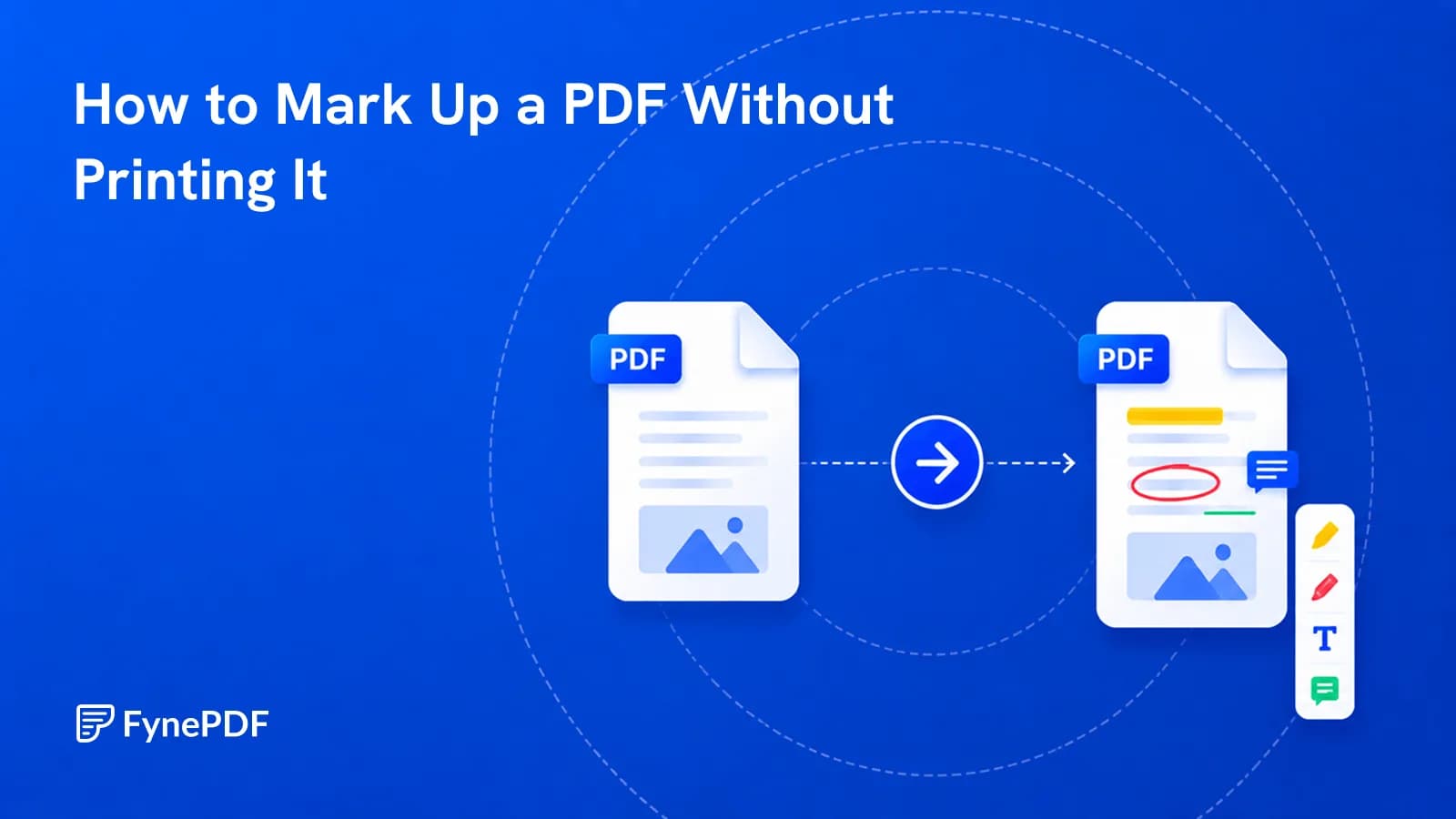
Before and after annotating

Frequently Asked Questions

What annotation tools are available? Can I highlight and add comments?

FynePDF's annotation toolkit covers text markup highlight, underline, strikethrough and squiggly underline plus freehand drawing with a pen or marker in your choice of color and stroke width, text boxes, images, shapes including circles, squares and triangles, and your saved signature. Everything you add can be moved, resized or deleted before you download.

Will the annotations be saved in the PDF? Can others see them?

Yes. Annotations are saved into the PDF in the standard format, so they're visible in any reader Adobe, Preview, Chrome or anything else. They stay editable in the downloaded file, which means a recipient could move or remove them. To make markup permanent, run the file through Flatten PDF, which merges annotations into the page itself.

Is the Annotate tool free to use online?

Yes, FynePDF's Annotate tool is free with no sign-up required. Free accounts annotate files up to 600MB with 10 tasks per day. Professional at $7/month raises this to 2.5GB, and Premium to 5GB.

Is it safe to use Annotate on FynePDF? Are my files secure?

Yes. Annotate PDF runs locally in your browser, so the document does not need to be uploaded for annotation processing. Your PDF stays on your device unless you explicitly use a separate cloud or Library feature. Processing is automated, FynePDF staff do not manually read your document, and files are never used to train AI models.

Can I use the Annotate tool on Mac, Windows, or mobile?

Yes. FynePDF's annotation tool works directly from your browser, so it works on Windows, Mac, Linux, iOS and Android with no installation. Drawing and highlighting with a finger or stylus on a tablet works particularly well.

Can I search a PDF and highlight specific words?

Yes. Type a word or phrase into the search bar and FynePDF finds every instance in the document, so you can highlight them without scrolling through page by page. This is the fastest way to mark every mention of a clause in a contract, a term across a textbook, or a name through a long report. Searching requires real text in the file for scanned documents, run OCR PDF first.

Can I add my signature while annotating?

Yes. If you've saved a signature to your account, it's available in the annotation toolbar alongside the markup tools, so you can sign and mark up a document in one pass. For signing with initials, dates and checkmarks, use Sign PDF.

What's the difference between annotating and editing a PDF?

Annotating adds a layer on top of the page highlights, notes, drawings and shapes sit above your document without changing anything underneath. Editing changes the original content itself, such as rewriting existing text or replacing an image. Use Annotate to review, mark up or comment on a document; use editing when you need to alter what the document actually says.

How do I stop someone removing my annotations?

Annotations stay editable by default, which is useful while you're working but means a recipient can move or delete them. Run the finished file through Flatten PDF to merge your markup permanently into the page. Flattened annotations can't be selected or removed in a normal PDF reader.